Actions on Workflow
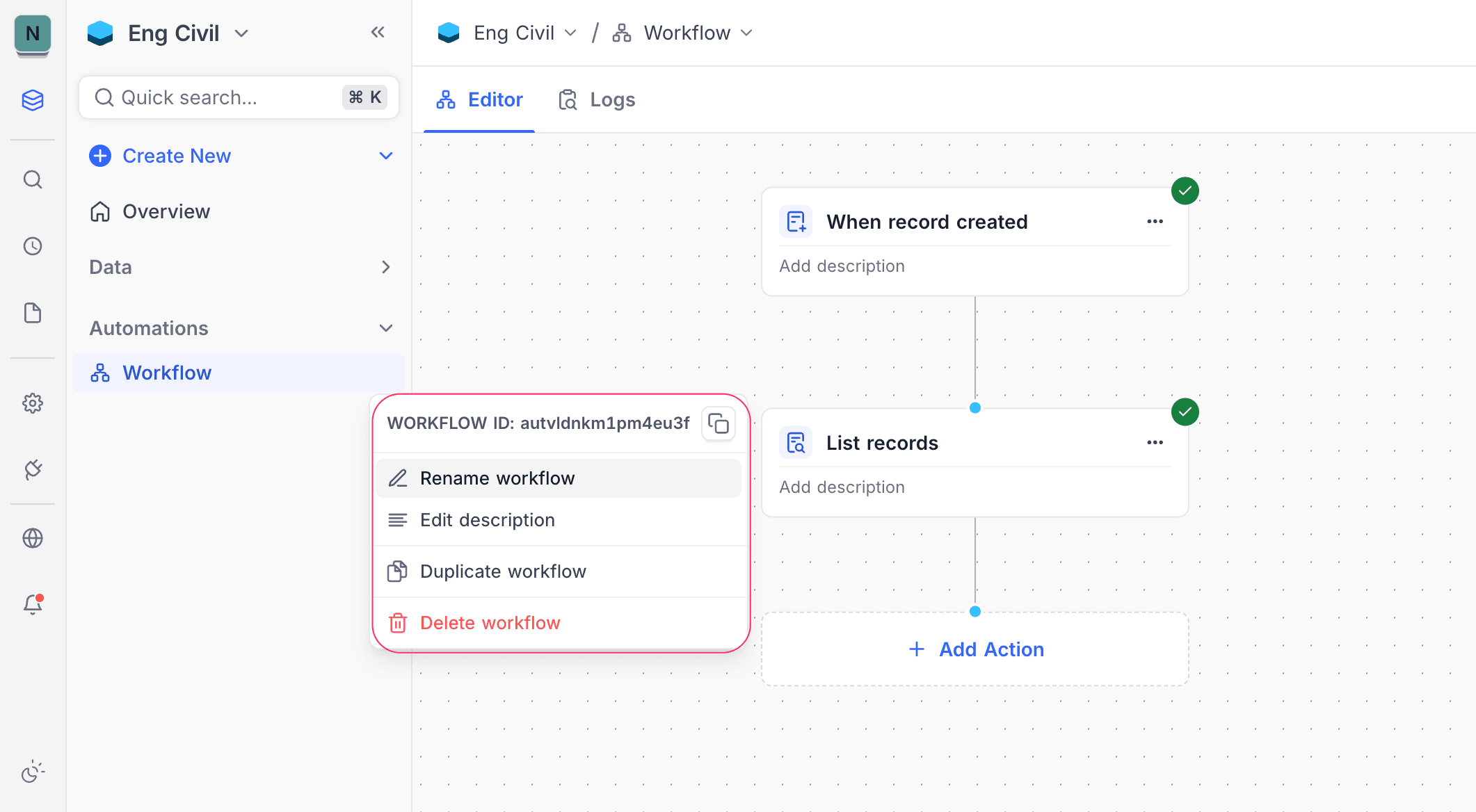
Use the workflow context menu to manage your workflows. You can rename, duplicate, delete, enable and disable workflows.
Copy a prompt, paste it into NocoAI in any base, and replace the words in [brackets] with your own.
- Which workflows does this base have, and what does each one do?
- Change the [workflow name] workflow so it also [emails the owner]
- Publish the [workflow name] workflow
- Explain step by step what the [workflow name] workflow does
Rename workflow
To rename a workflow:
- In the Workflows list, click the
...actions button next to the workflow name. - Select
Rename workflow. - Type a new name and confirm.
Duplicate workflow
To duplicate a workflow:
- In the Workflows list, click the
...actions button next to the workflow name. - Select
Duplicate workflow.
NocoDB makes a copy of the workflow. The name of the copy starts with the prefix Copy of.
Delete workflow
To delete a workflow:
- In the Workflows list, click the
...actions button next to the workflow name. - Select
Delete workflow. - Confirm the deletion.
Enable or disable workflow
An enabled workflow runs its triggers and actions as configured. To enable or disable a workflow, use the toggle button in the workflow toolbar.
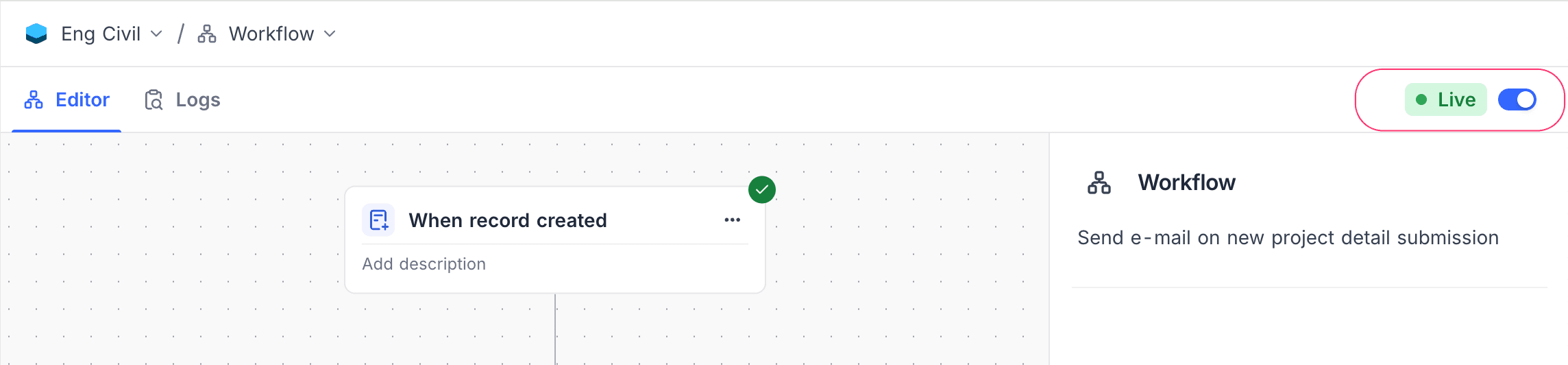
A disabled workflow does not run, also when you run it manually. NocoDB can turn a workflow off for you, for example when it cannot read the schedule. Then the toolbar shows Turned off and the reason. Refer to Handling failures.
Pending workflow executions
When you publish changes to a workflow, some runs are possibly not complete yet. For example, they are paused, or they wait at a Delay or Wait Until node. Then NocoDB asks what to do with those runs.
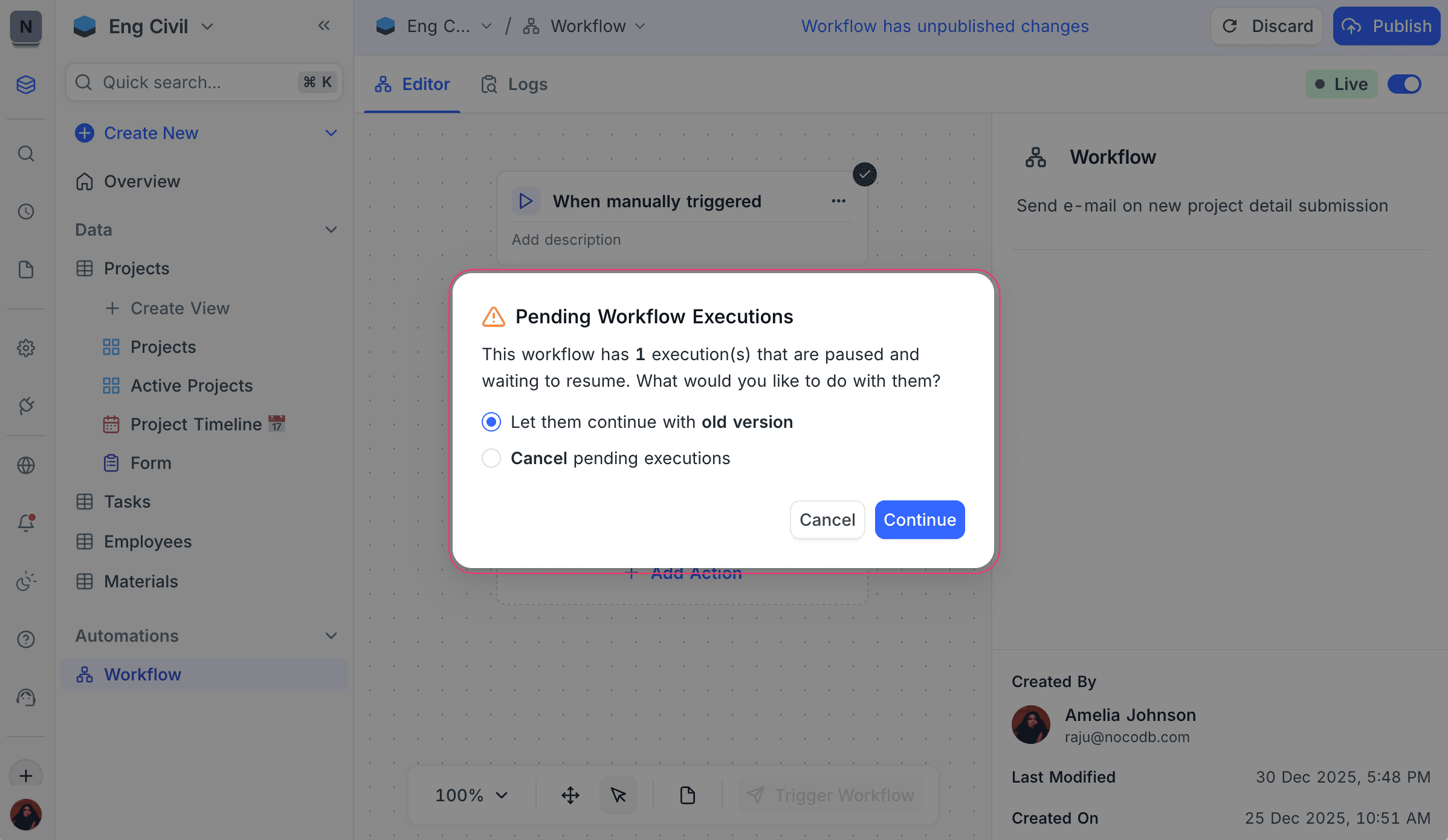
Available options
| Option | Unfinished runs | New runs |
|---|---|---|
| Let them finish using the version they started with | Continue with the version they started with. | Use the changes that you publish. The changes apply only to new runs. |
| Stop them | Are stopped and do not continue. | Use the updated workflow. |
You can also stop, pause, resume or retry individual runs from the execution logs.
Workflow notes
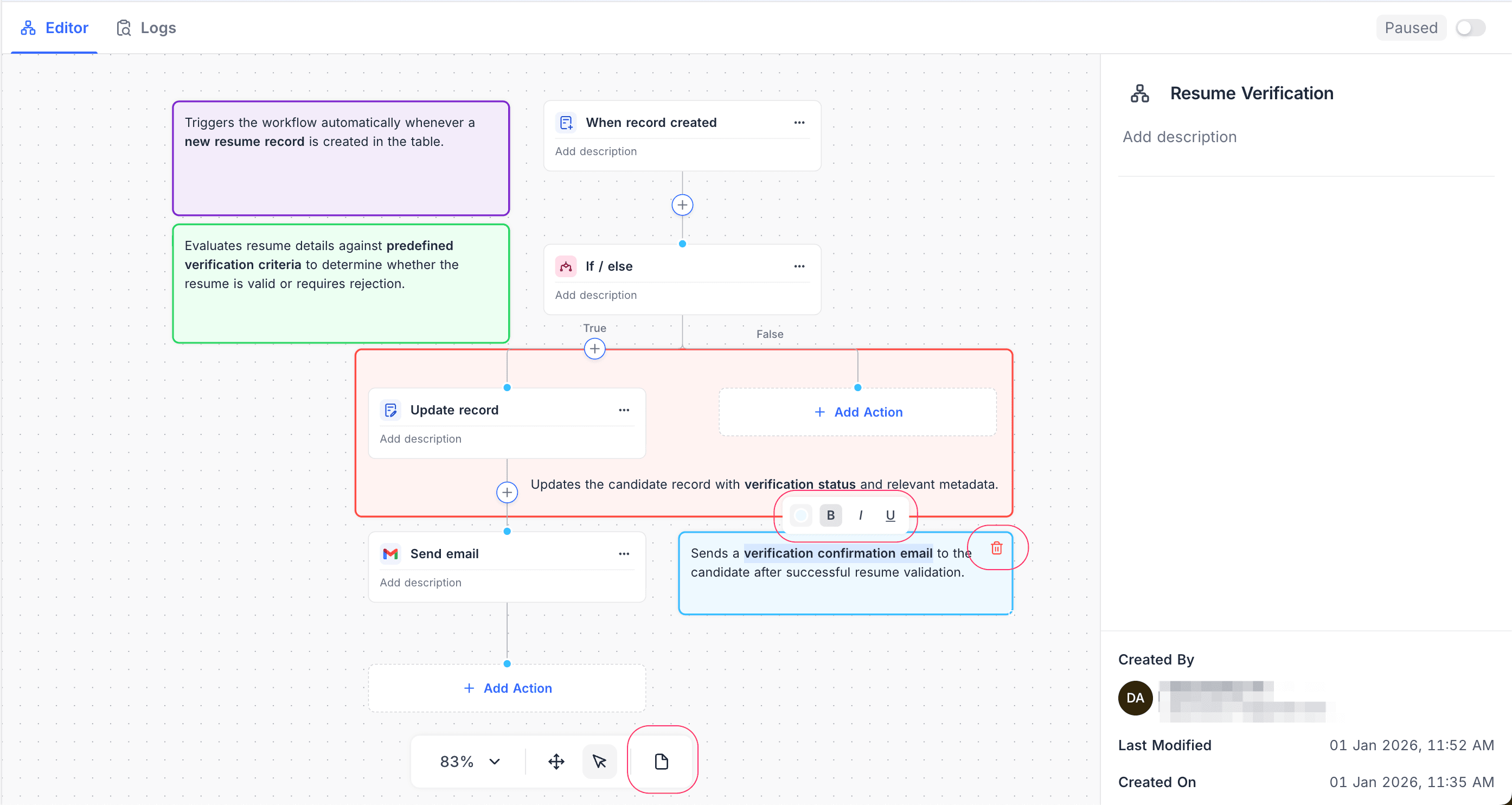
Use workflow notes to document and explain the purpose of a workflow or of its steps. Notes are especially useful for complex workflows, team collaboration and future maintenance.
Notes show as colored annotation cards on the workflow canvas. They have no effect on execution.
Add a note
To add a note:
- On the floating toolbar of the workflow canvas, click the 📄 button.
- Double-click the new note and type your text.
You can use notes to describe:
- What a trigger or action does
- Why a condition exists
- Business logic or verification criteria
Edit or delete a note
- To edit a note, click it.
- To remove a note from the workflow, click the 🗑️ button.
Formatting support
Notes support basic text formatting, such as bold, italic and underline. This makes important information easier to find.
Availability
- To use workflows, you must have the Creator role or a higher role in the base.
Last updated on