Subscription & billing
Manage your NocoDB subscription, change plans, and access billing information easily.
NocoDB offers flexible pricing and simple subscription management through the billing dashboard.
Billing dashboard
Access the billing dashboard by clicking Admin in the workspace sidebar and opening the Billing sub-tab.
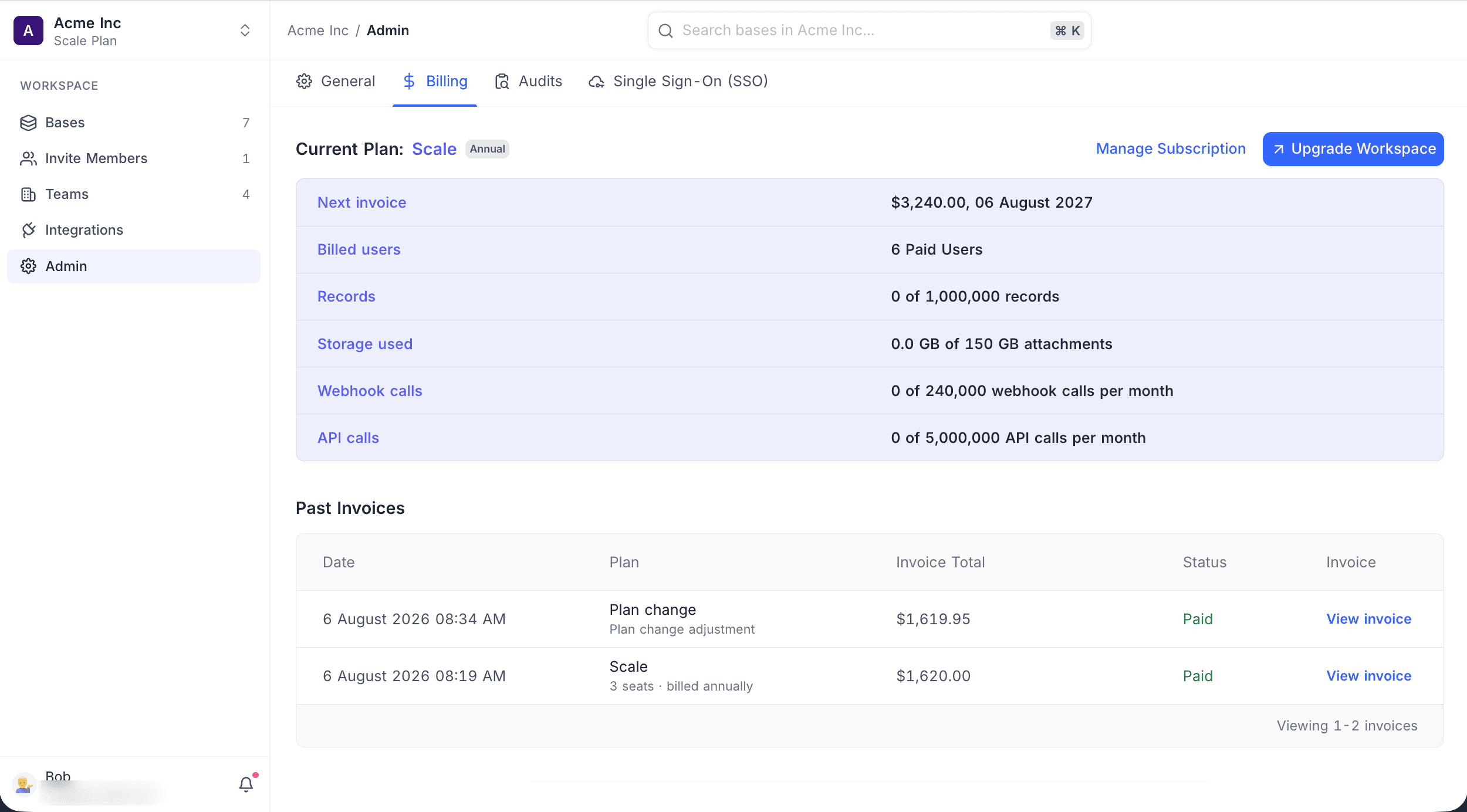
The dashboard shows:
- Current Plan and renewal date
- Next invoice amount and date
- Billed users count
- Records — usage against plan limit
- Storage used — attachments storage against plan limit
- Webhook calls — usage against monthly limit
- API calls — usage against monthly limit
- Past Invoices — date, plan, total, status, and download link
Change your plan
- Click Admin in the workspace sidebar and open the Billing sub-tab.
- Click Upgrade Workspace.
- Select the desired plan and follow the prompts to confirm.
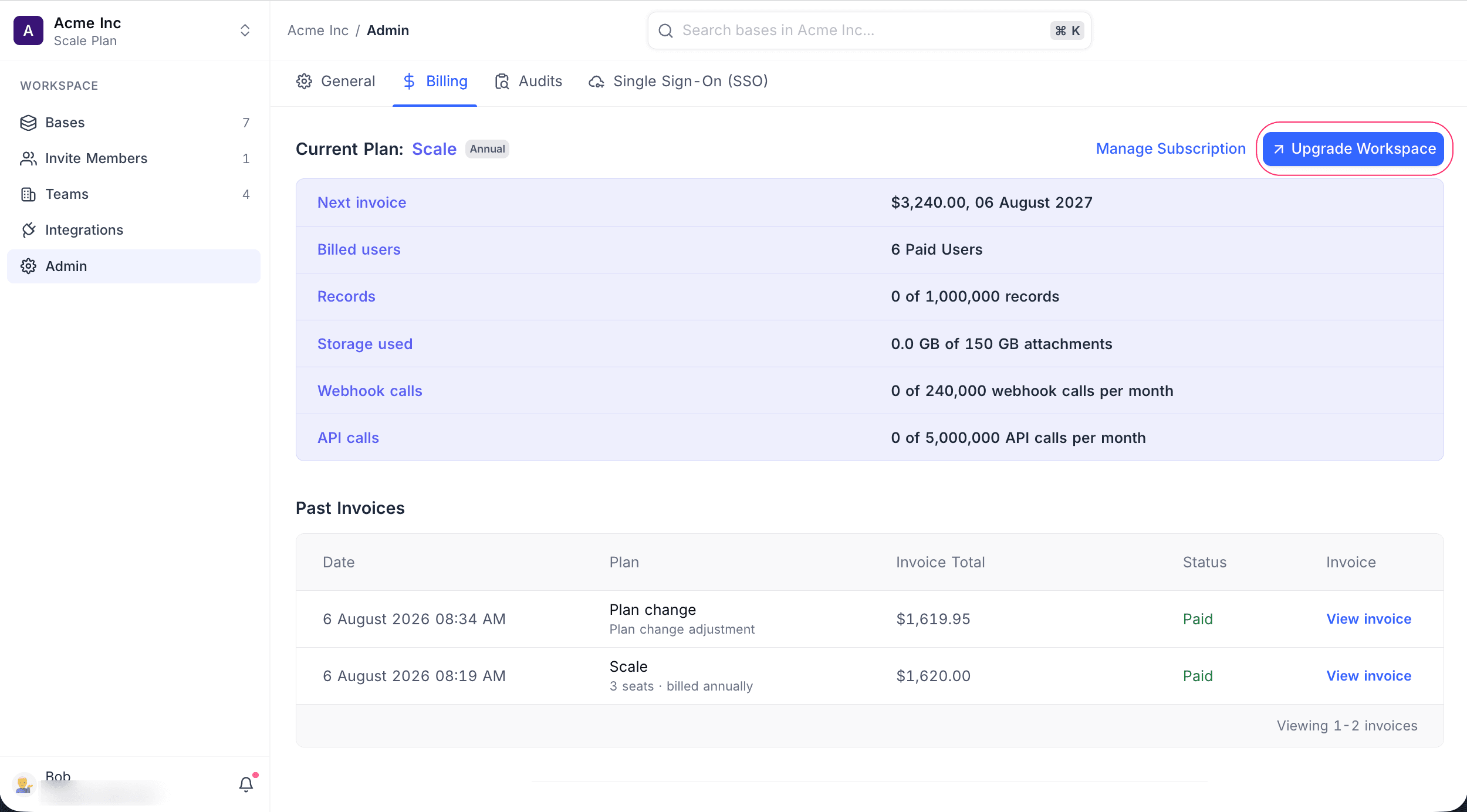
Upgrades take effect immediately. Downgrades apply at the end of your billing cycle.
Manage subscription
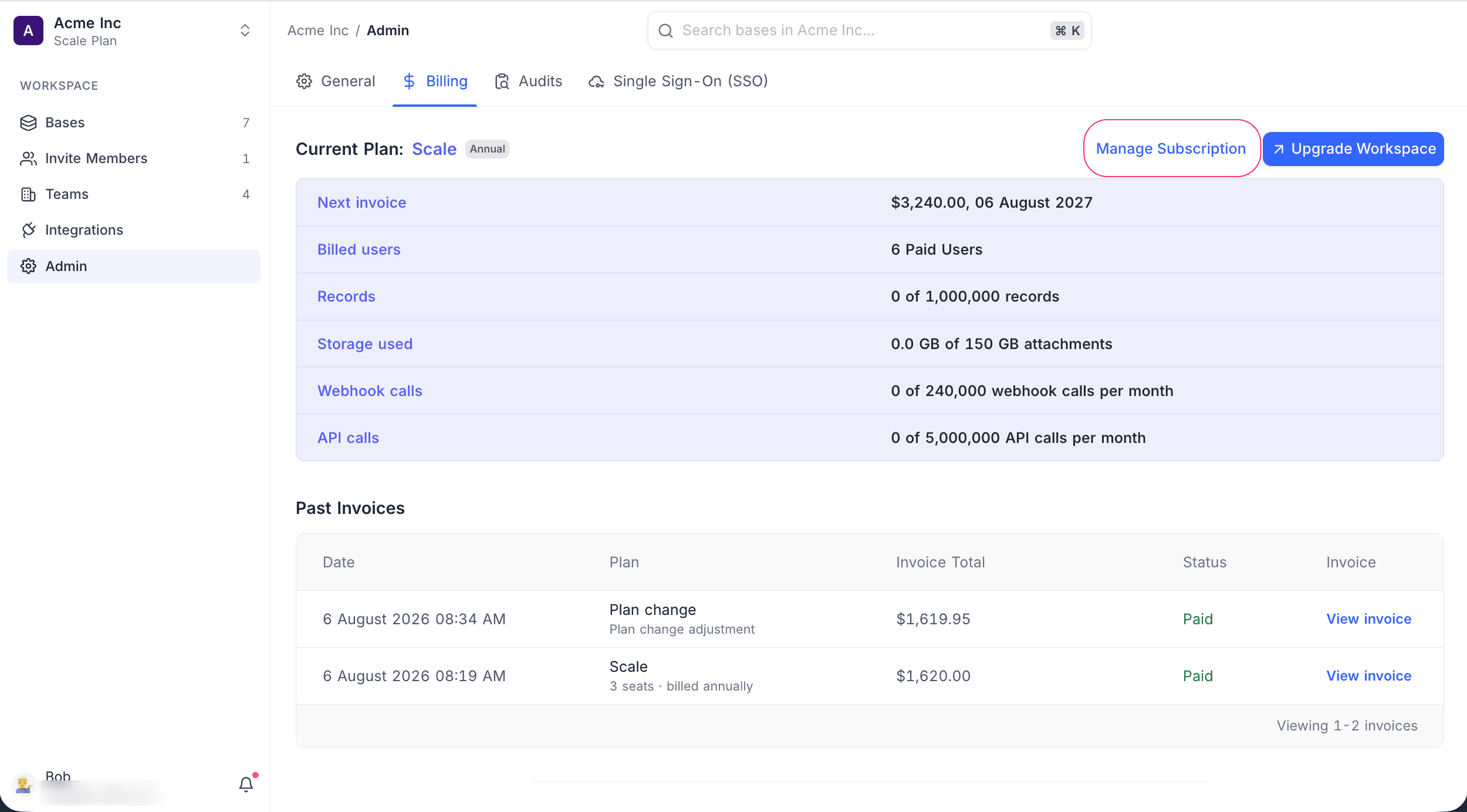
Click Manage Subscription on the billing dashboard to open the Stripe billing portal. From there you can:
- Update your card details
- View upcoming payments
- Add or change your payment method
- Cancel your subscription
Download invoices
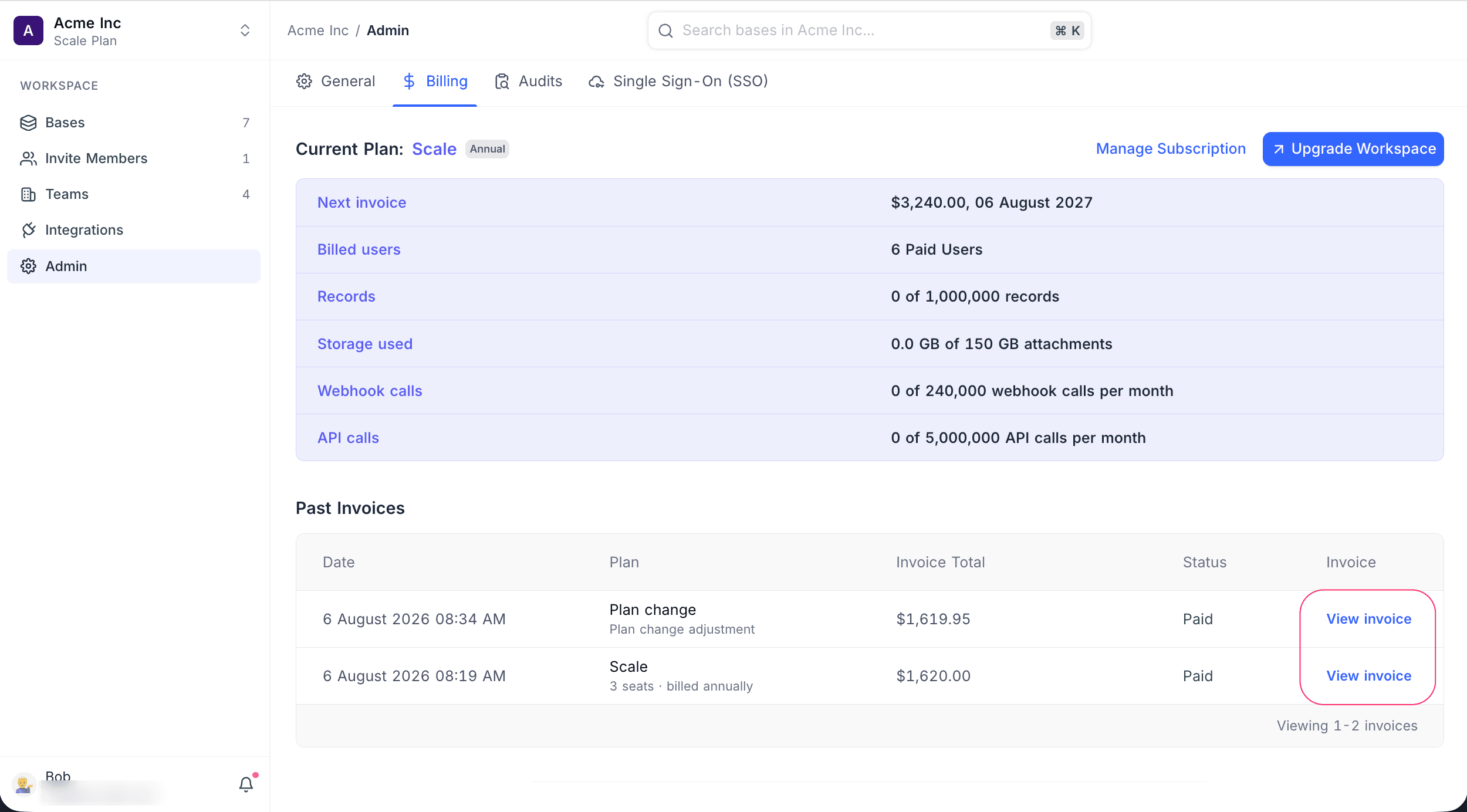
- Scroll to the Past Invoices section on the billing dashboard.
- Click View invoice next to the invoice you want.
- A PDF copy will open in a new tab.
Cancel plan
- Click Admin in the workspace sidebar and open the Billing sub-tab.
- Click Manage Subscription to open the Stripe billing portal.
- Click Cancel subscription and confirm when prompted.
Your workspace remains on the current plan until the end of the billing period. After cancellation, it switches to the Free plan automatically.
Alternatively, you can downgrade directly:
- From the Billing sub-tab, click Upgrade Workspace.
- Select Choose Free.
- Click Proceed and follow the prompts.
For assistance, contact the Support team.