White Label
White labeling replaces the NocoDB branding with your own across the entire self-hosted instance. This includes the app shell, the login screen, public forms, the browser tab, transactional emails and the in-app support contact. It is for resellers, OEM partners and enterprises that show NocoDB to their users under a different brand.
White labeling is instance-wide, and the Super Admin configures it. The deployment has one configuration, and it applies to all workspaces and users. Changes apply live, without a restart.
Open the White Label settings
-
In the NocoDB UI, go to Admin Panel > White Label.
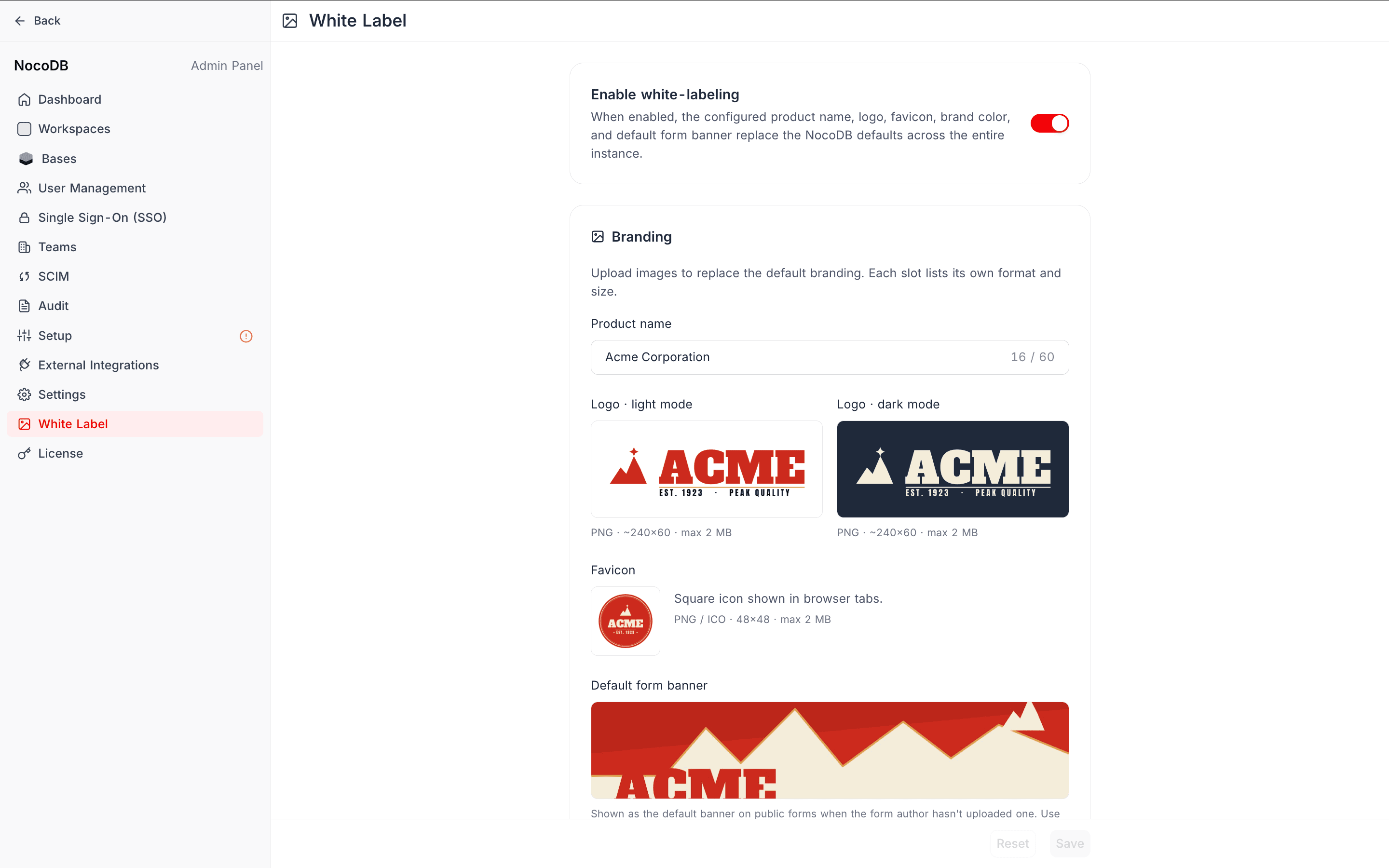
The page has four sections: a master Enable toggle, Branding, Email branding and Support.
Enable white labeling
The master toggle at the top controls if NocoDB applies the configuration.
- You can fill in and save all fields while the toggle is off. NocoDB applies nothing yet, so you can prepare your branding before it goes live.
- To apply the configuration across the instance, turn the toggle on and save.
Branding
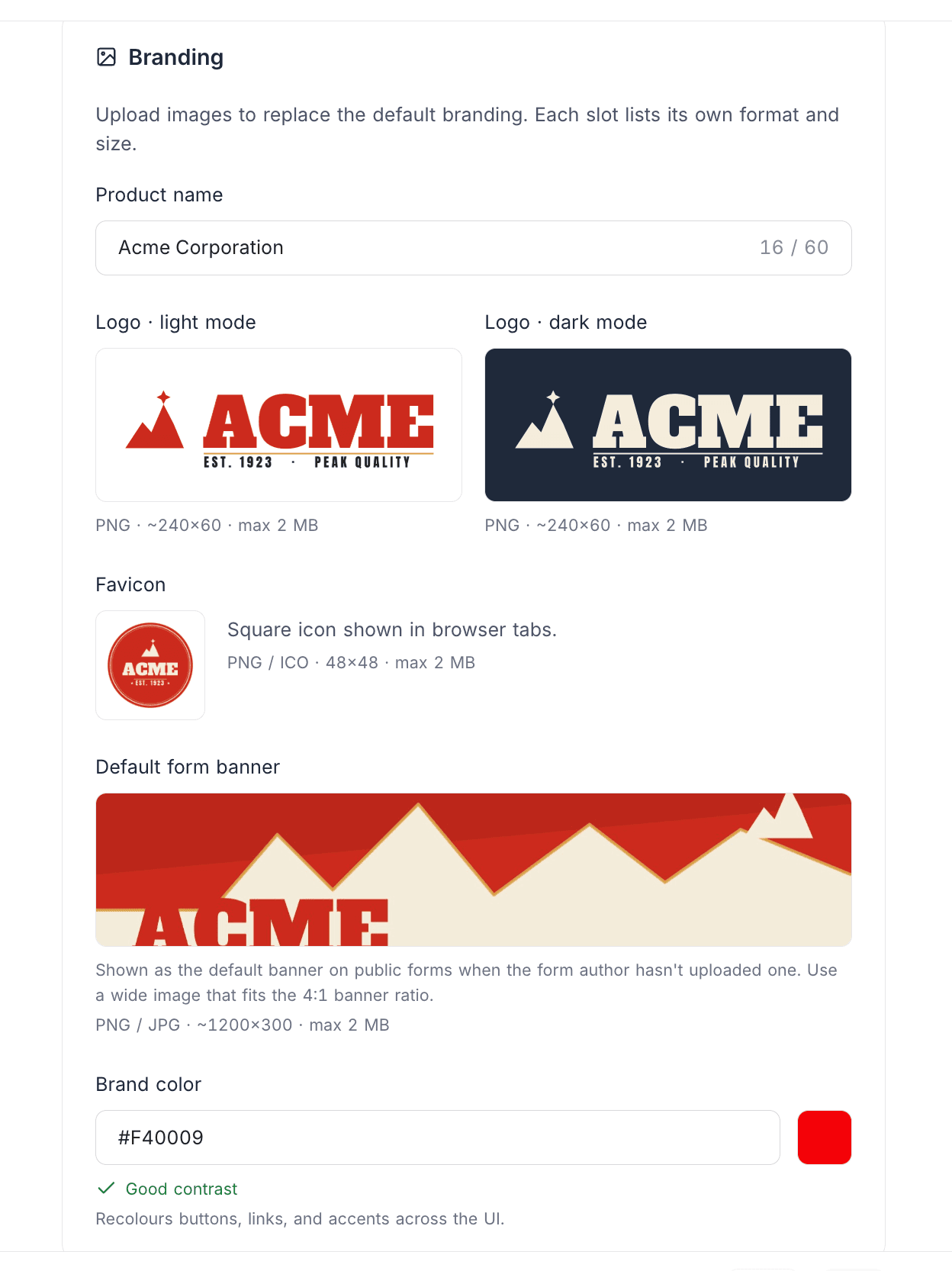
Product name
The product name replaces the word "NocoDB" in these places: browser tab titles, the application sidebar, page titles, the login screen and public form titles. The maximum is 60 characters. To keep "NocoDB", leave the field empty.
Logo
Upload different logos for light and dark backgrounds:
- Logo · light mode: shows on light surfaces.
- Logo · dark mode: shows on dark surfaces. If this field is empty, NocoDB uses the light logo (and the opposite). Thus one uploaded logo works in the two modes.
The logo shows in the application header and sidebar, the login screen, the workspace menu and public / shared views.
Format: PNG · about 240×60 · max 2 MB.
Favicon
The favicon is the square icon in browser tabs. NocoDB also uses it for the iOS "Add to Home Screen" icon and as the square brand mark in the public form footer.
Format: PNG or ICO · 48×48 · max 2 MB.
Default form banner
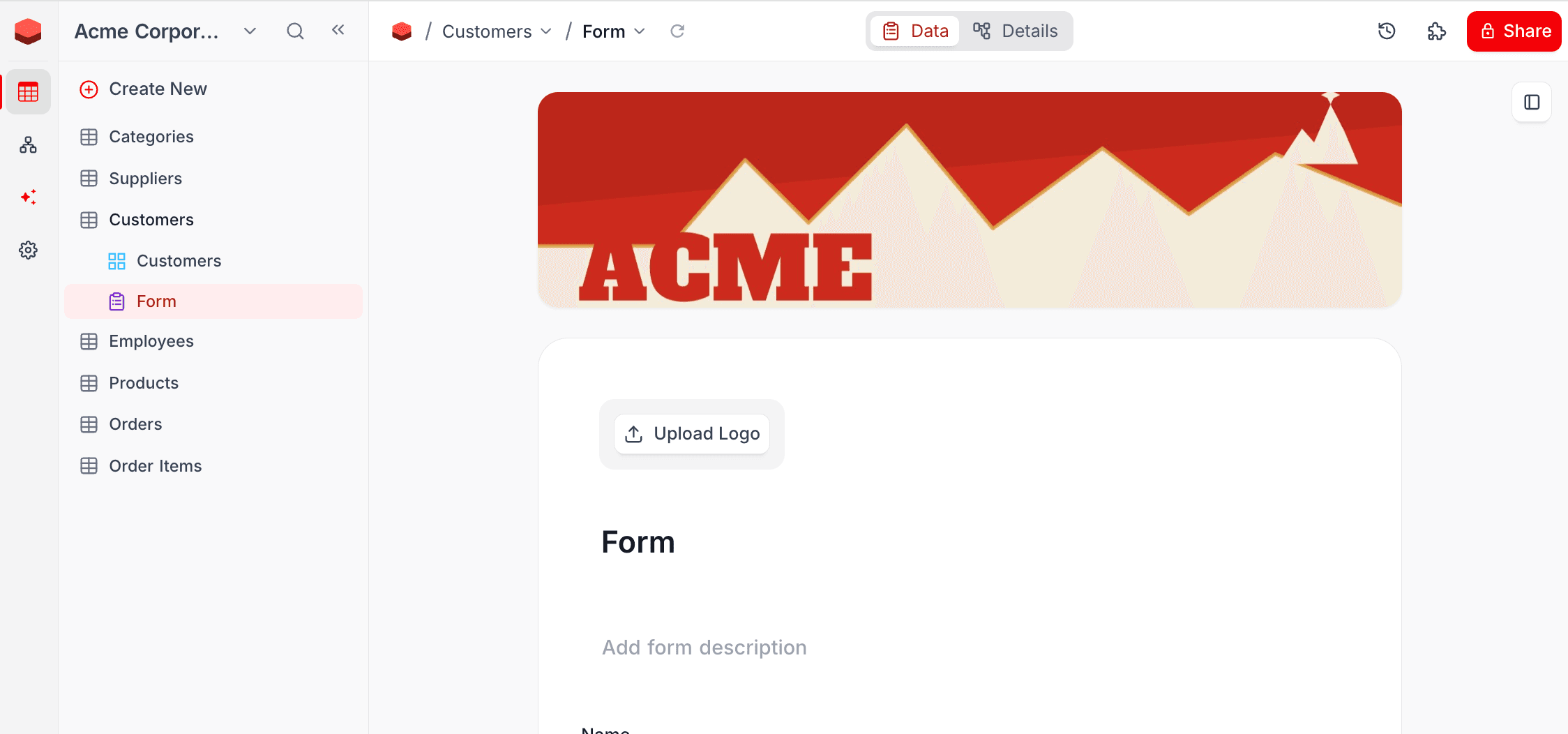
Public forms show this banner when the form author did not upload a banner. Use a wide image that fits the 4:1 banner ratio. The uploader has a cropper to help you.
Format: PNG or JPG · about 1200×300 · max 2 MB.
Brand color
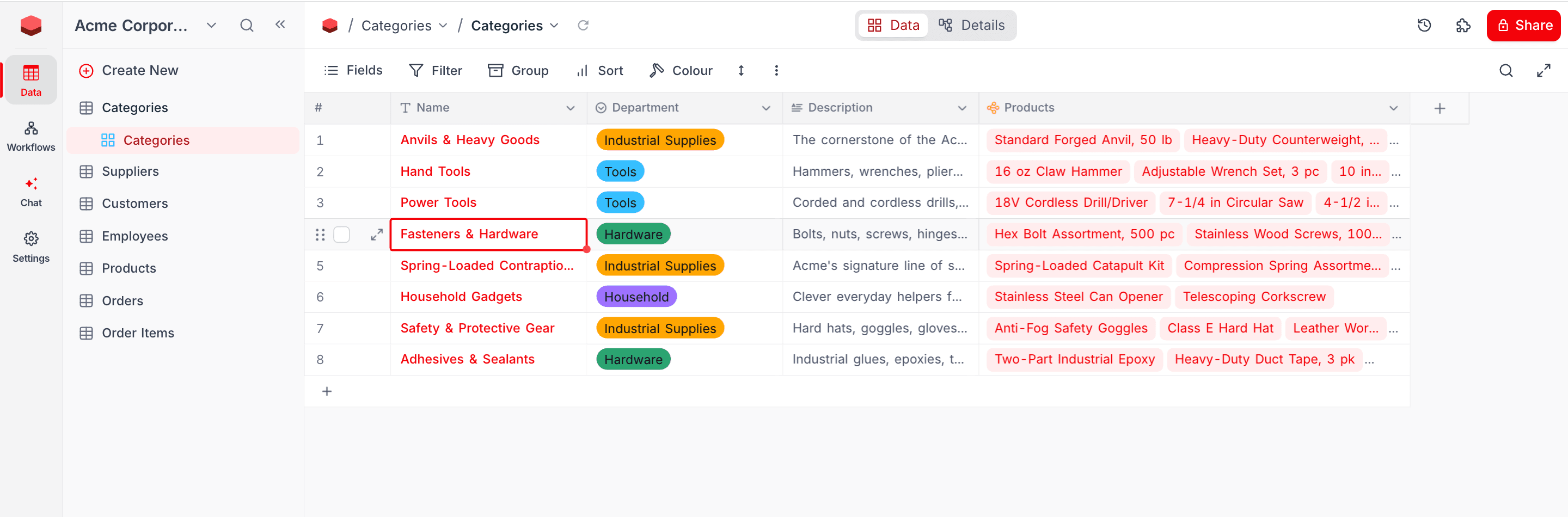
The brand color is one hex color (for example #0D5A5A). It changes the color of buttons, links and accents in the UI. From this one seed color, NocoDB makes a full color ramp (light and dark variants) and the matching component theme tokens. Thus all accented surfaces change color in the same way. The brand color also sets the color of the mobile browser chrome (theme-color).
- Type a hex value, or use the color picker. You can select a preset color, or type a hex value for an exact brand match.
- A contrast indicator warns you if white button text can be hard to read on your color.
#RGB or #RRGGBB; any transparency (alpha channel) is dropped.Uploading assets
For each image slot, drag & drop a file, or click to browse and upload a file.
NocoDB serves uploaded assets from a stable, permanent URL. Thus they load correctly in transactional emails and stay after instance restarts. When you replace or remove an asset, NocoDB automatically removes the old file from storage.
Email branding
The email branding values replace the default "NocoDB Team" branding in transactional emails (invitations, password resets, notifications and others). To keep the NocoDB default, leave a field empty.
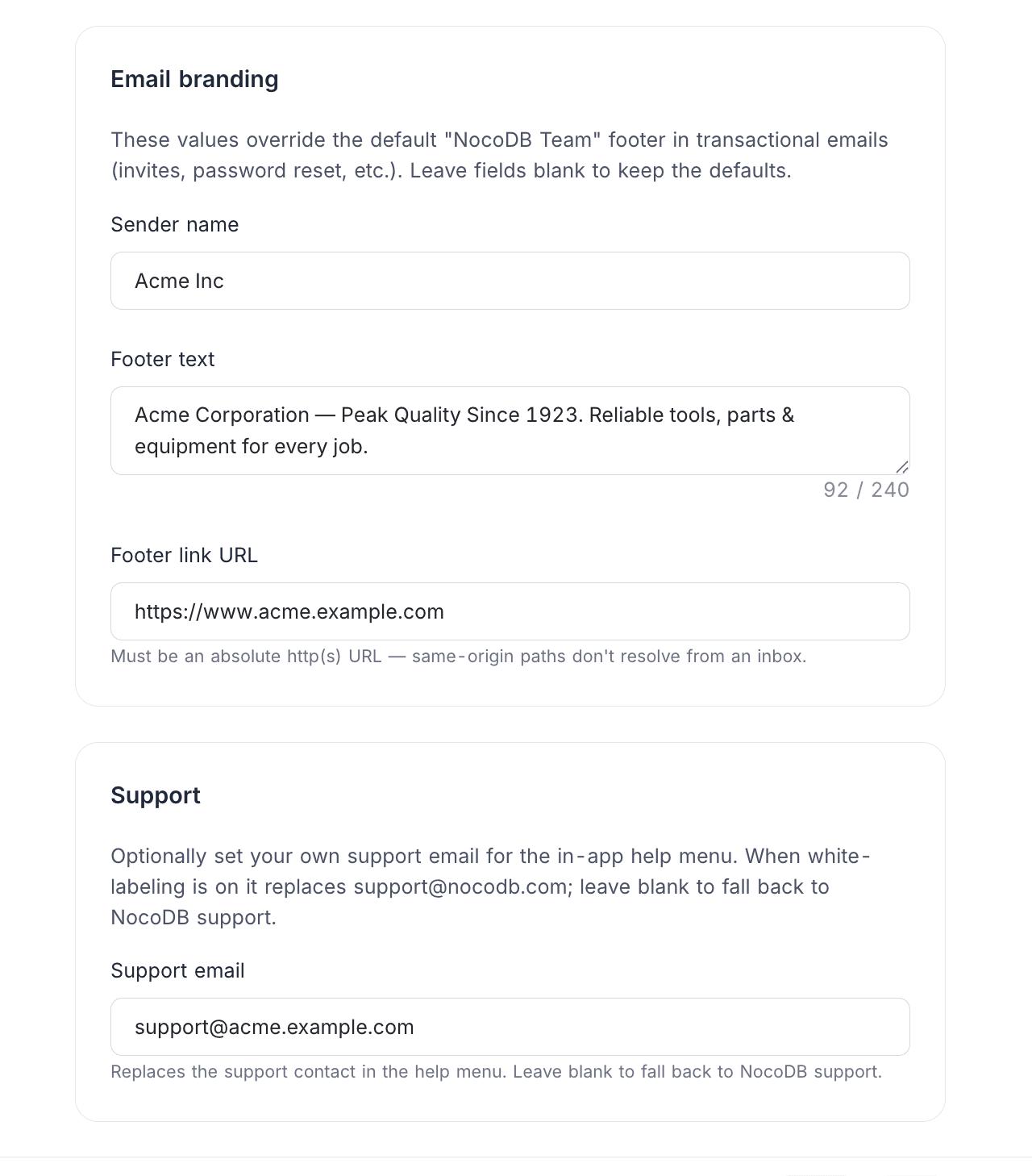
| Field | What it does |
|---|---|
| Sender name | The "From" display name on outgoing emails. If it is empty, NocoDB uses the product name, then "NocoDB". Thus the sender name is never empty. The maximum is 60 characters. |
| Footer text | Replaces the default footer tagline / signature. The maximum is 240 characters. |
| Footer link URL | The brand link in the email footer. It must be an absolute http(s) URL, because same-origin paths do not resolve from an inbox. |
When white labeling is on, transactional emails also:
- Use your product name in headings and body text, not "NocoDB".
- Show your logo at the top of the email.
- Remove the standard NocoDB social and legal footer links. The footer then shows only your brand line.
Support
Support email
You can set your own support contact for the in-app help menu. When white labeling is on, this email replaces support@nocodb.com in the help menu. To use NocoDB support, leave the field empty.
NC_DISABLE_SUPPORT_CHAT environment variable.What gets branded
| Area | Branded by |
|---|---|
| Browser tab title | Product name |
| Browser tab icon, iOS home-screen icon | Favicon |
| App header & sidebar logo | Logo (light / dark) |
| Login screen | Logo + brand color |
| Workspace menu | Logo |
| Public & shared views | Logo + product name |
| Public form default banner | Default form banner |
| Public form footer | Favicon + product name (and footer link, if set) |
| Buttons, links, accents, mobile chrome color | Brand color |
| Transactional emails | Sender name, logo, product name, footer text & link |
| In-app help menu support contact | Support email |
Examples
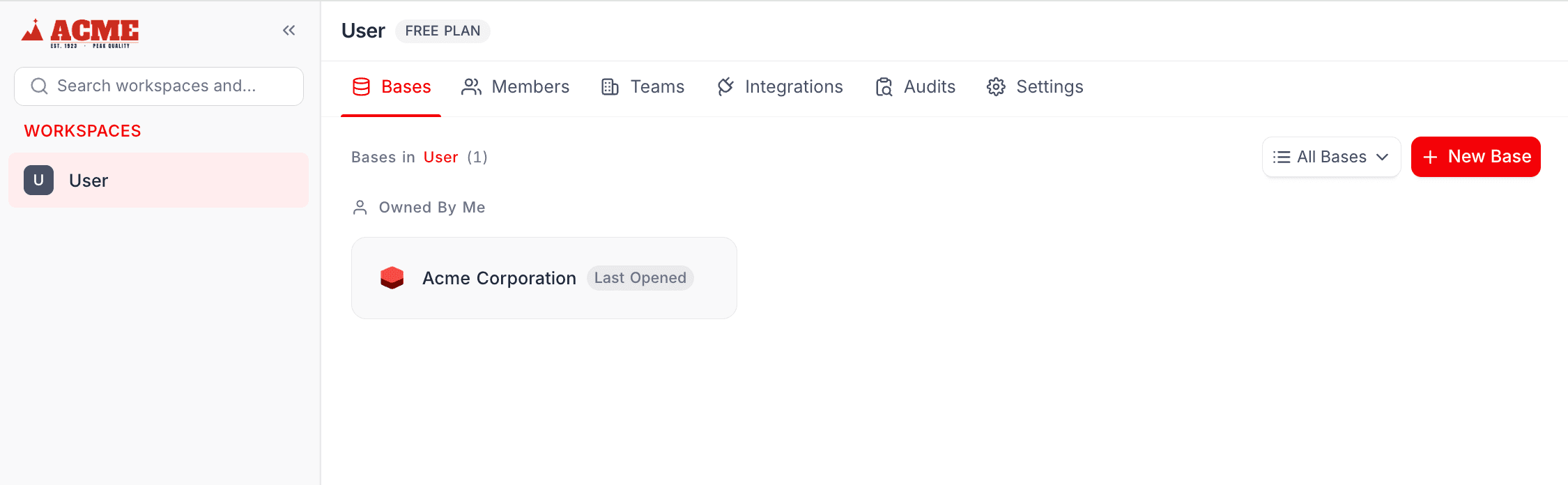
The login screen shows your logo. Its buttons and links use the brand color:
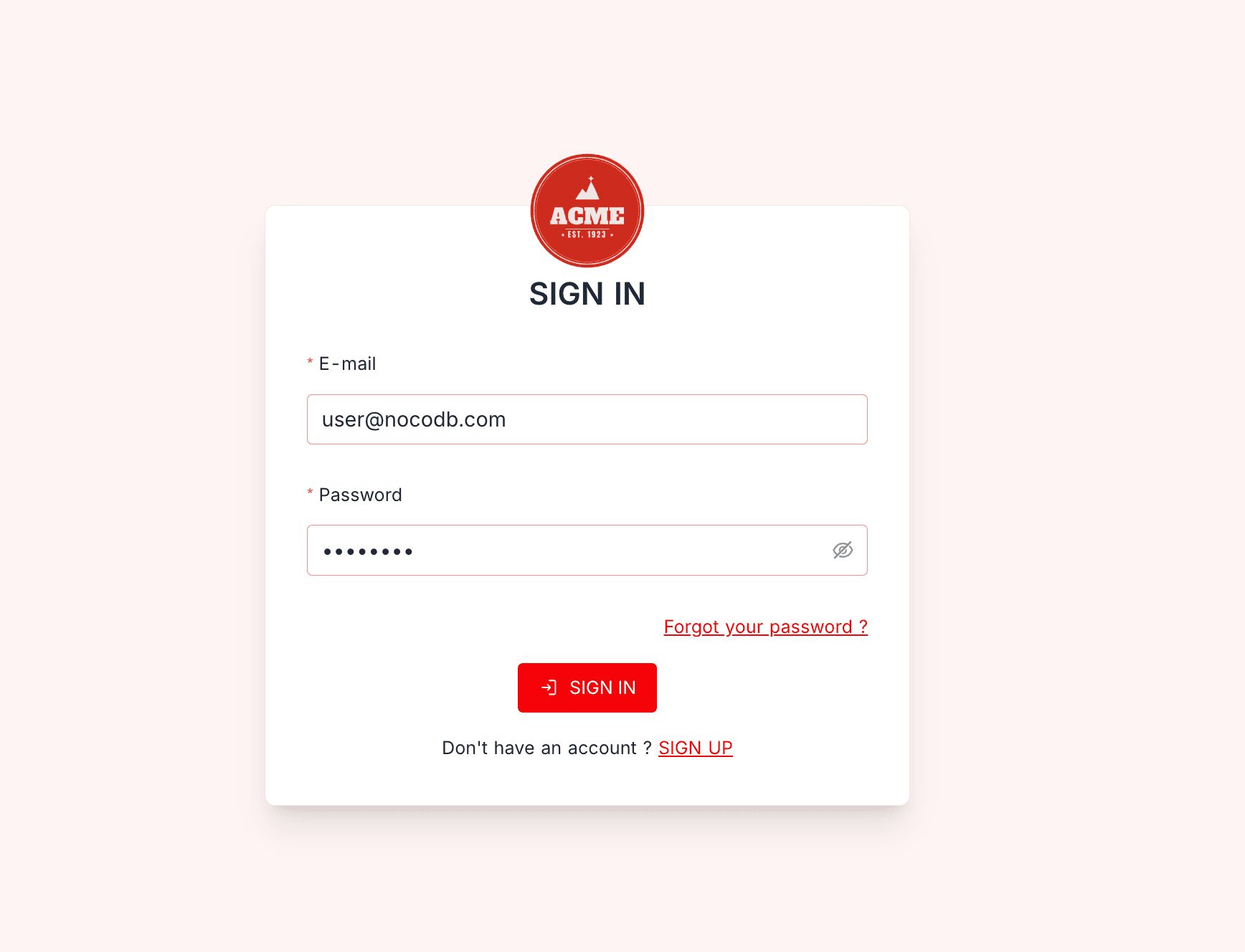
Your logo replaces the NocoDB mark in the app sidebar and the workspace menu:
Buttons, links and accents in the app use the brand color:
Public forms use your default banner when the form author did not set a banner:
How licensing affects white labeling
If your license expires or is downgraded, or if the add-on is removed, the instance automatically goes back to the NocoDB defaults. NocoDB keeps your saved configuration. When you restore the entitlement, your branding comes back.
Availability
- Enterprise add-on. White labeling is available on self-hosted instances as an add-on to the Enterprise plan. It is not included in the base Enterprise license. It is not available on NocoDB Cloud on any plan. For pricing and to add it to your plan, contact NocoDB support. Then refer to License Activation to activate your license.
Last updated on