Managing Permissions
Set and change visibility and editing permissions on documents.
NocoDocs provides multiple ways to manage document permissions: through the toolbar menu, the sidebar context menu, or the full permissions management page in base settings.
Document permissions require the Enterprise plan on Cloud, or an Enterprise license on self-hosted deployments. Only base Owners and Creators can manage permissions.
Quick Permission Dialog
Set permissions directly from the document you're working on:
- Open the document in the editor.
- Click the
⋮menu in the top-right corner of the editor. - Select Document permissions.
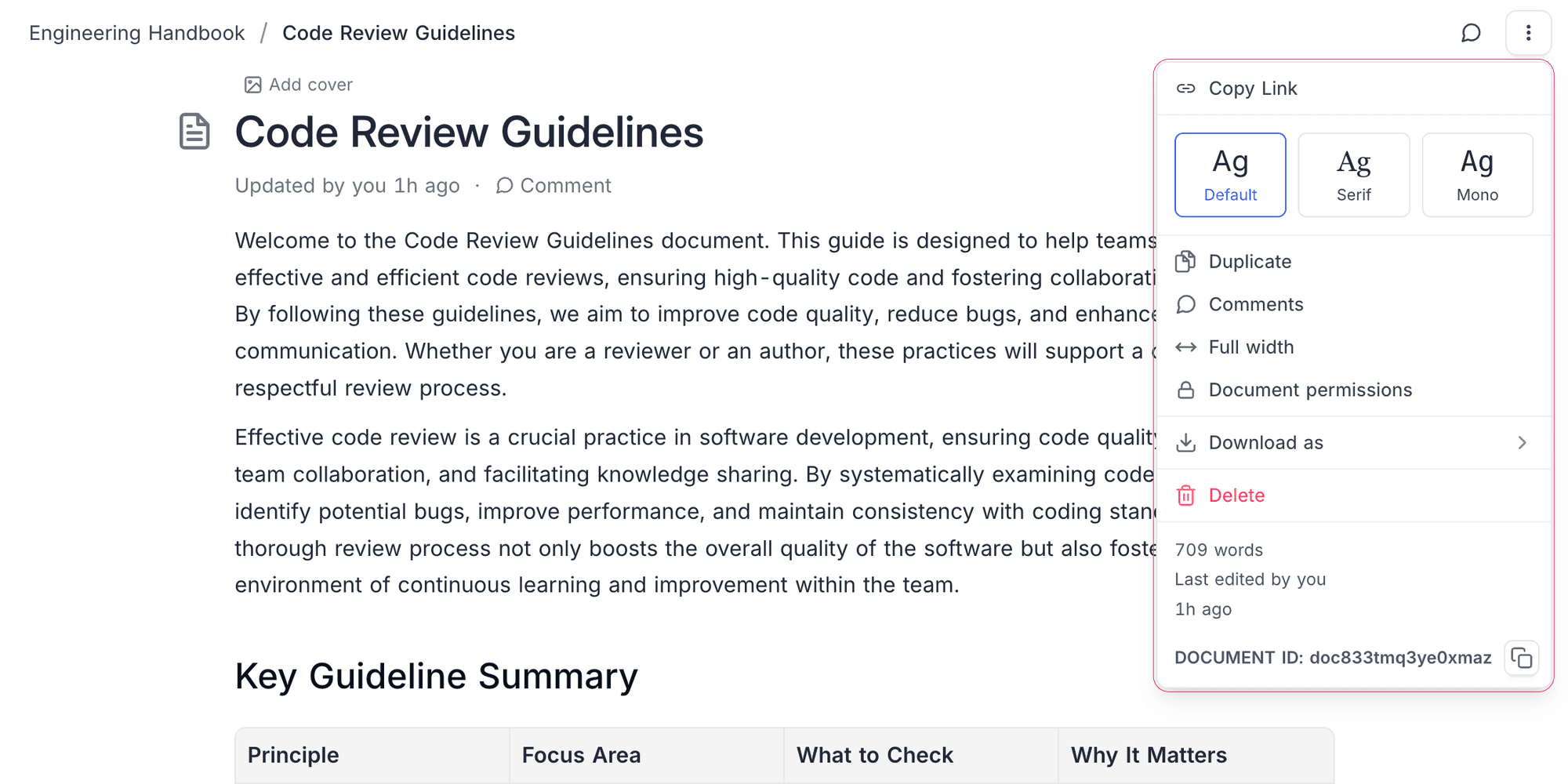
- In the dialog, configure:
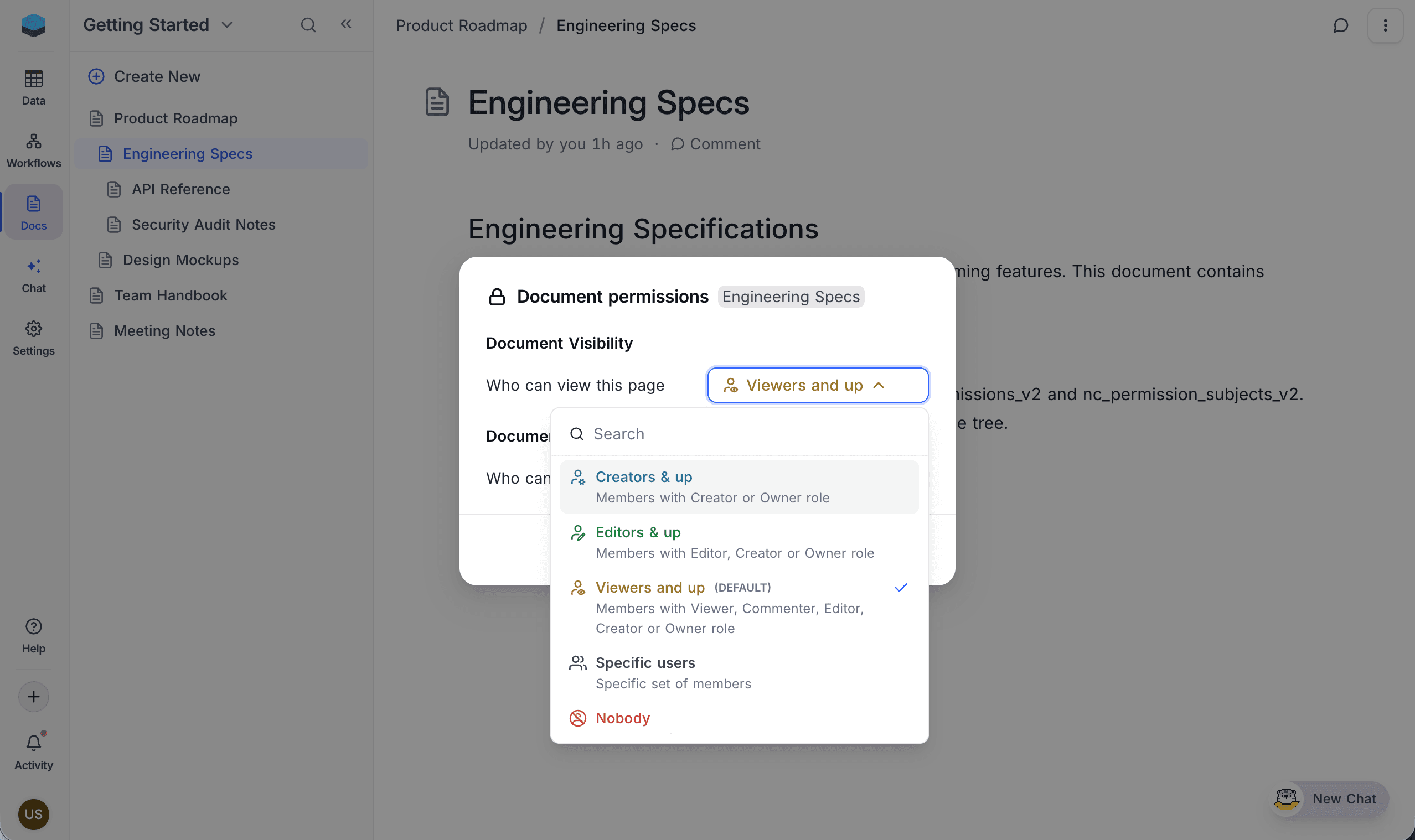
- Document Visibility — Choose who can view this page.
- Document Editing — Choose who can edit this page.
- Changes are saved automatically when you select a new permission level.
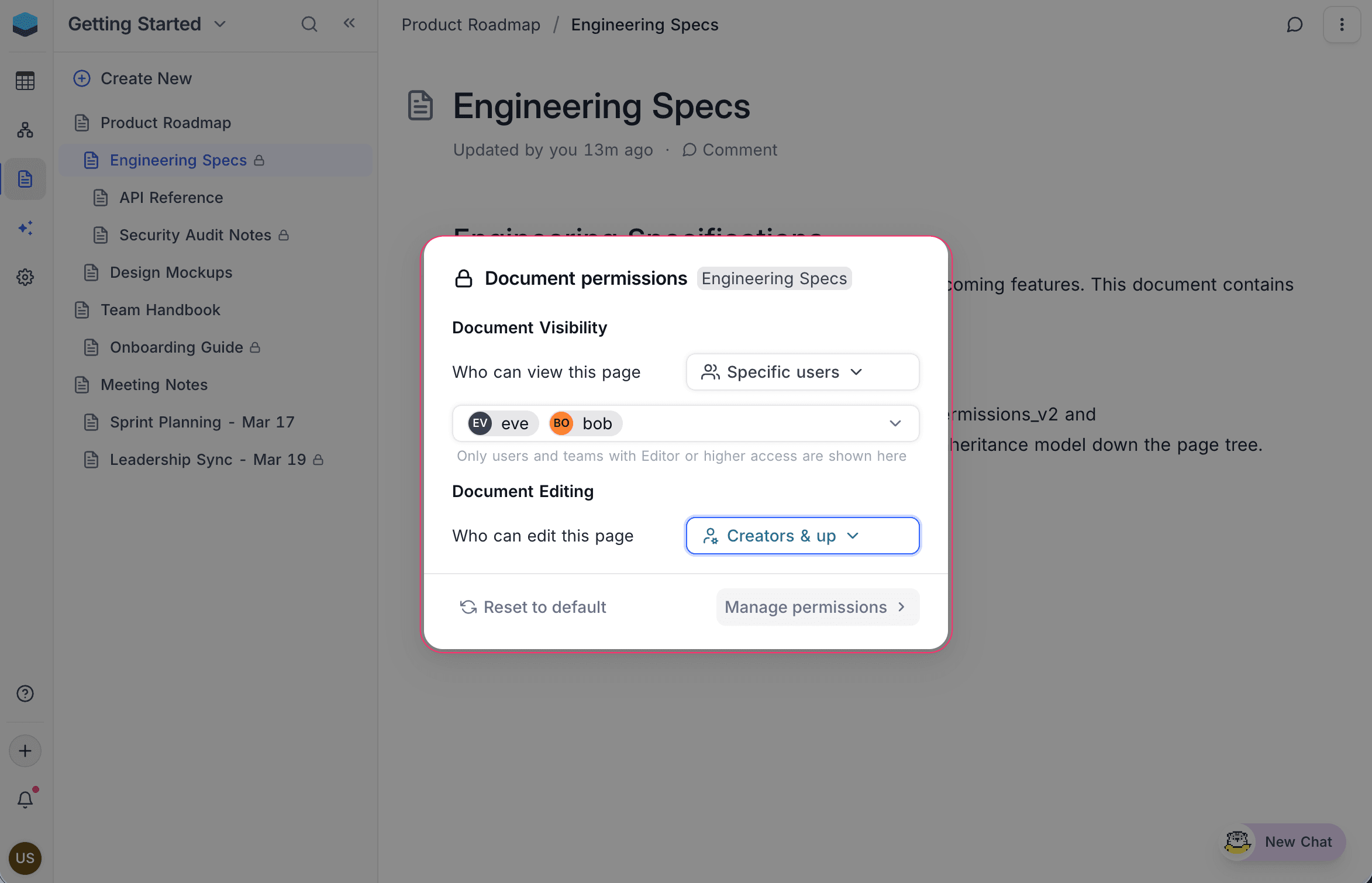
You can also open the dialog by right-clicking a document in the sidebar and selecting Document permissions.
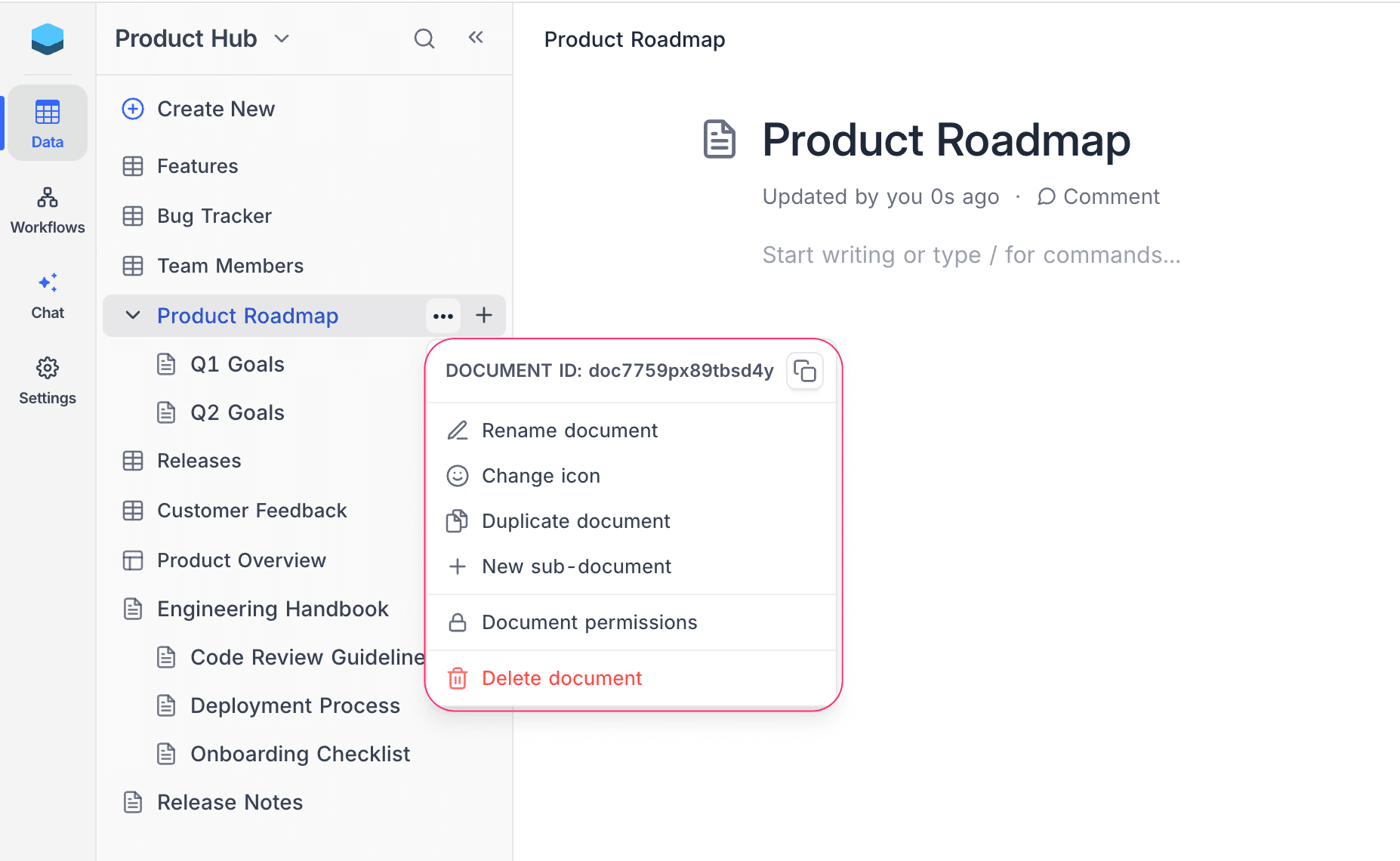
Permissions Management Page
For an overview of permissions across all documents in a base:
- Open Base Settings from the base menu.
- Navigate to the Docs Permissions section.
- The page displays a table of all documents with their Document Visibility and Document Editing columns.
You can also open this page directly from the quick permission dialog by clicking Manage permissions at the bottom of the dialog.
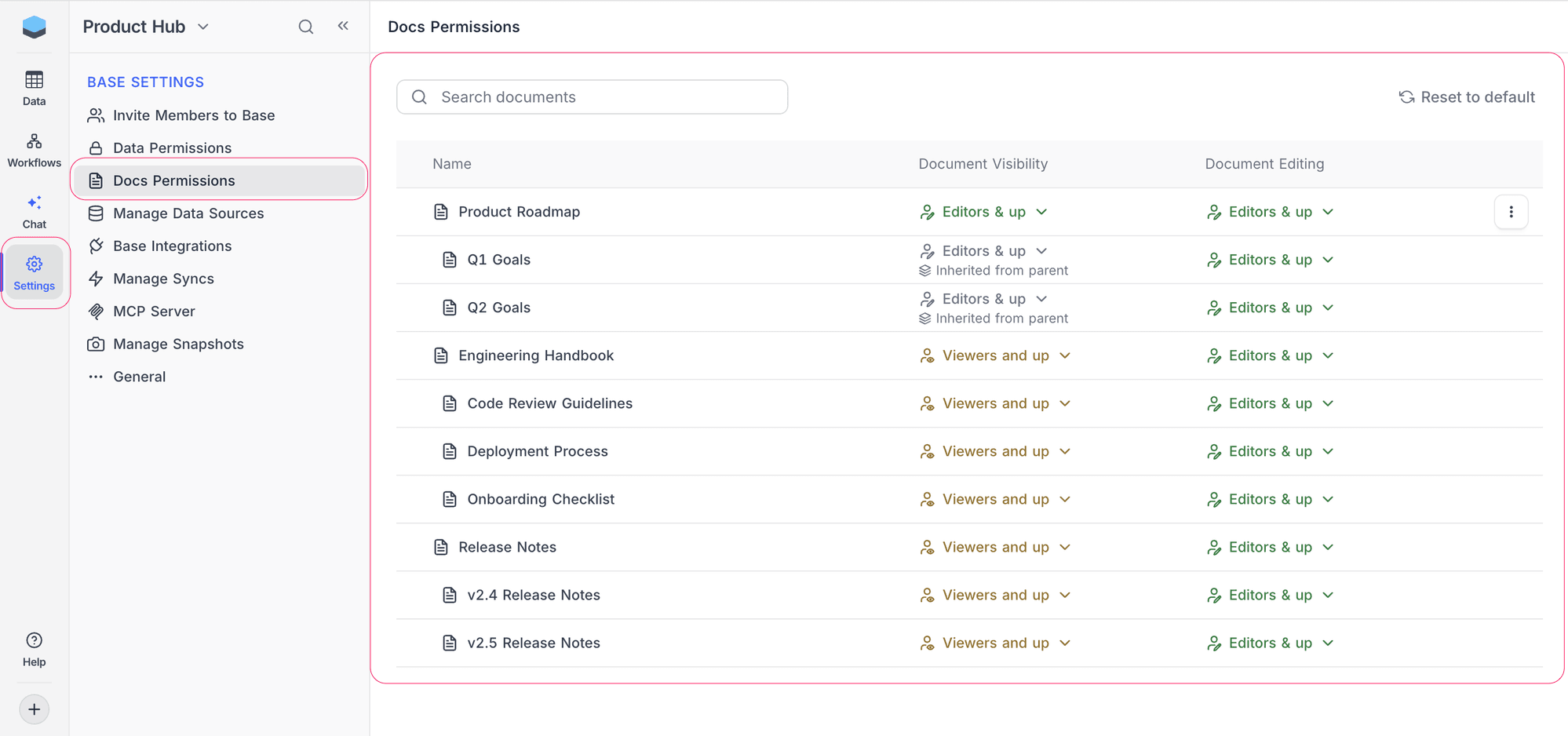
From this page you can:
- Search for specific documents by name using the search bar.
- View the permission status of each document at a glance — documents inheriting from a parent show an "Inherited from parent" label.
- Change visibility or editing permissions for any document using the dropdown selectors.
- Reset to default using the button in the top-right corner to revert selected permissions.
Setting a Permission
When selecting a permission level:
- Click the permission dropdown (Visibility or Editing) for the target document.
- Choose a level:
- Creators & up — Members with Creator or Owner role.
- Editors & up — Members with Editor, Creator, or Owner role.
- Viewers and up — Members with Viewer, Commenter, Editor, Creator, or Owner role. The current default is marked with a
(DEFAULT)label. - Specific users — A specific set of members you select.
- Nobody — No access for anyone except the base Owner.
- The permission is saved immediately.
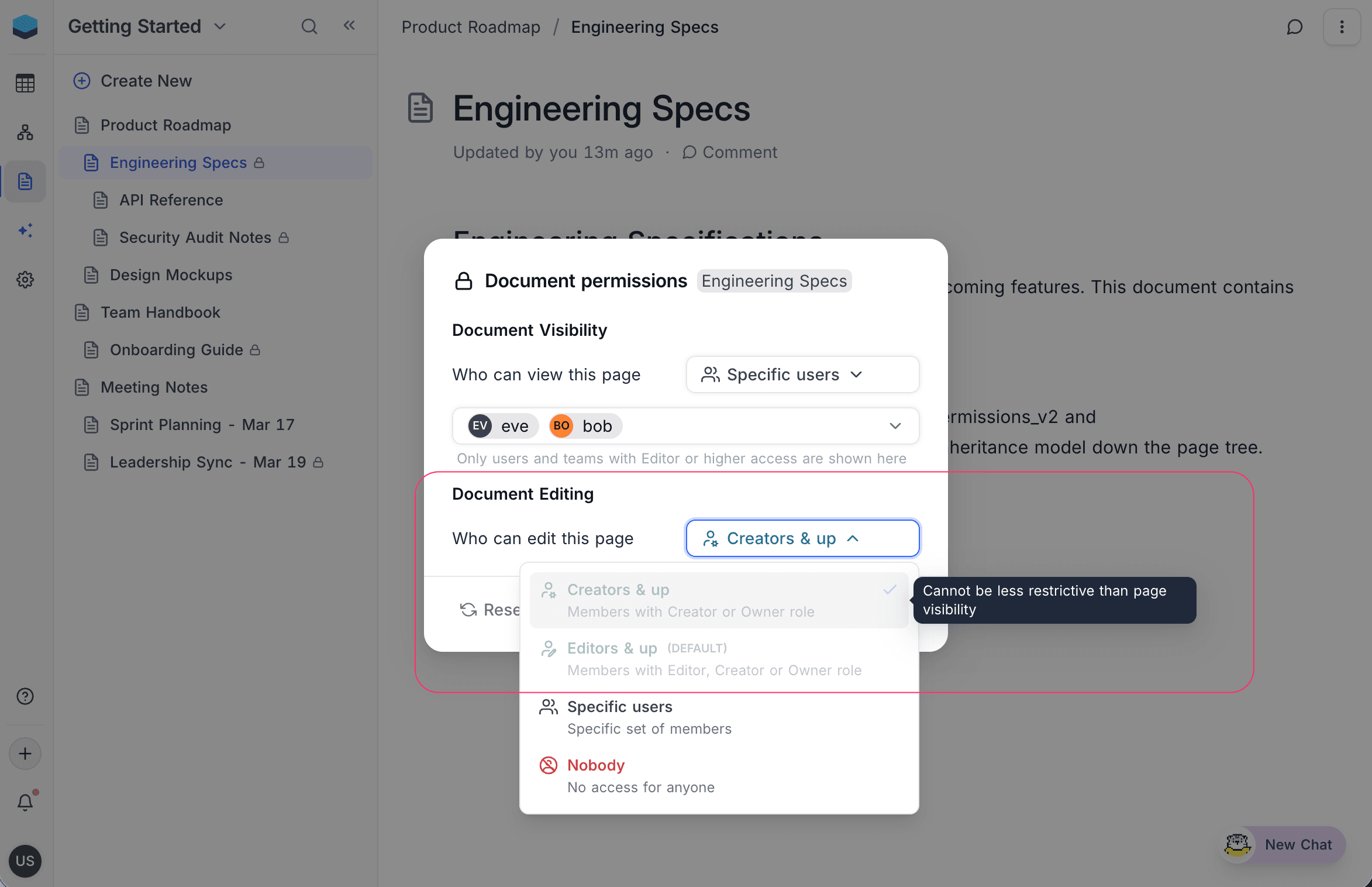
Editing permission options that would be less restrictive than the document's visibility setting are greyed out with the message "Cannot be less restrictive than page visibility".
Granting Access to Specific Users
When you select Specific users:
- A member selector appears listing base collaborators.
- Use the Search member field to find specific users.
- Check or uncheck users to grant or revoke access.
- Use Select all or Clear all for bulk selection.
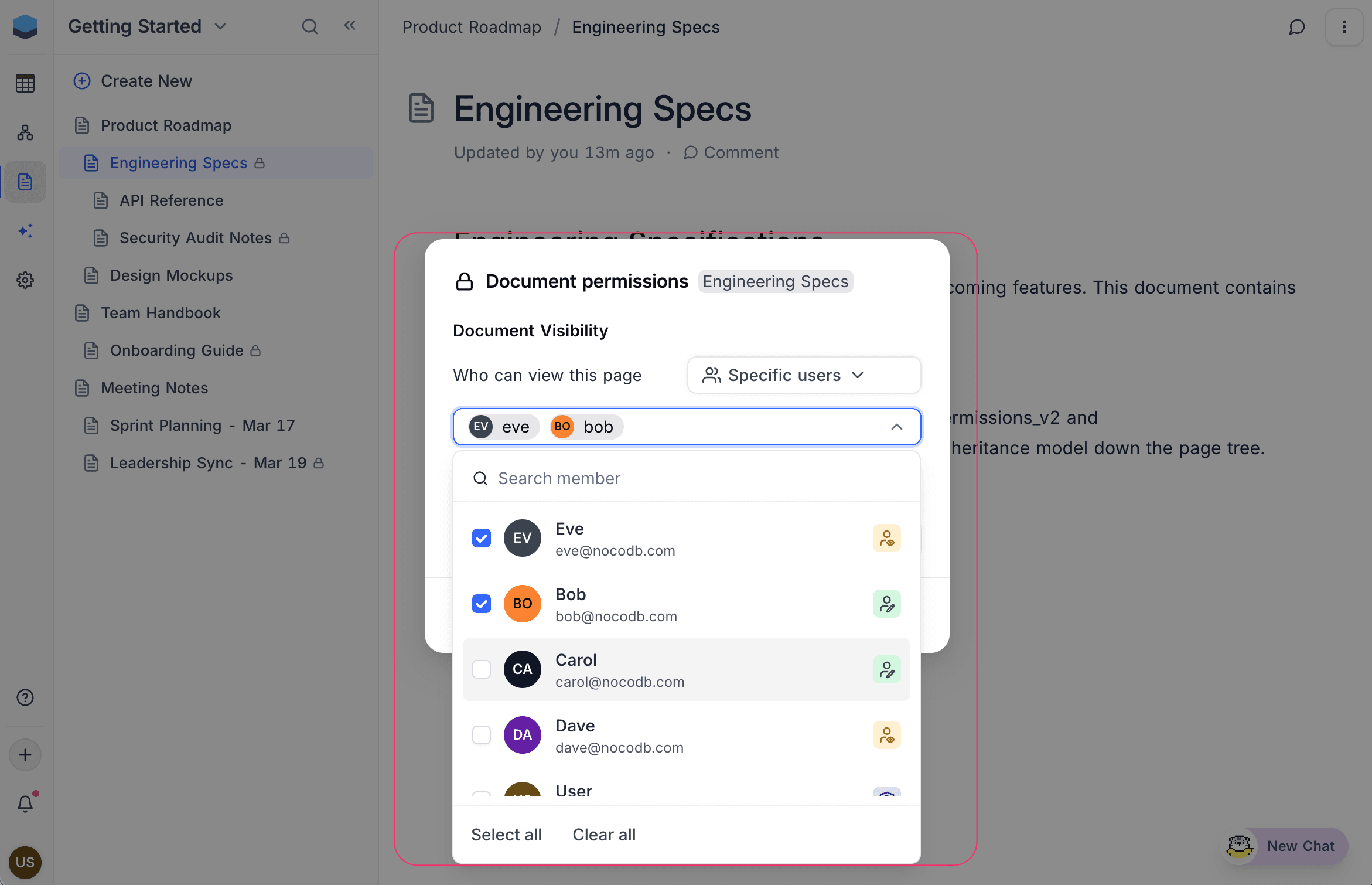
Only users and teams with Editor or higher access are shown in the selector.
Resetting Permissions
Reset a Single Document
To remove an explicit permission from a single document and revert to the inherited value:
- Open the quick permission dialog for the document.
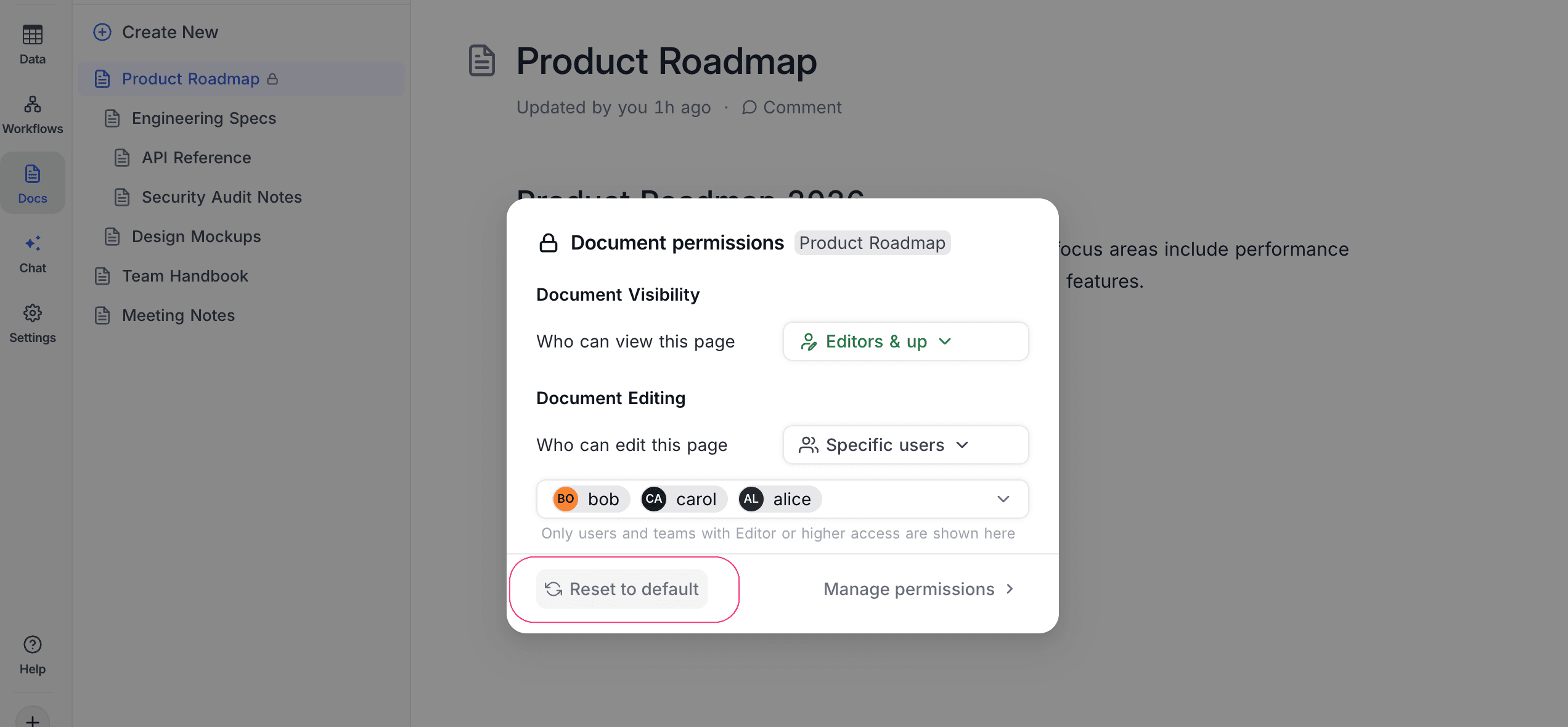
- Click Reset to default at the bottom of the dialog.
- The document will inherit its permission from the nearest parent with an explicit setting, or fall back to the base defaults.
Reset All Documents
To remove all custom permissions across every document in the base:
- Open Base Settings > Docs Permissions.
- Click the Reset to default button in the top-right corner.
- A confirmation dialog appears: "This will remove all custom document permissions and revert every page to default access. This action cannot be undone."
- Click OK to confirm.
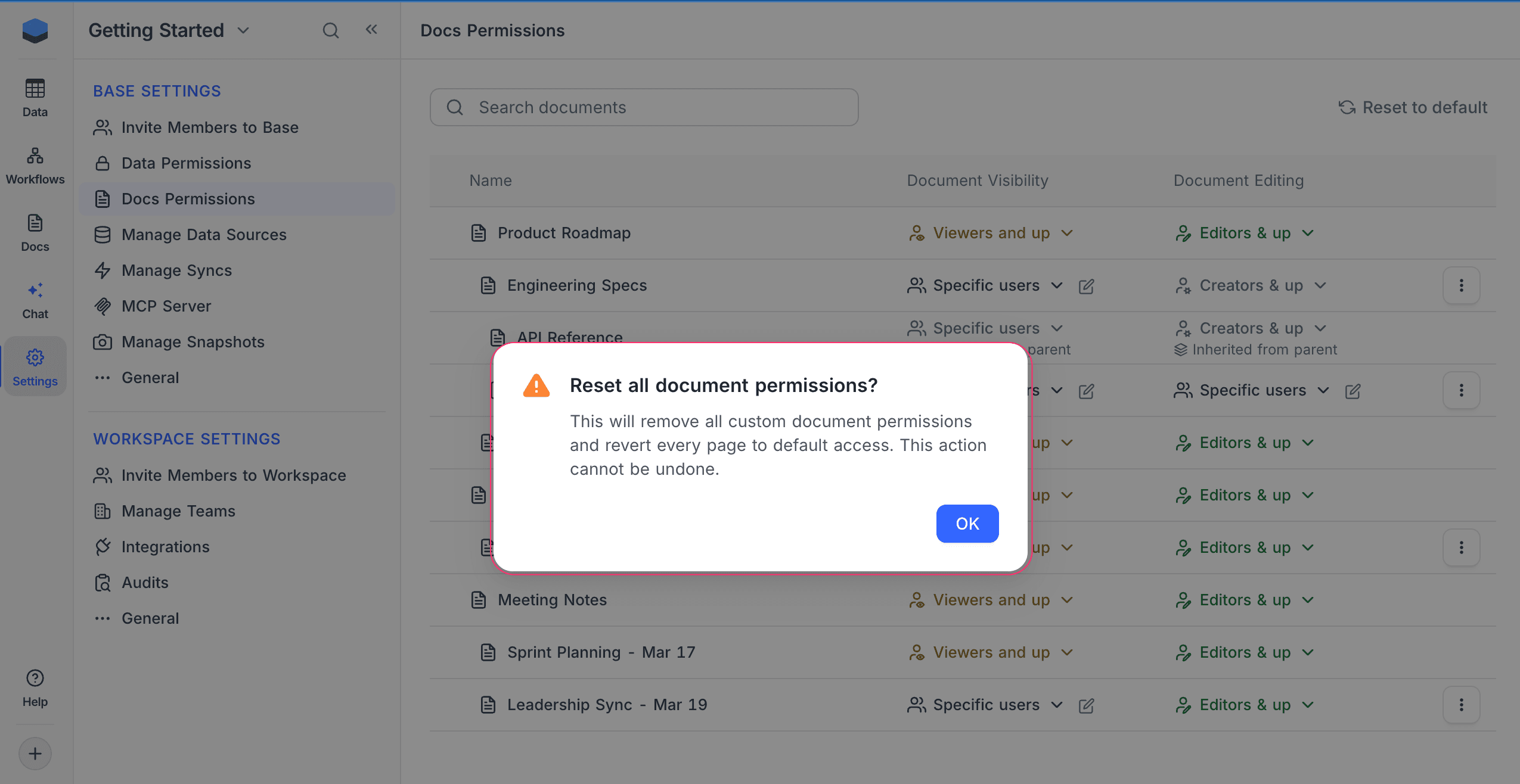
Resetting all document permissions cannot be undone. All documents will revert to the base defaults (Viewers and up / Editors & up).
Related Topics
- Document Permissions — Overview of permission types and levels.
- Permission Inheritance — How permissions flow from parent to child documents.