Share Document
Publish a NocoDocs page to a public URL that anyone can view without a NocoDB account.
Share a NocoDocs page as a read-only public link. Anyone with the URL can open the document in a browser, no NocoDB account required. Useful for publishing product docs, internal wikis, project briefs, or handbooks to a wider audience.
Open the Share Dialog
The Share button sits in the top-right of the document, next to the ⋮ page menu.
- Open the document you want to share.
- Click the Share icon in the top bar, or open the
⋮menu and select Share. - The Share dialog opens with a Share Doc section for the active document.

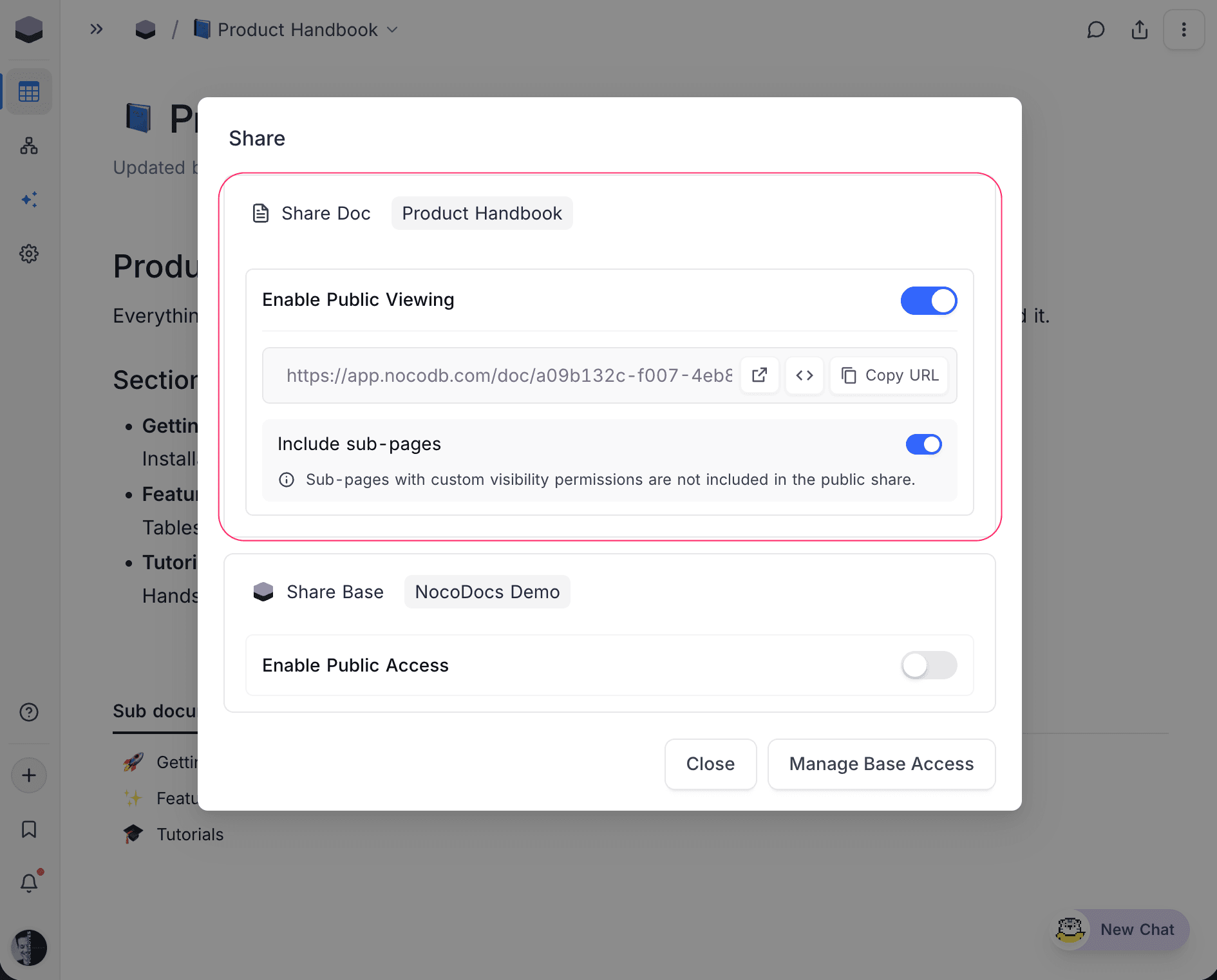
Enable Public Viewing
- In the Share dialog, turn on Enable Public Viewing.
- A public URL of the form
https://app.nocodb.com/doc/<uuid>is generated and displayed. - Copy the URL with the copy button, or open it in a new tab with the external-link button.
https://app.nocodb.com with their NocoDB instance URL.Turning the toggle off revokes the link immediately. Anyone holding the old URL will see a "This page doesn't exist" page.
Copy the Embed Code
The Share dialog also gives you an iframe snippet so you can embed the document inside another web page, internal wiki, or NocoDocs page.
- Click the
</>icon next to the public URL. - The HTML snippet (
<iframe src="..." width="100%" height="100%" style="border: none;"></iframe>) is copied to your clipboard. - Paste it into the host page.
Include Sub-pages
The Include sub-pages toggle controls whether the public link exposes the entire subtree rooted at the shared document, or just that single page.
| Toggle | Public reader behavior |
|---|---|
| On (default) | The sidebar shows the shared document plus all descendants. Visitors can navigate the full subtree. |
| Off | Only the shared document is reachable. The sidebar is hidden and child pages return a "This page doesn't exist" error even by direct URL. |
Sharing Blocked by Visibility Permissions
If the document itself has a custom Document Visibility permission (anything other than the default Viewers and up), public sharing is blocked. A public URL would bypass the explicit visibility restriction, so NocoDocs refuses to generate one.
The dialog shows an inline notice:
Public sharing is unavailable while this document has custom visibility permissions. Reset visibility to default.
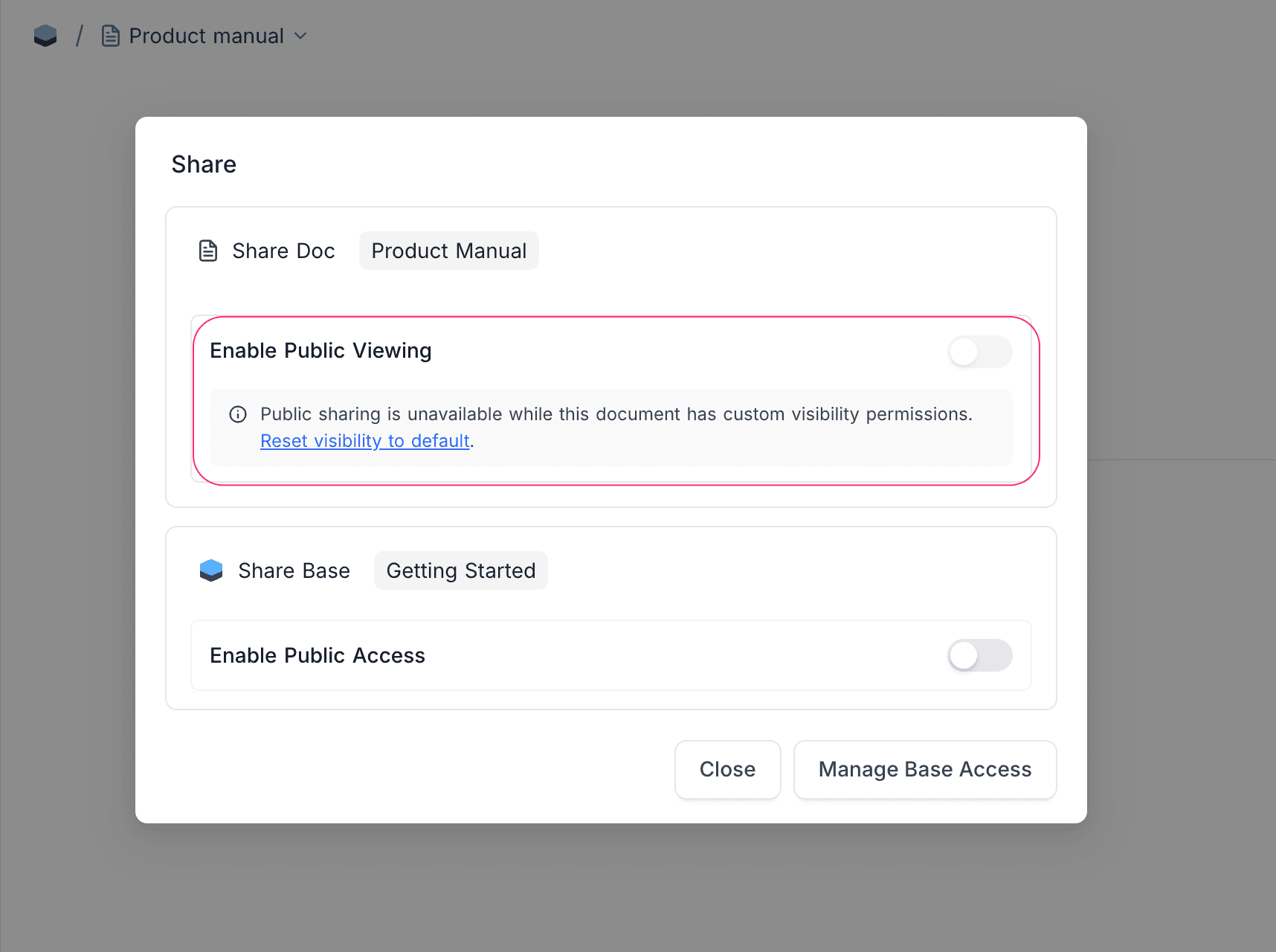
Click Reset visibility to default in the notice to drop the explicit visibility permission on this document, then turn on Enable Public Viewing. The document falls back to inherited or default visibility.
What the Public Reader Sees
The /doc/<uuid> page renders the document in a stripped-down reader:
- NocoDB wordmark in the top-left of the top bar.
- Breadcrumb in the top bar, showing the shared root → ancestors → current page; click any segment to jump.
- Theme toggle for switching between light and dark mode.
- Download button to export the current page as Markdown.
- Sidebar with the shared document and any reachable sub-pages, expandable inline (only when Include sub-pages is on).
- Cover image, icon, and attachments render the same as in the authenticated editor.
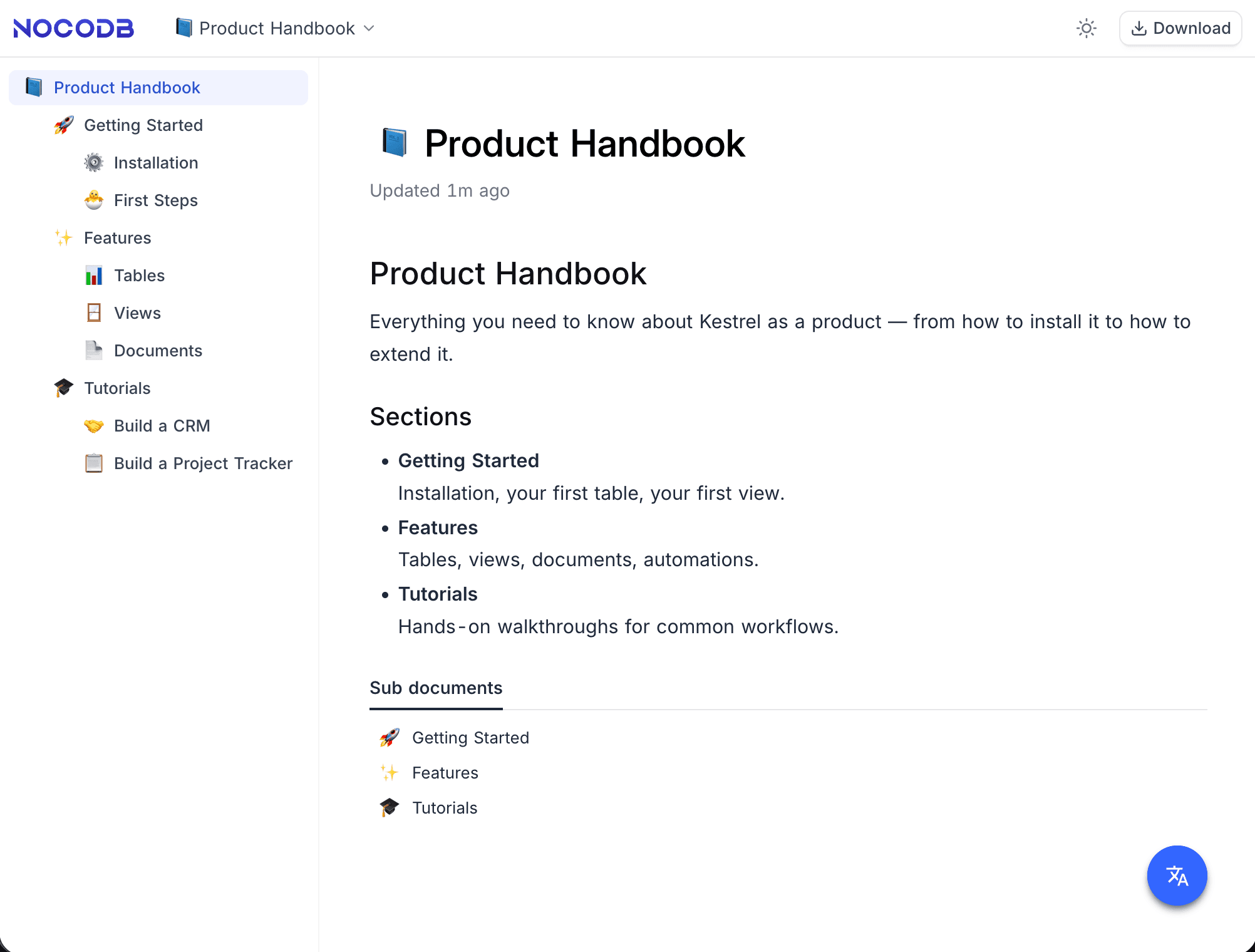
The page is marked noindex, nofollow via a robots meta tag, so search engines do not index it. Visitors cannot edit, comment, or otherwise interact with the document.
Revoking a Share
Open the Share dialog and turn Enable Public Viewing off. The link stops resolving within seconds, and any cached attachments expire shortly after. Anyone who follows the old URL lands on a generic "This page doesn't exist" page with a Go back home button.
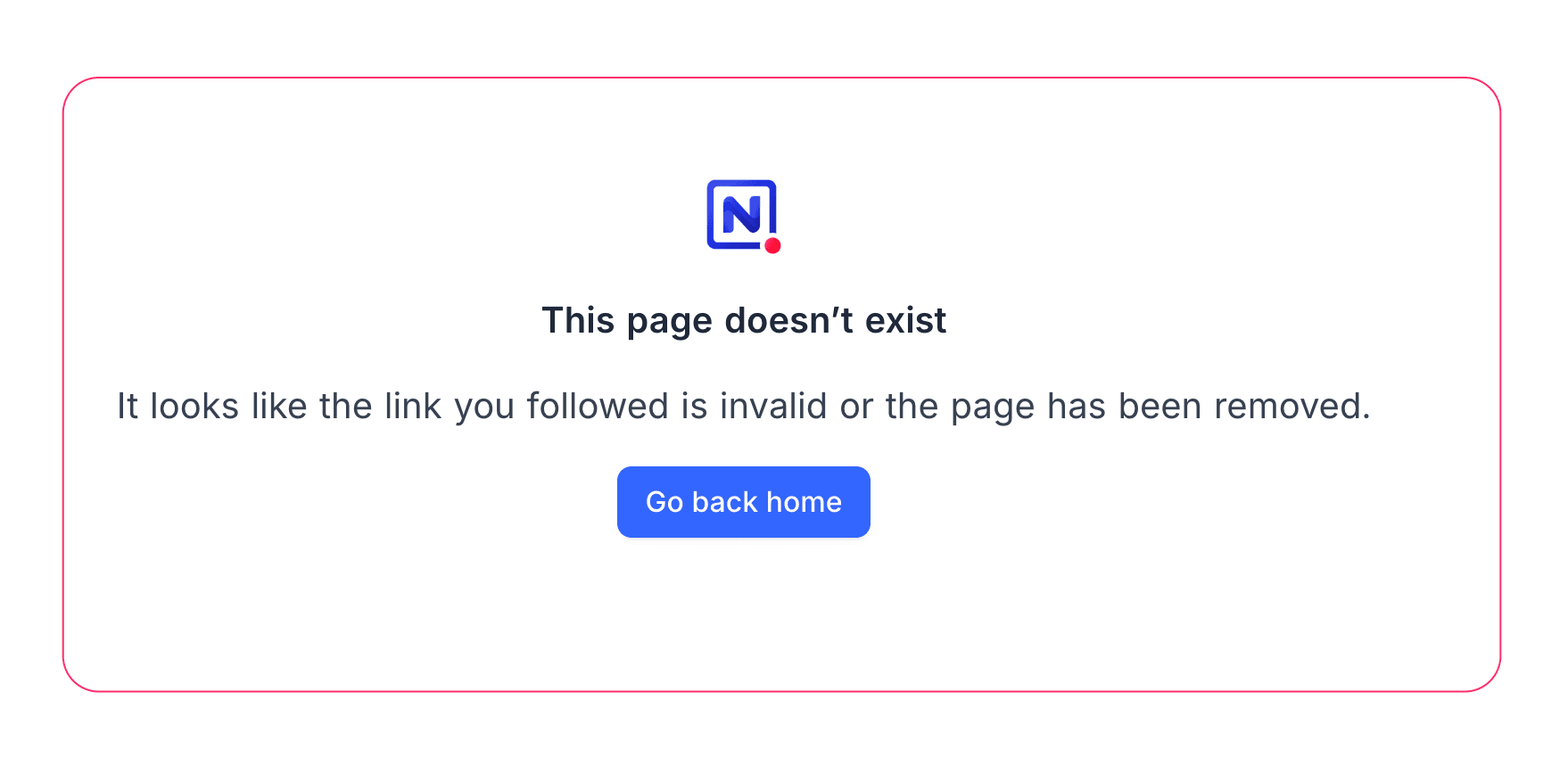
Re-enabling sharing later issues a fresh URL with a new UUID; the old URL stays revoked.
Related Topics
- Document Permissions — Restrict which collaborators can view a document inside the workspace.
- Export Document — Export documents to Markdown, HTML, or PDF for offline sharing.
- Embeds — Embed external content (including NocoDB shared views) inside a document.