Record-Level Security
Define filter-based policies to control which records each role, team, or user can access in a table.
Record-Level Security (RLS) lets you define filter-based policies that control which records each role, team, or user can see within a table. Unlike table or field permissions that govern entire tables or columns, RLS operates at the record level — ensuring users only see the data relevant to them.
When to use RLS:
- Sales reps should only see their own deals
- Regional managers should see records for their team's territory
- Support agents should only access tickets assigned to them
- Department heads should see records across their team hierarchy
Enabling Record-Level Security
- Open the table where you want to configure RLS.
- Click the
⋯icon next to the table name in the sidebar and select Record-Level Security.
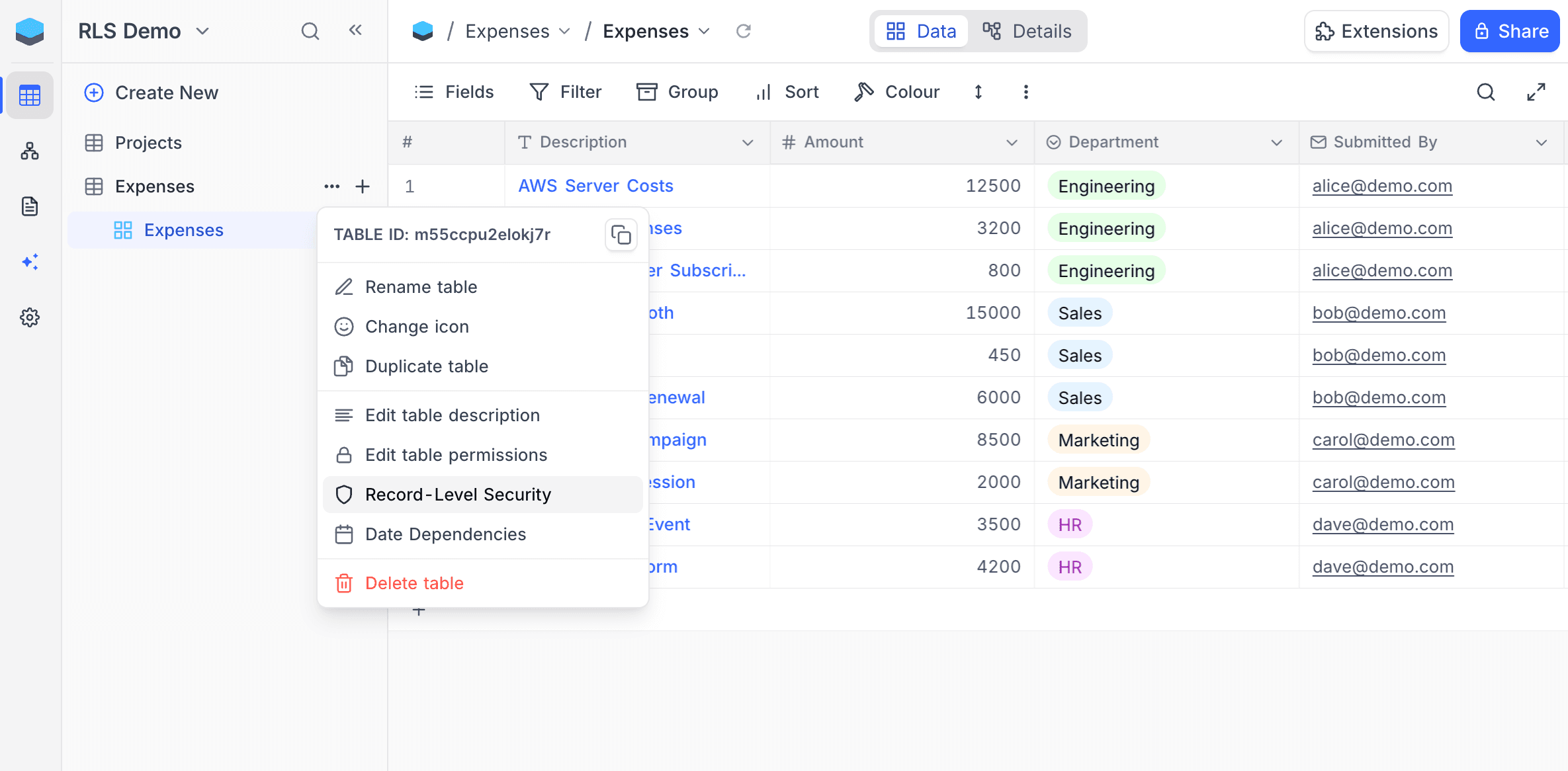
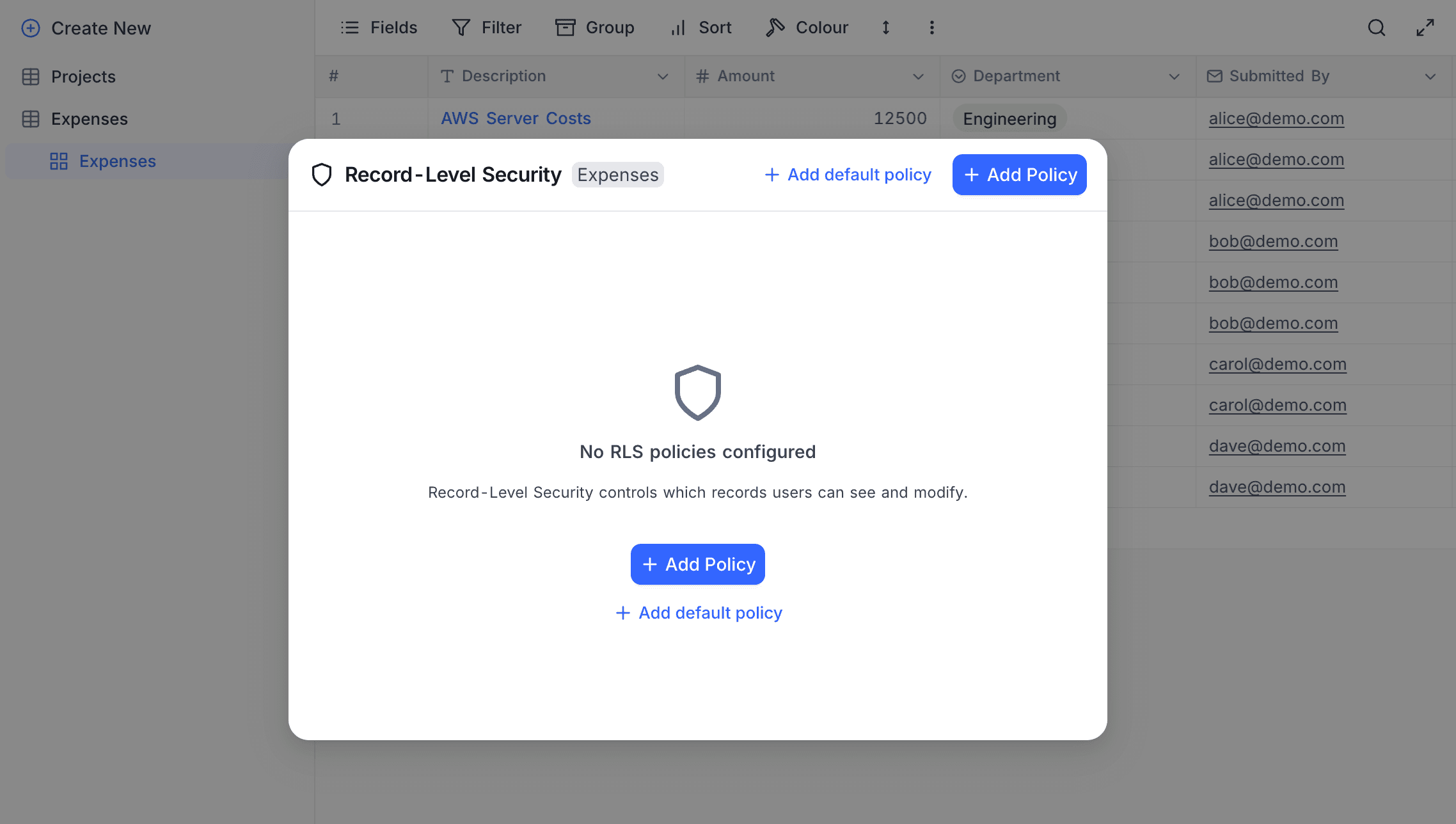
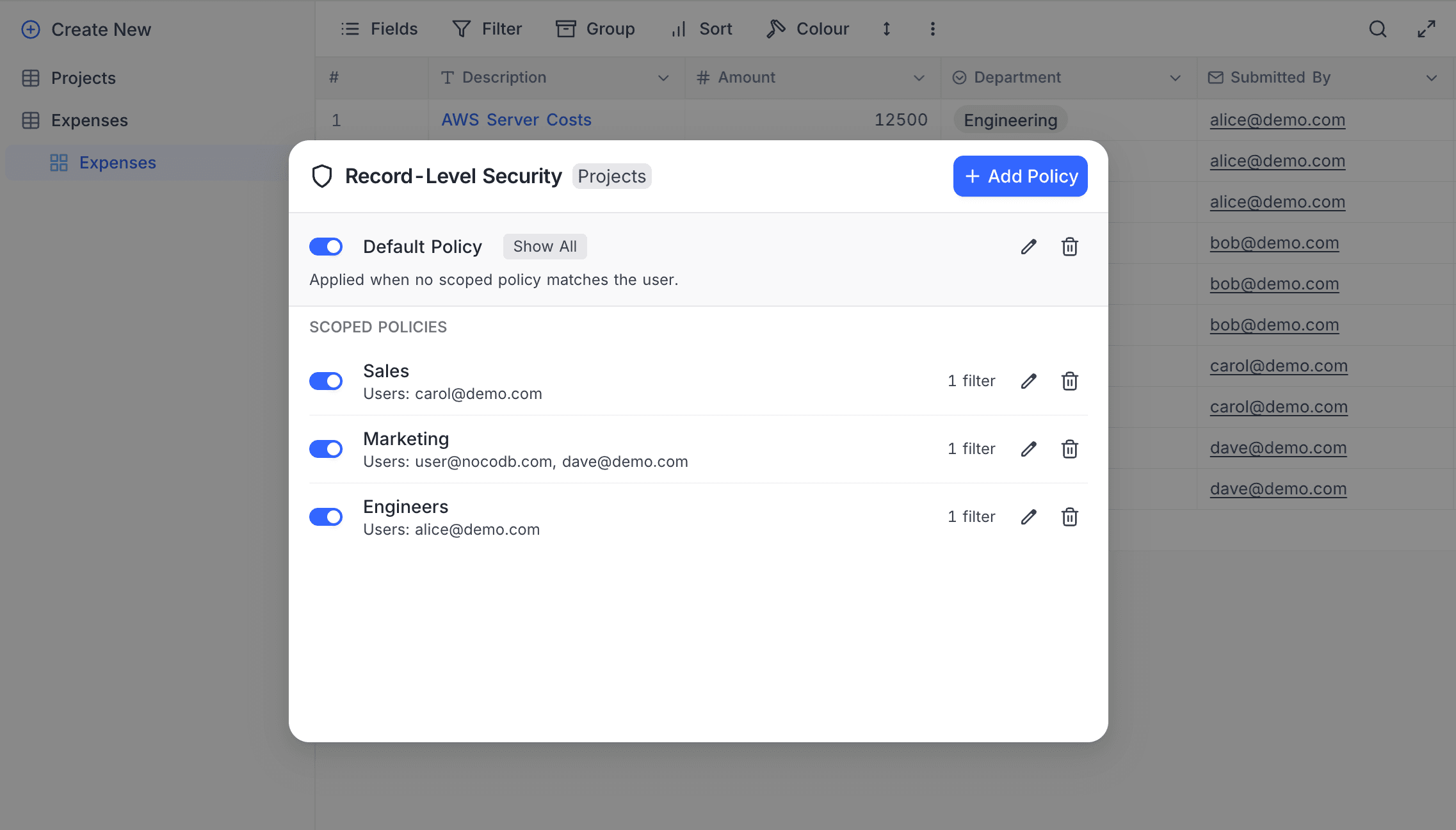
The RLS management panel opens, where you can create and manage policies for this table.
Key Concepts
Policy Types
RLS uses two types of policies:
- Default Policy (optional) — A fallback policy that applies when no scoped policy matches the current user. Each table can have at most one default policy. If no default policy is configured, unmatched users can see all records.
- Scoped Policies — Policies that target specific roles, users, or teams. A table can have multiple scoped policies.
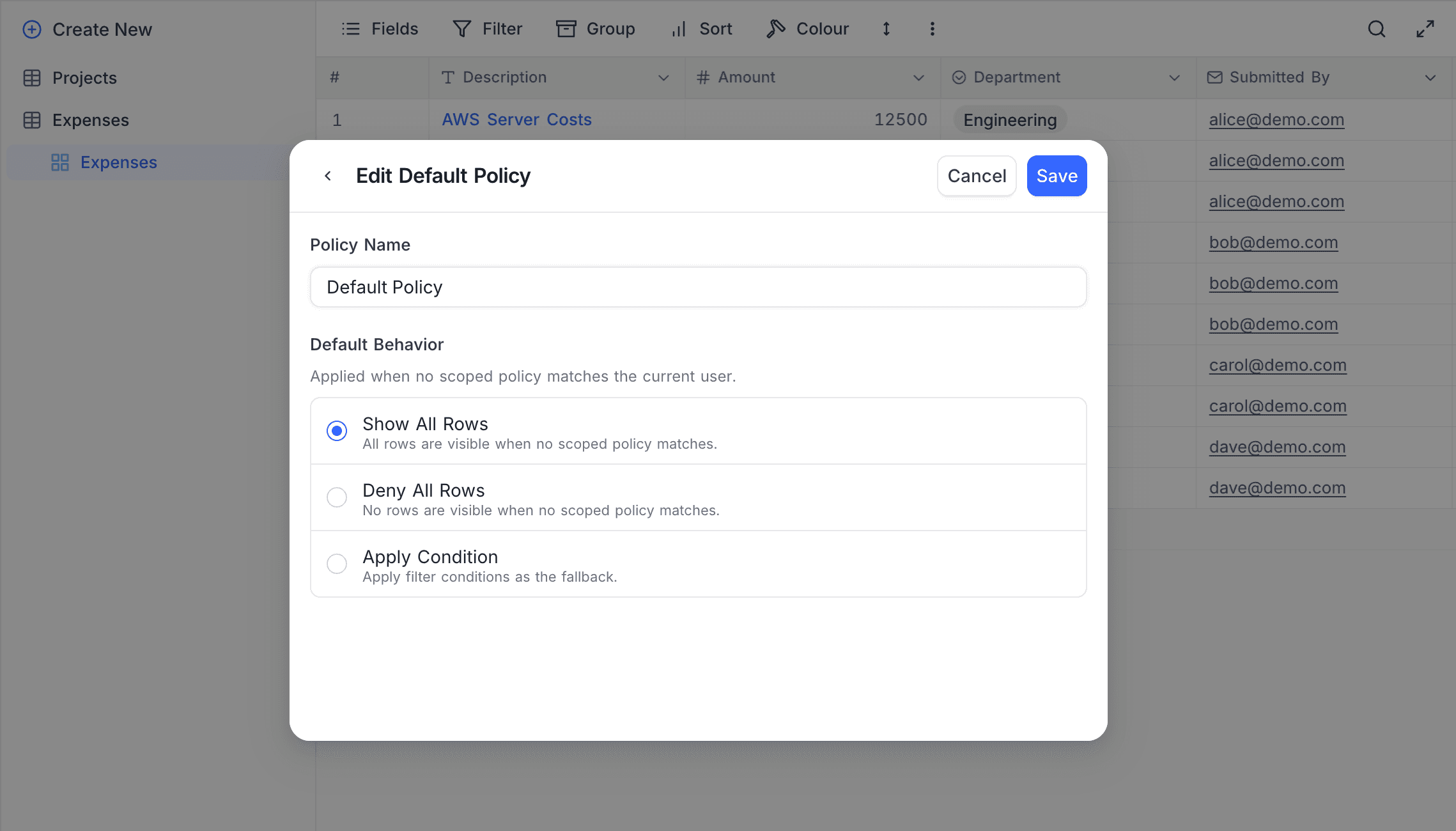
Default Policy Behaviors
The default policy defines what happens when a user doesn't match any scoped policy:
| Behavior | Effect |
|---|---|
| Show all | All records are visible — no filtering applied |
| Deny all | No records are visible — complete access denial |
| Condition | Apply filter conditions to determine visible records |
When no RLS policies are configured on a table, all records are visible to all users (equivalent to "Show all").
Subjects
Each scoped policy is applied to one or more subjects — the roles, users, or teams the policy targets:
| Subject type | Description |
|---|---|
| Role | A base-level role: Viewer, Commenter, Editor, or Creator |
| User | A specific individual member of the base |
| Team | A team group, with configurable hierarchy scope |
For team subjects, you can choose the hierarchy scope:
- Self only — The policy applies only to direct members of the selected team.
- Self and descendants (default) — The policy applies to members of the selected team and all its sub-teams.
Filter Conditions
Policies use the standard NocoDB filter builder to define conditions. Only records matching the filter conditions are visible to users who match the policy's subjects.
Filters support all standard operators (equals, contains, greater than, etc.) and can reference any field in the table. You can also build nested filter groups using AND/OR logic.
RLS filters can also reference the system fields Created by, Last modified by, Created time, and Last modified time, which are hidden in ordinary view filters.
Dynamic Values
Instead of typing a fixed value into a condition, you can reference whoever is viewing the data. A dynamic value is resolved from the signed-in user each time the policy runs, so one policy covers everyone in the workspace rather than needing a copy per person.
To use one, click the settings icon at the end of a filter condition, choose Dynamic value, then pick from the list:
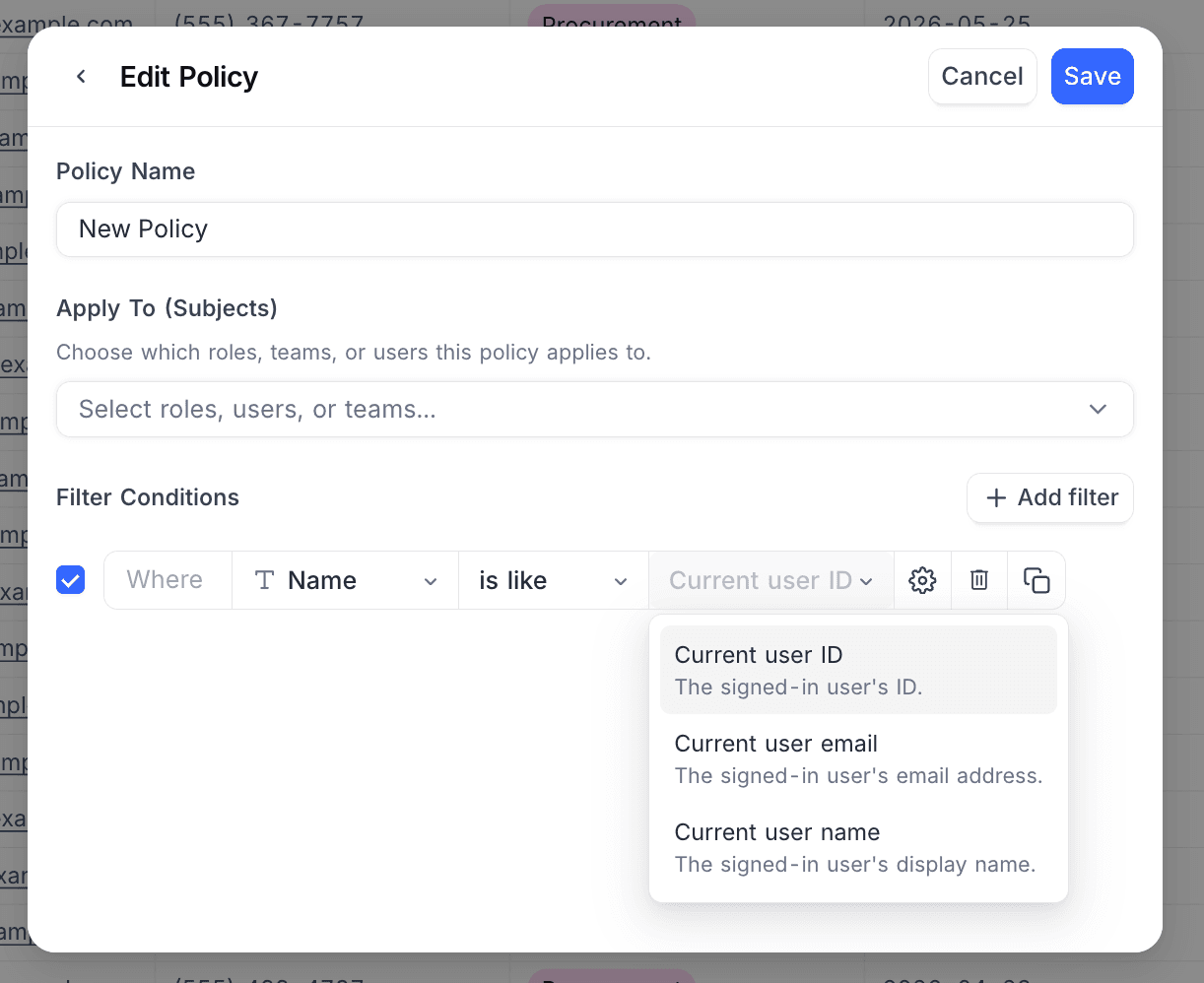
| Dynamic value | Resolves to |
|---|---|
| Current user ID | The signed-in user's ID |
| Current user email | The signed-in user's email address |
| Current user name | The signed-in user's display name |
| My teams | IDs of the teams the user belongs to directly |
| My teams and sub-teams | IDs of the user's teams plus every team beneath them |
| My team names | Names of the teams the user belongs to directly |
| My team and sub-team names | Names of the user's teams plus every team beneath them |
| Members of my teams | Everyone in the user's teams and sub-teams |
The list is filtered to what fits the condition you are building, so you will not see every entry every time:
- The field type narrows it. A User, Created by, or Last modified by field offers the user-ID values; an Email field offers Current user email; a Single select or Multi select field offers the team-name values; text fields offer all of them.
- The operator narrows it further. The team values each resolve to a list, so they only appear with the multi-value operators, contains any of, does not contain any of, contains all of, and does not contain all of. Single-value operators such as is equal offer only the current-user values.
Policy Resolution Order
When a user requests data from a table with RLS enabled, NocoDB evaluates policies in the following order:
- Check scoped policies — If the user matches one or more scoped policies (by role, user ID, or team membership), those policies' filters are combined using OR logic and applied.
- Fall back to default policy — If no scoped policy matches, the default policy behavior is applied (show all, deny all, or condition-based filtering).
- No policies configured — If no RLS policies exist on the table, all records are visible.
RLS filters are combined with any existing view filters using AND logic. This means a record must satisfy both the view filter and the RLS policy filter to be visible.
Managing Policies
Creating a Default Policy
- Open the RLS panel for the table.
- Click Add Default Policy.
- Choose the default behavior:
- Show all — All records visible to unmatched users.
- Deny all — No records visible to unmatched users.
- Condition — Define filter conditions for unmatched users.
- If you selected Condition, configure the filter conditions using the filter builder.
Creating a Scoped Policy
- Open the RLS panel for the table.
- Click Add Policy.
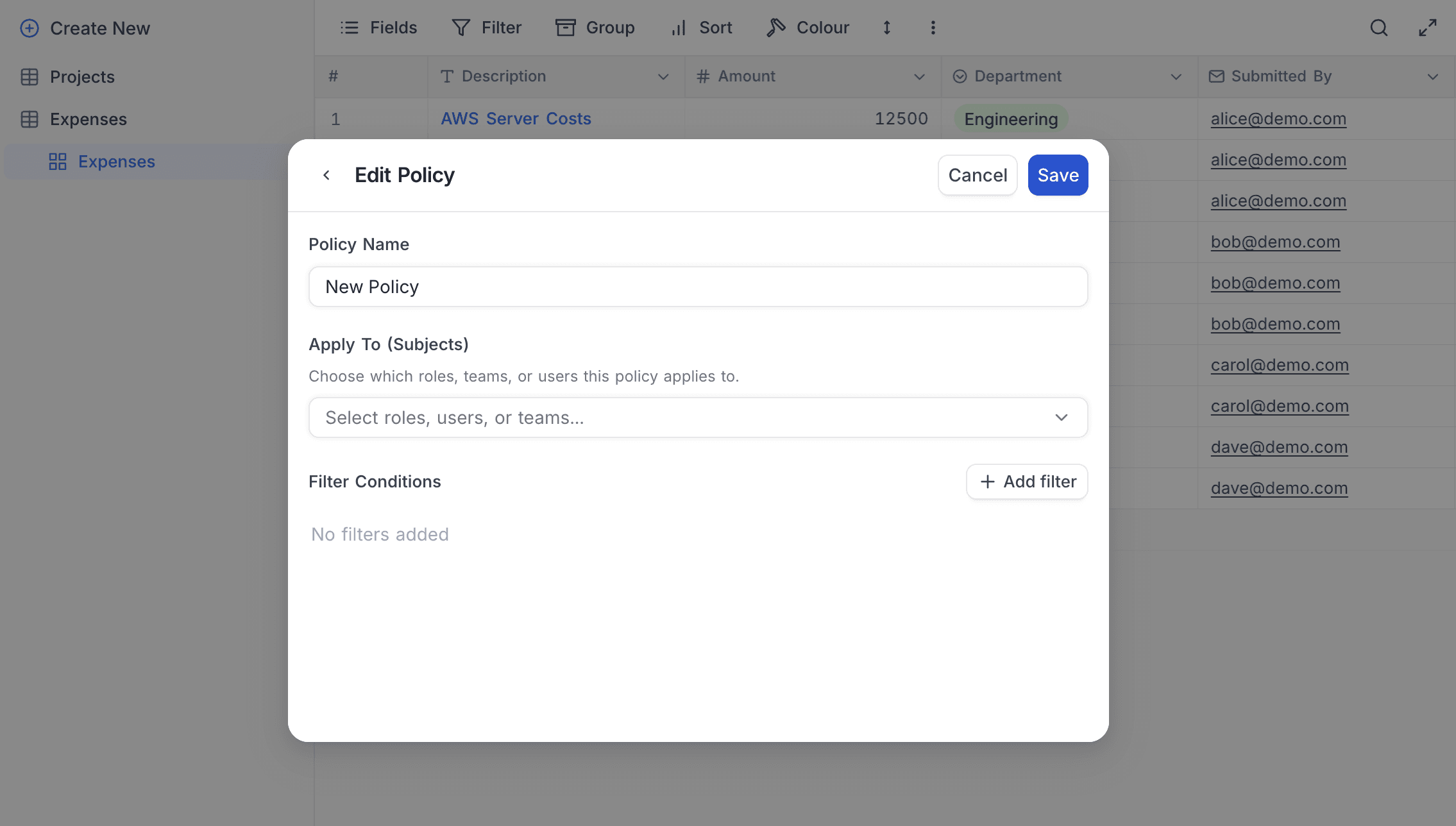
- Enter a policy name (e.g., "Sales reps see own deals").
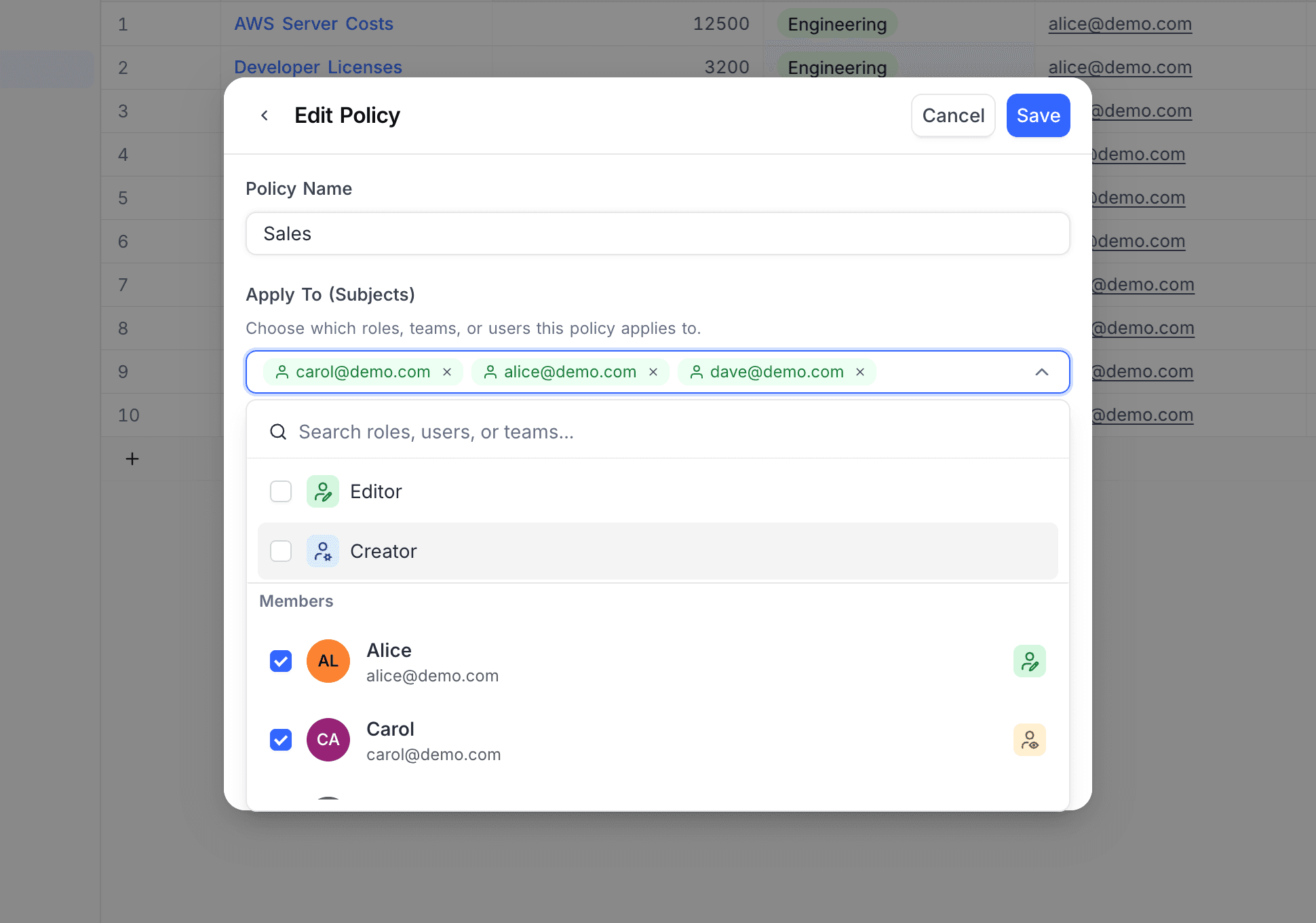
- In the Apply To section, select the subjects this policy targets:
- Choose from Roles, Members (users), or Teams.
- You can select multiple subjects of different types.
- For teams, choose the hierarchy scope (self only or self and descendants).
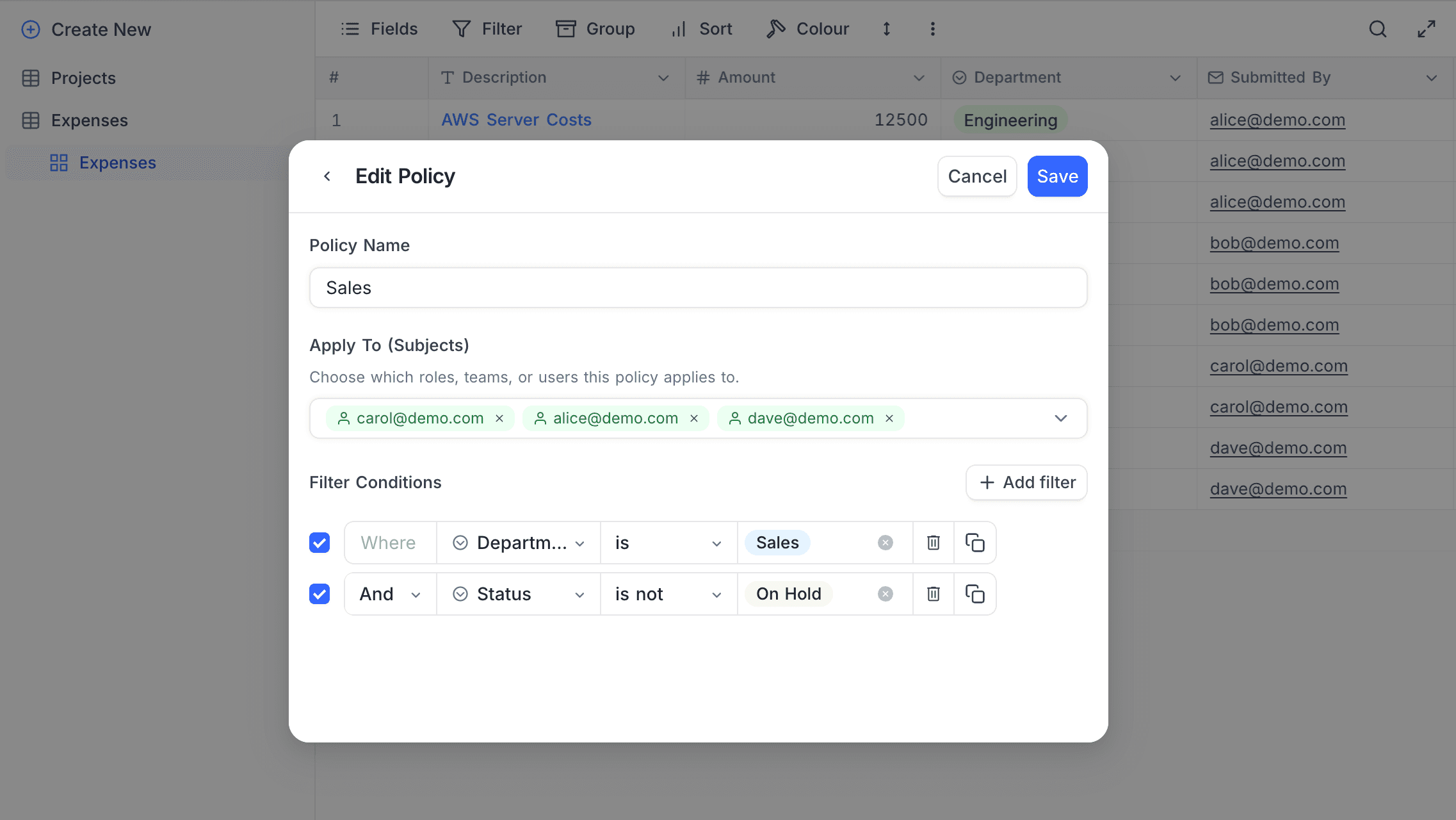
- Configure the filter conditions that determine which records are visible.
- Save the policy.
Enabling and Disabling Policies
Each policy has an enable/disable toggle. Disabled policies are ignored during evaluation — they remain configured but do not affect record visibility.
Editing and Deleting Policies
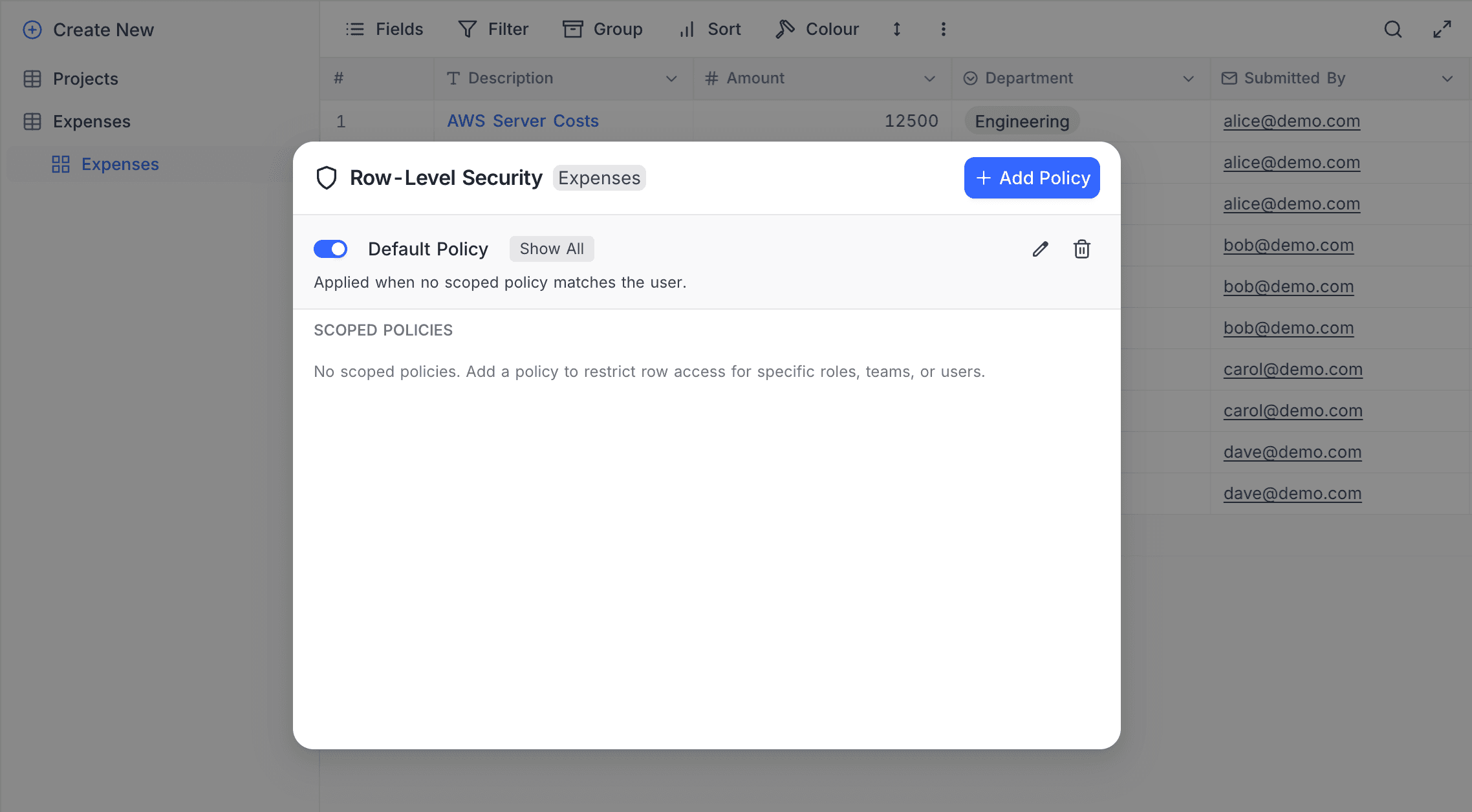
- To edit a policy, click the edit icon next to it in the policy list. Modify the name, subjects, or filter conditions as needed.
- To delete a policy, click the delete icon and confirm the deletion.
Example: Sales Pipeline
Consider a "Sales Pipeline" table tracking deals across a sales organization:
| Field | Type | Description |
|---|---|---|
| Deal Name | Single line text | Name of the deal |
| Value | Currency | Deal value |
| Stage | Single select | Pipeline stage (Lead, Qualified, Proposal, Closed Won, Closed Lost) |
| Assigned To | Email of the assigned sales rep | |
| Region | Single select | Sales region (North, South, East, West) |
Goal: Sales reps see only their own deals. Regional sales managers see deals in their region. Everyone else is blocked by default.
Policy 1: Default Policy — Deny All
Create a default policy with behavior set to Deny all. This ensures that any user who doesn't match a scoped policy cannot see any records.
Policy 2: Sales Reps See Own Deals
| Setting | Value |
|---|---|
| Policy name | Sales reps – own deals |
| Apply to | Role: Editor |
| Filter | Assigned To is equal Current user email (dynamic value) |
Sales reps (with Editor role) see only the deals assigned to them. Because the filter uses a dynamic value, this single policy covers every rep: each one resolves Assigned To against their own email address.
Policy 3: Regional Managers See Team Deals
| Setting | Value |
|---|---|
| Policy name | Managers – regional deals |
| Apply to | Team: North Sales Team (self and descendants) |
| Filter | Region is equal North |
Members of the North Sales Team (and its sub-teams) see all deals in the North region. Create similar policies for other regions as needed.
How It Works
- Alice (Editor role, Assigned To: alice@company.com) — Matches Policy 2. The dynamic value resolves to her own address, so she sees only deals where
Assigned To = alice@company.com. Every other rep matching the same policy sees their own deals the same way. - Bob (member of North Sales Team) — Matches Policy 3. Sees all deals where
Region = North. - Carol (VP of Sales, Creator role, not matched by any scoped policy) — Since Creators are not subjects in any scoped policy, the default policy applies. Carol sees no records. To give Carol full access, either add Creator as a subject in a scoped policy with a "show all" condition, or change the default policy to Show all and restrict others instead.
- Dave (Viewer role, not in any sales team) — No scoped policy matches. Default policy applies: Deny all. Dave sees nothing.
Notes and Limitations
- Permissions required — Only base Owners and Creators can create, edit, or delete RLS policies.
- Per-table limit — There is a configurable limit on the number of scoped policies per table (the default policy does not count toward this limit).
- Fail-closed — If an error occurs during policy evaluation, access is denied. This ensures that records are never exposed due to a system error.
- API and views — RLS policies apply across all views of the table and to API calls. Records filtered out by RLS are not accessible through any interface.
- Table visibility first — RLS is evaluated only after table visibility. If a table is hidden from a user, RLS does not apply — the table is simply inaccessible.
- View filter interaction — RLS filters combine with view filters using AND logic. A record must pass both the view filter and the RLS policy filter to be visible.
- Real-time updates — Policy changes take effect immediately for all connected users.
Related topics