Actions on connection
Learn how to perform actions (edit, duplicate, delete) on a connection in NocoDB.
List
To list all the connections in NocoDB, follow the steps below:
- Click Integrations in the workspace sidebar.
- Click View all connections next to the Active connections heading
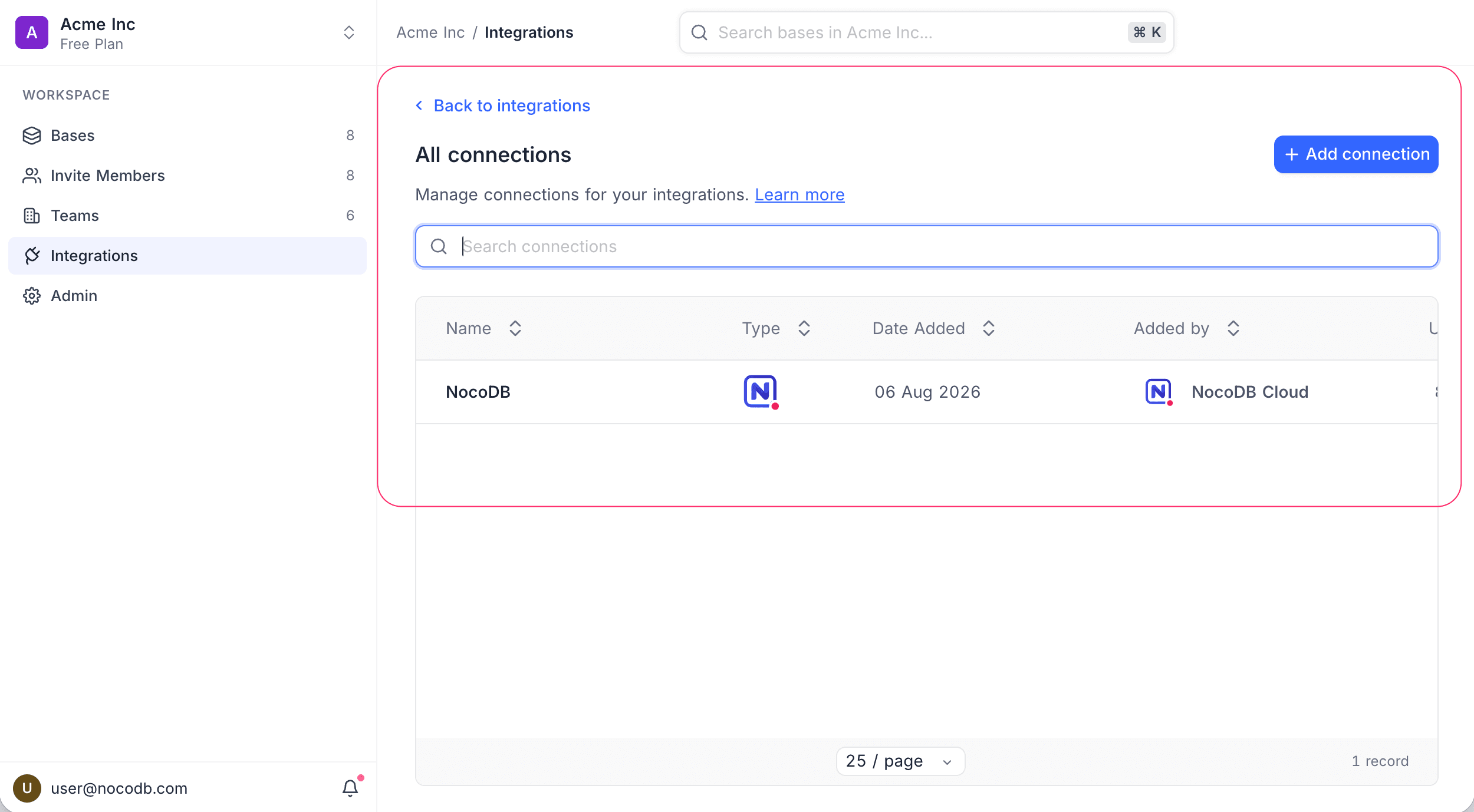
The All connections page provides a consolidated view of all the connections in this workspace. The details include
- Connection name, as specified during creation
- Connection type, i.e., the integration type [Example: PG, MySQL]
- Date added, specifies the date when this connection was created
- Added by, specifies the user who created this connection
- Usage, depends on the type of the integration
- for database type integrations, this would specify the number of data sources using this connection
- Base access, indicates which bases in the workspace can use this connection. See Manage integration access
Note that, there is no ownership concept for connections in NocoDB. All the connections created in a workspace are accessible to all eligible users in that workspace.
- Users with Workspace Creator+ permissions can create, edit, duplicate, and delete connections
- Users with Base Creator+ permissions can create data sources using these connections
Manage integration access
By default, a connection created from the workspace Integrations page can be used by every base in the workspace. You can restrict it to a specific set of bases instead.
The Base access column shows the current state of each connection:
- All Bases — every base in the workspace can use this connection, including bases created later.
- Restricted — only the bases you select can use this connection.
To change it, open the Connections list and follow the steps below:
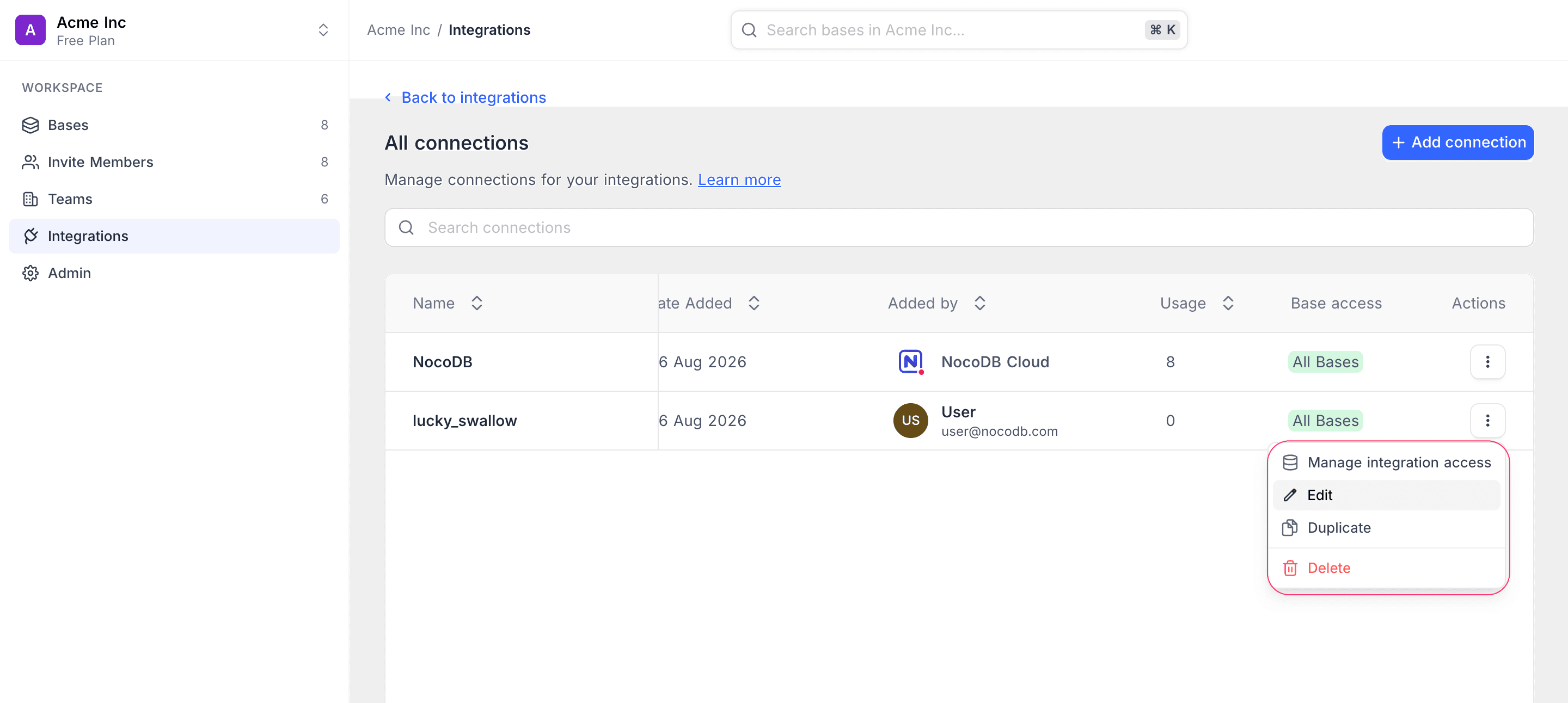
- Click on the Action menu (three dots) against the Connection, then select Manage integration access. You can also click the Base access badge on the row directly.
- Turn off the All Bases toggle to restrict the connection.
- Under Select bases, tick the bases that should have access.
- Click Save.
Connections created from within a base are restricted to that base by default. Connections created from the workspace Integrations page start with access to all bases.
Manage integration access is not available for the built-in NocoDB connection, and only Workspace Owners and Workspace Creators can change base access.
Edit
To edit a connection in NocoDB, Open the Connections list and follow the steps below:
- Click on the Connection you want to edit
- Modify the required details in the subsequent modal
- Test connection if applicable
- Applicable if you have updated the connection details for a database integration
- Click on the Update connection button to save the changes
Duplicate
To duplicate a connection in NocoDB, Open the Connections list and follow the steps below:
- Click on the Action menu (three dots) against the Connection you want to duplicate
- Select the Duplicate option from the dropdown
Duplicated base will be created with the same connection details as the original connection - with connection name for the duplicated entry suffixed with _copy.
Delete
To delete a connection in NocoDB, Open the Connections list and follow the steps below:
- Click on the Action menu (three dots) against the Connection you want to delete
- Select the Delete option from the dropdown
- Click on the Delete button in the subsequent modal to confirm deletion
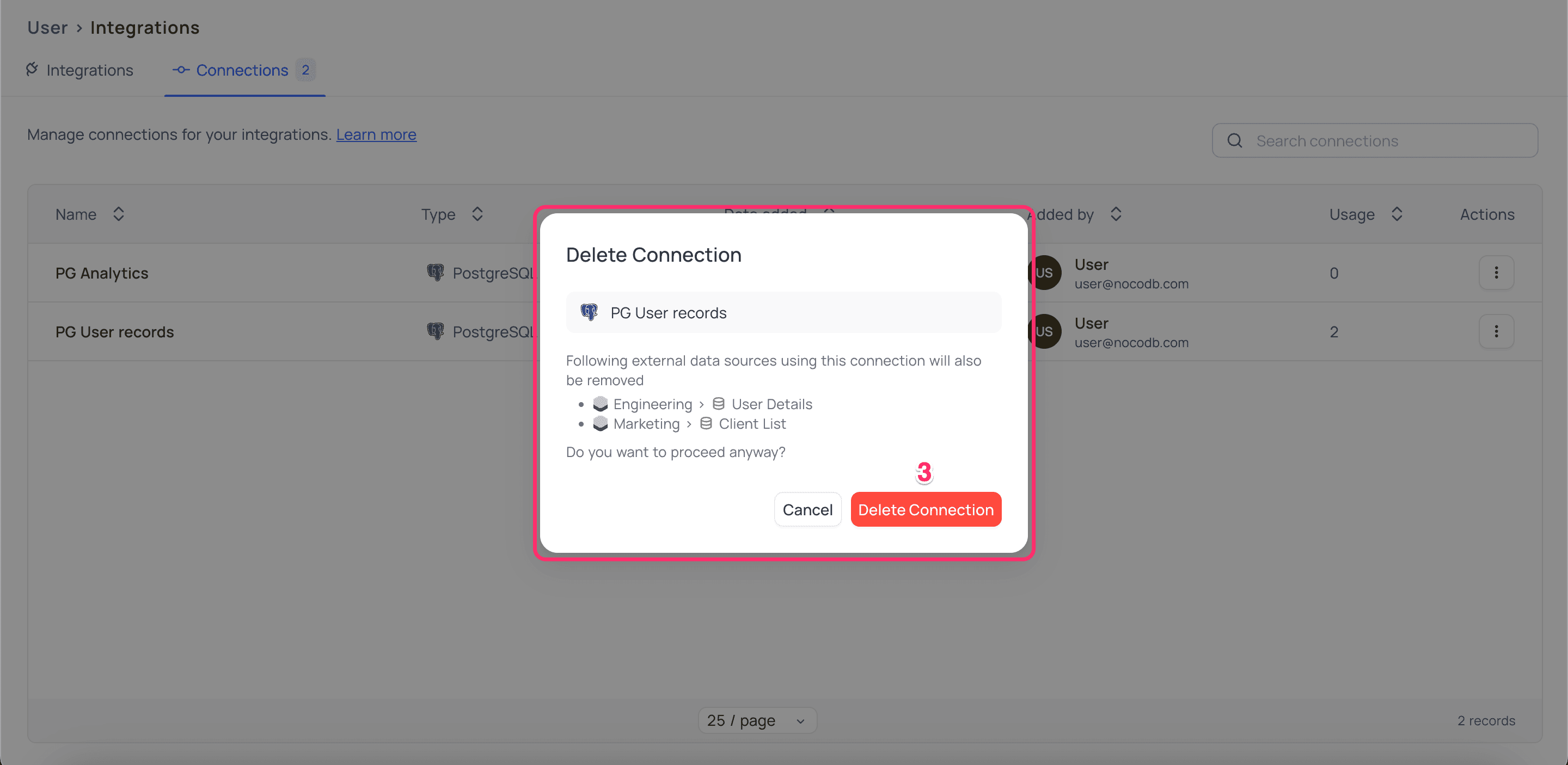
Note that, deleting a database connection will remove all the associated data sources using this connection from all the bases in this workspace.