Field summary
Understanding the field summary bar in NocoDB!
The "Field Summary" provides quick calculations for chosen fields displayed in the footer of a table's grid view. These calculations offer quick insights into your data, such as total sums, averages, minimum, and maximum values. This section explains how to use & configure field summary to accurately compute these values.
Overview
Field Summary is aggregated value computed by considering all the rows present in a grid view. The resulting values are displayed in the summary cells at the bottom of the field for easy reference. Filters configured on the grid, if any will affect the rows displayed & hence the summary as well.
When you select a range of cells or tick row checkboxes, the footer automatically rescopes to compute over the selected cells only. See Selection-scoped summary below for details.
Please note that it is not possible to reference these aggregated values directly in other parts of the table.
When a grid view is shared publicly, the summary is also visible to the viewers. Viewers of shared view can also modify the field summary configuration to suit their needs, but the changes are not saved (revert upon page refresh).
Summary configurations are grid view specific. Multiple grid views can be created for a table, and each grid view can have its own summary configuration.
Configuring Field Summary
By default, the summary is disabled for all fields. To enable the summary for a field, follow these steps:
Navigate to the grid view of the table you wish to configure the field summary for.
- Click on the cell of the field you wish to configure the summary for.
- Select the desired summary type from the dropdown list.
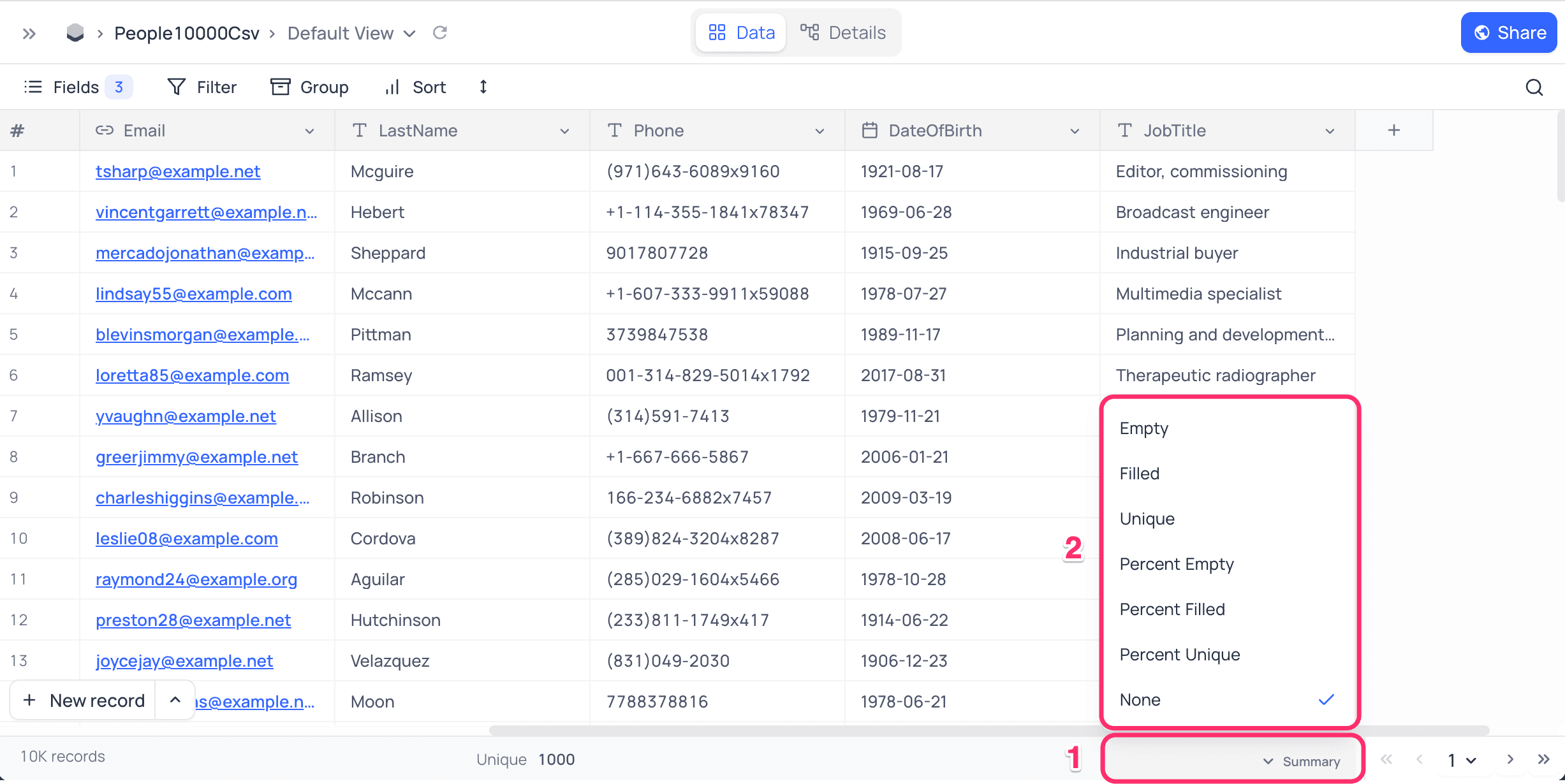
Changes to the grid view immediately update the values displayed in the footer cells. To disable the summary for a field, click on the summary cell and select "None" from the dropdown list.
Summary Types
Summary function types available for configuration depend on the field type. General functions listed below are available for most of the field types:
General
- Empty: Count of empty cells in the field.
- Filled: Count of non-empty cells in the field.
- Unique: Count of unique values in the field.
- Percent Empty: Percentage of empty cells in the field.
- Percent Filled: Percentage of non-empty cells in the field.
- Percent Unique: Percentage of unique values in the field.
Apart from these general functions, specific functions are available for different field types:
Numeric
- Sum: Sum of all numeric values in the field.
- Minimum: Minimum value in the field.
- Maximum: Maximum value in the field.
- Average: Average of all numeric values in the field.
- Median: Median of all numeric values in the field.
- Standard Deviation: Standard deviation of all numeric values in the field.
- Range: Range of all numeric values in the field.
Date
- Earliest Date: Earliest date in the field.
- Latest Date: Latest date in the field.
- Date Range: Range of dates in the field.
- Month Range: Range of months in the field.
Checkbox
- Checked: Count of checked checkboxes in the field.
- Unchecked: Count of unchecked checkboxes in the field.
- Percent Checked: Percentage of checked checkboxes in the field.
- Percent Unchecked: Percentage of unchecked checkboxes in the field.
Attachment
- Attachment Size: Total size of attachments in the field.
Summary configuration is not available for DB specific field types.
Selection-scoped summary
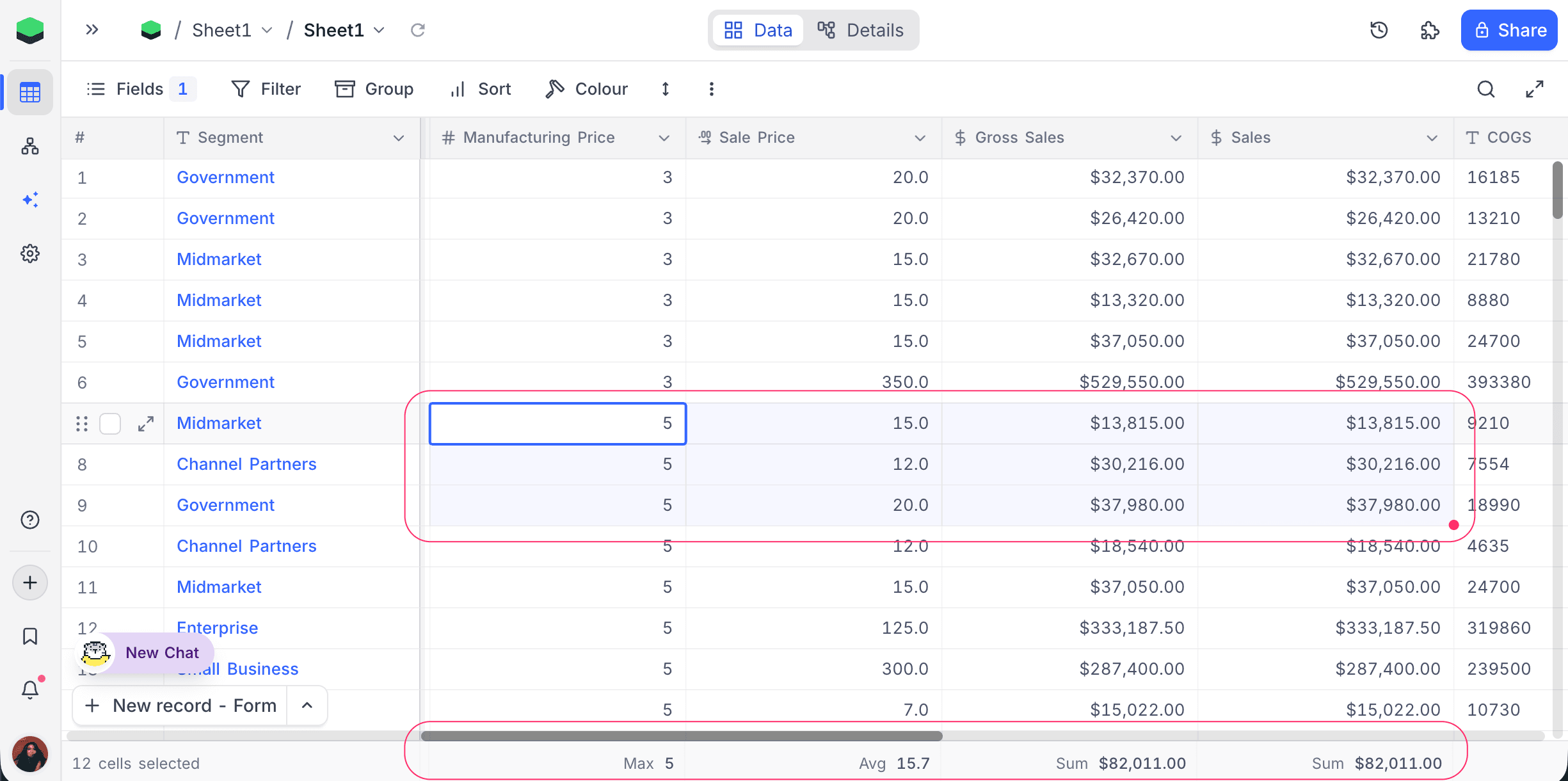
By default, the footer aggregates over every row visible in the grid. When you select a subset of cells, the footer rescopes to that subset instead so you can inspect totals, counts, or ranges for just the records you care about, without changing any filters or summary configuration.
How to activate
The footer enters selection-scoped mode whenever one of these is true:
-
Cell range: click and drag (or shift-click) to select more than one cell.
-
Row checkboxes: tick one or more checkboxes in the index column on the left.
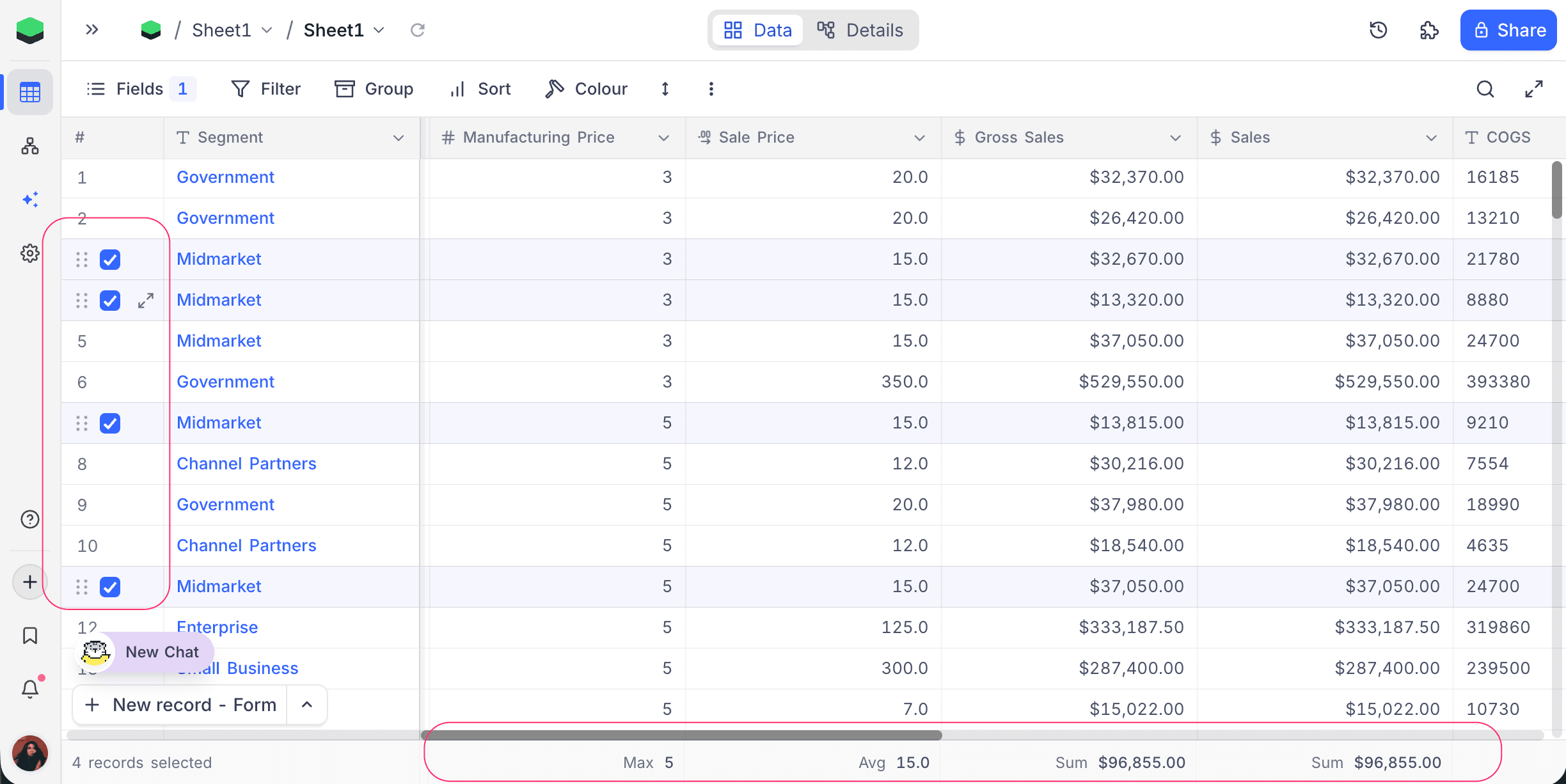
A single-cell click does not activate selection scope. Selecting every record via the header "select all" checkbox also leaves the footer untouched, because the full-table totals shown by default are already the correct answer for that case.
To return to the full-table summary, click anywhere on a single cell or clear the row checkboxes.
Behaviour in scope
- Fields inside the selection recompute their configured summary over the selected cells only. The summary type set per field (Sum, Average, Median, Date Range, etc.) is preserved.
- Fields outside the selection blank out in the footer for the duration of the selection. The "Summary" affordance for configuring a new summary is also hidden while a selection is active; clear the selection to configure summaries again.
- Summary values update instantly as you extend or shrink the selection.
Behaviour in group-by views
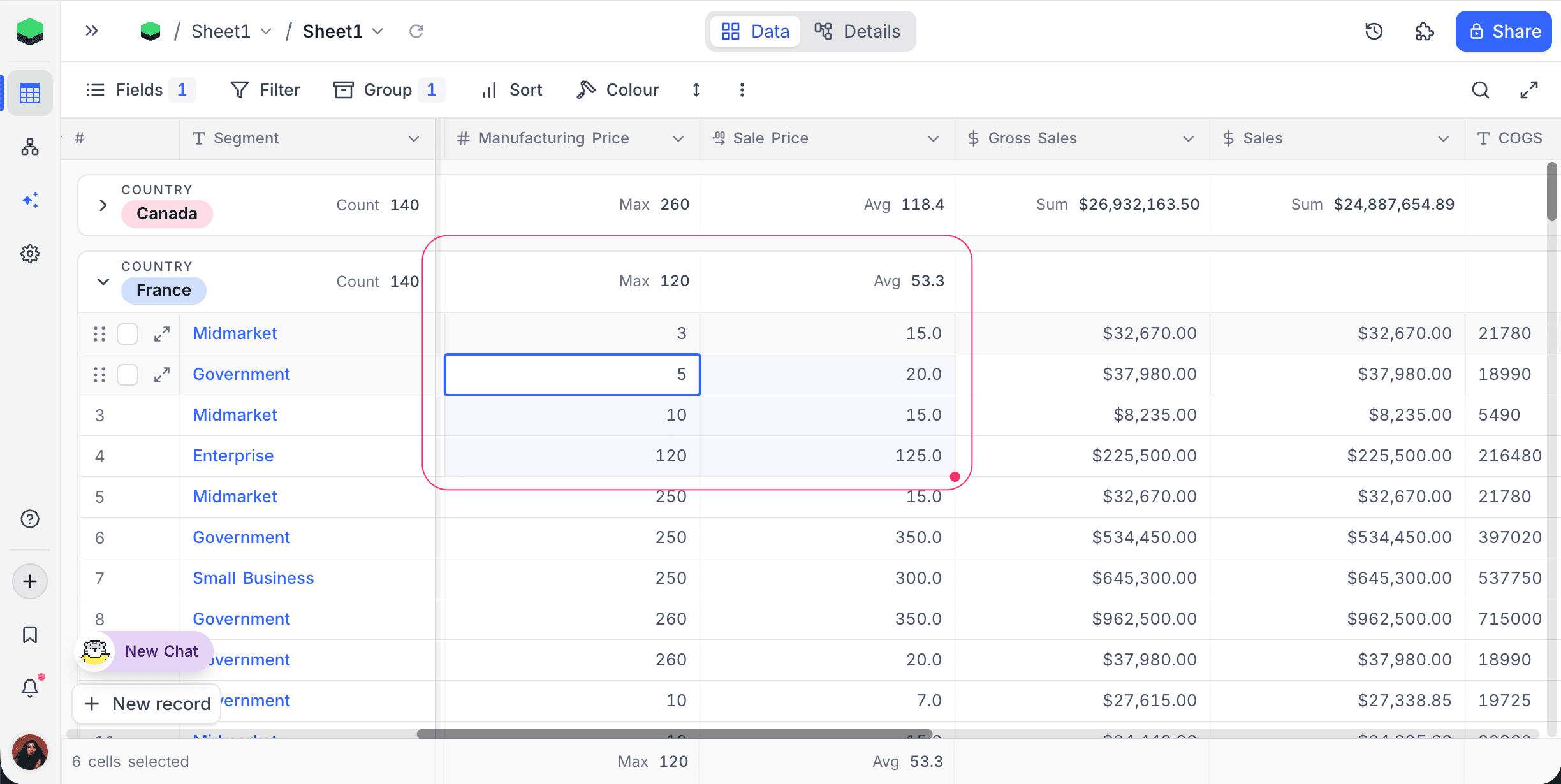
When the grid is grouped:
- A cell range inside one group rescopes only that group's header summary. Other groups continue to show their normal group totals.
- Row checkboxes rescope the header summary of every group that has at least one checked row. All fields are considered in scope for checkbox selections, since whole records are selected.
- The global footer at the bottom of the grid reflects the combined selection across all groups.
Limitations
- Selection-scoped summaries are computed over the rows currently loaded in the grid. If a cell range extends into rows that have not been loaded yet, the footer falls back to the full-table summary rather than show a partial value.
- Selection scope does not apply to the dashboards or other parts of the product. Values displayed in the footer cannot be referenced elsewhere.