API tokens
This article explains how to create and work with API Tokens, including fine-grained tokens with scoped permissions.
NocoDB supports two types of API tokens:
- Fine-grained tokens — Scoped to specific bases with granular permission categories. Recommended for all new integrations.
- Legacy tokens — Org-wide tokens that inherit the creator's full role permissions.
Fine-Grained API Tokens
Fine-grained API tokens give you precise control over what external integrations, scripts, and CI/CD pipelines can do in NocoDB. Unlike legacy tokens, fine-grained tokens let you restrict access to specific bases with granular permission categories.
Key Concepts
- Intersection model — A token can only restrict what your role already allows. It never grants additional permissions beyond your role.
- Deny by default — Only permission categories you explicitly add are granted. Everything else is denied.
- Show-once token — The token string is displayed only at creation time and cannot be retrieved later. The token is stored as a SHA-256 hash — the plaintext is never persisted.
Create a Fine-Grained Token
Navigate to Account Settings > API Tokens and click Create new token. This opens a single-page form with four sections.
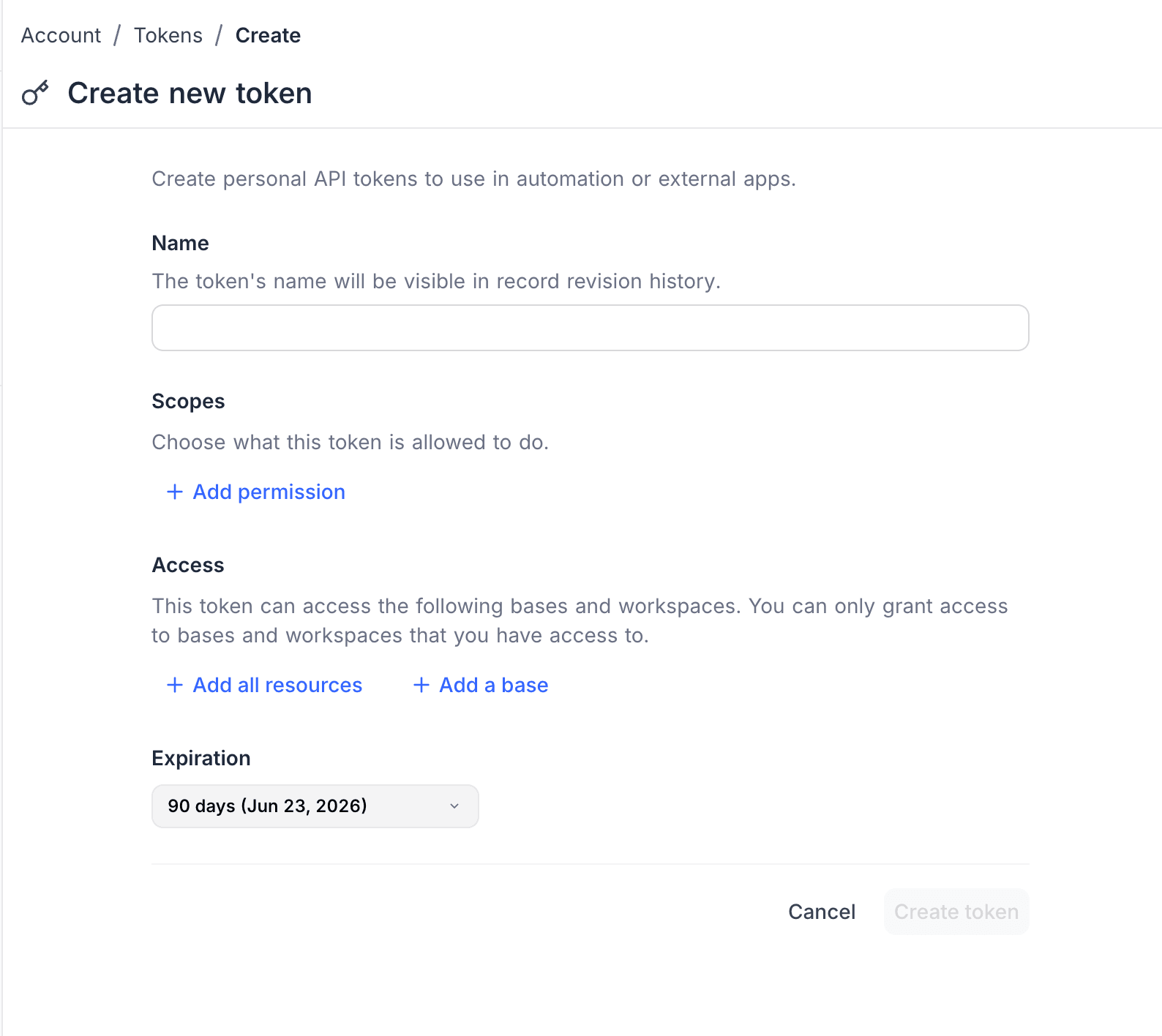
Name
Give your token a descriptive name that identifies its purpose (e.g., "CI/CD Pipeline", "Zapier Integration"). The name must be between 1 and 255 characters.
Scopes (Permissions)
Define what operations this token can perform. Permissions use an additive model — start with no permissions and add only the categories you need.
Click + Add permission to open a dropdown listing all available permission categories. Select a category to add it.
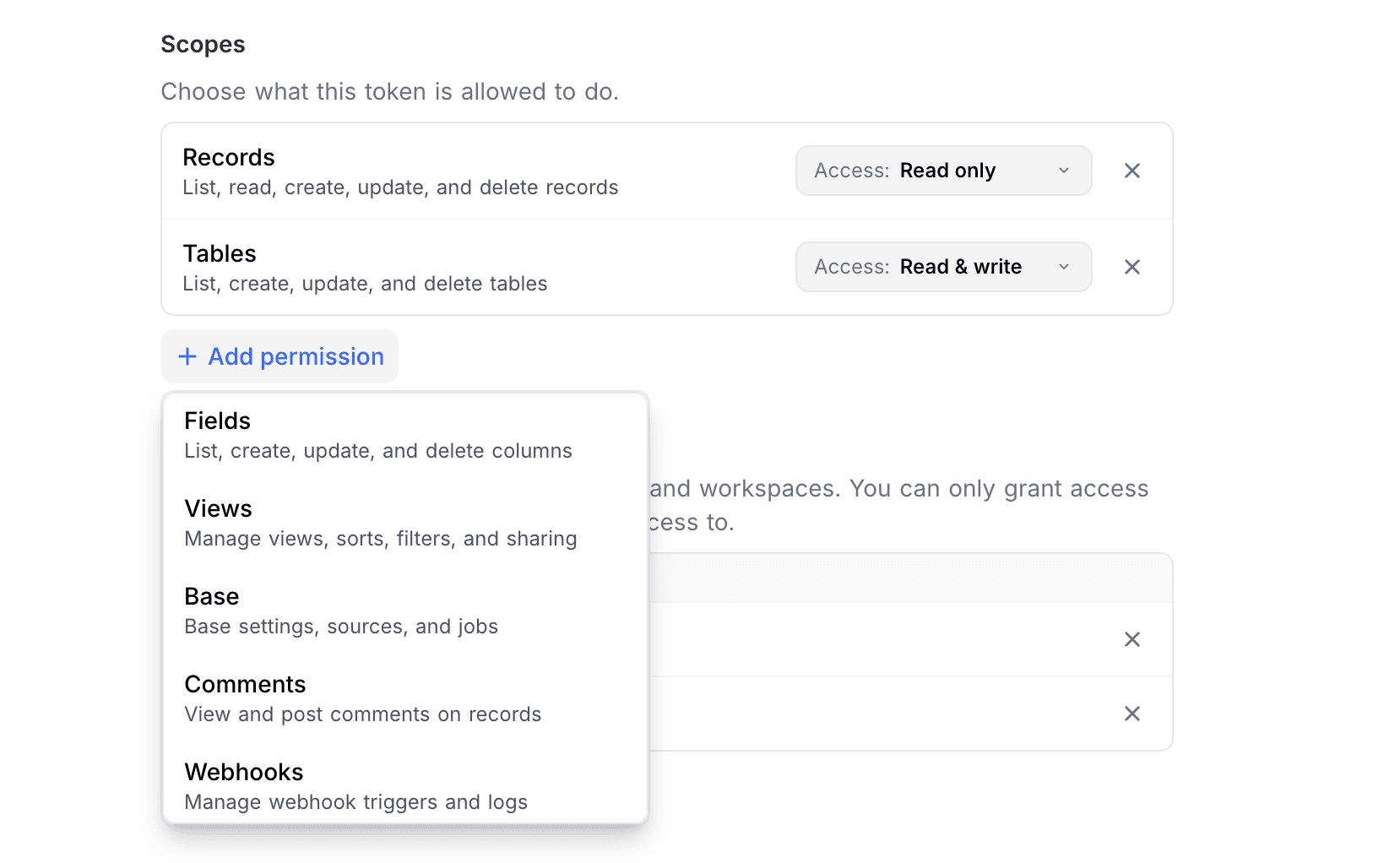
Each added category appears as a row with an access-level pill that defaults to Read only. Click the pill to switch between:
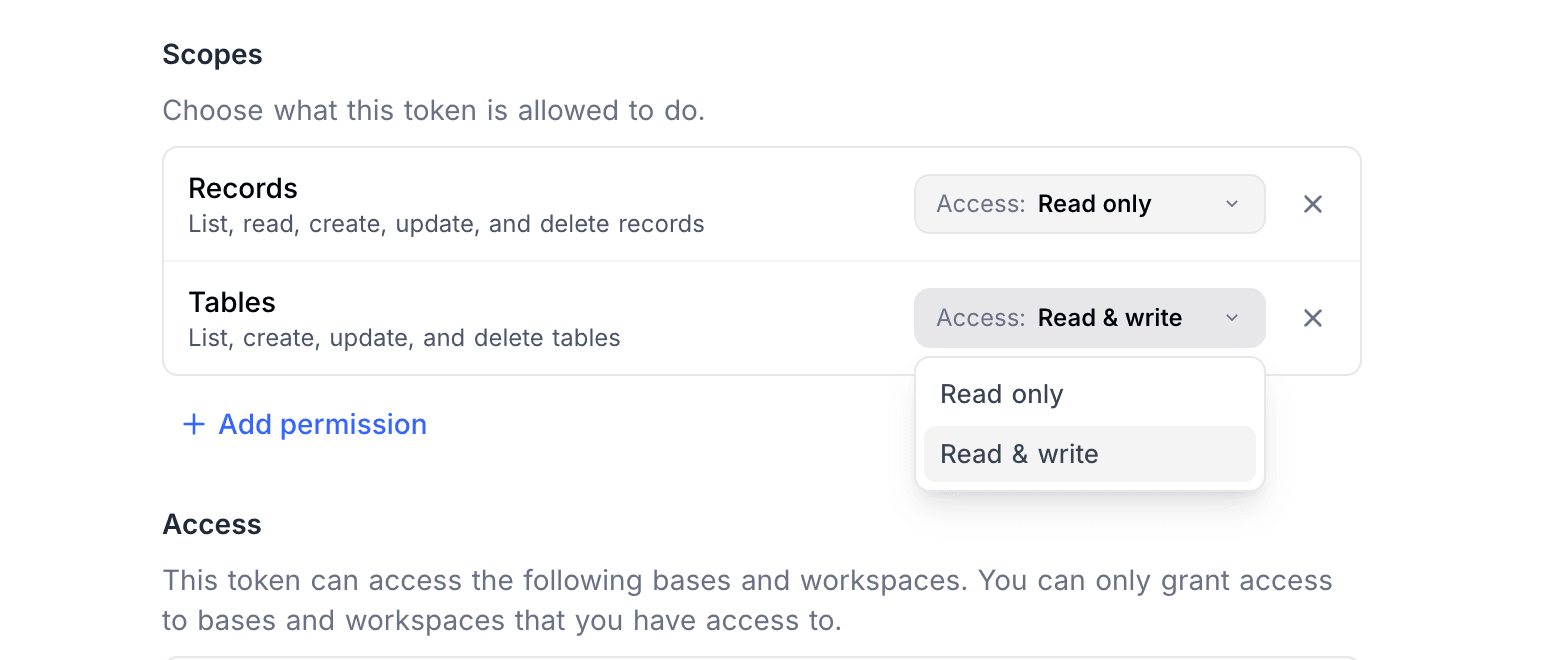
- Read only — Read-level access for that category
- Read & write — Full read and write access for that category
To remove a category, click the × button on its row. Any category not explicitly added will have no access.
The eight permission categories are:
| Category | Read only | Read & write |
|---|---|---|
| Records — record CRUD, data export, aggregation | List, read, export | Create, update, delete |
| Comments — record comments | View comments | Post, edit, delete |
| Tables — table management | List, read | Create, update, delete |
| Fields — column/field management | List columns | Create, update, delete |
| Views — views, sorts, filters, sharing | List views and config | Create, update, delete |
| Webhooks — webhook triggers and logs | List, view logs | Create, update, delete, test |
| Base — base settings, sources, jobs | View info, swagger, jobs | Create sources, delete base |
| Users — base and workspace members | List members | Invite, update roles, remove |
Access (Resource Scope)
Define which resources this token can access. Two options are available:
- Add all resources — Token can access all current and future bases across all workspaces.
- Add a base — Opens a searchable dropdown with bases grouped by workspace. Select individual bases to grant access.
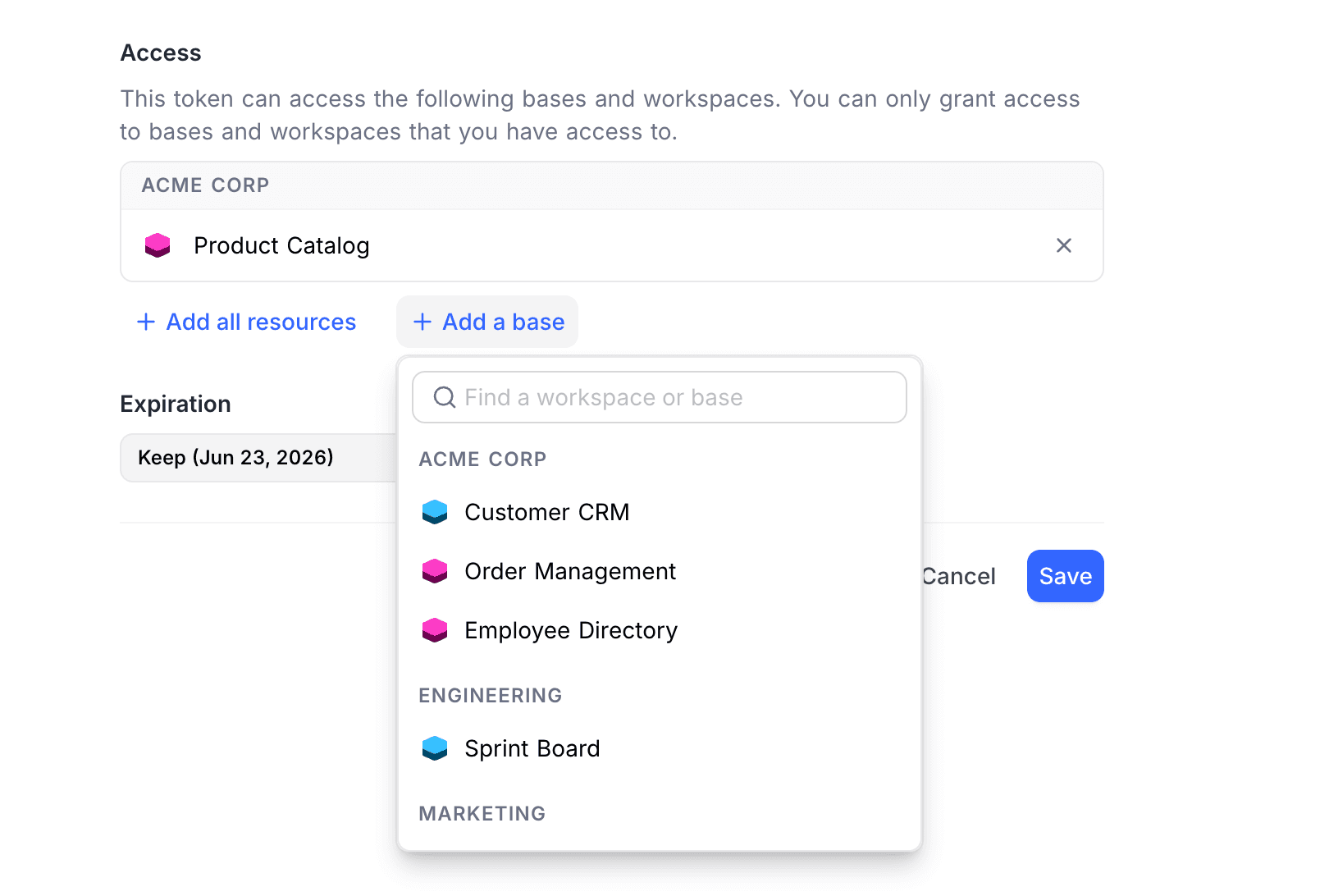
You can add multiple bases. Selected resources appear in a bordered list where each item can be removed with the × button. If you add "All resources", any previously selected individual bases are cleared.
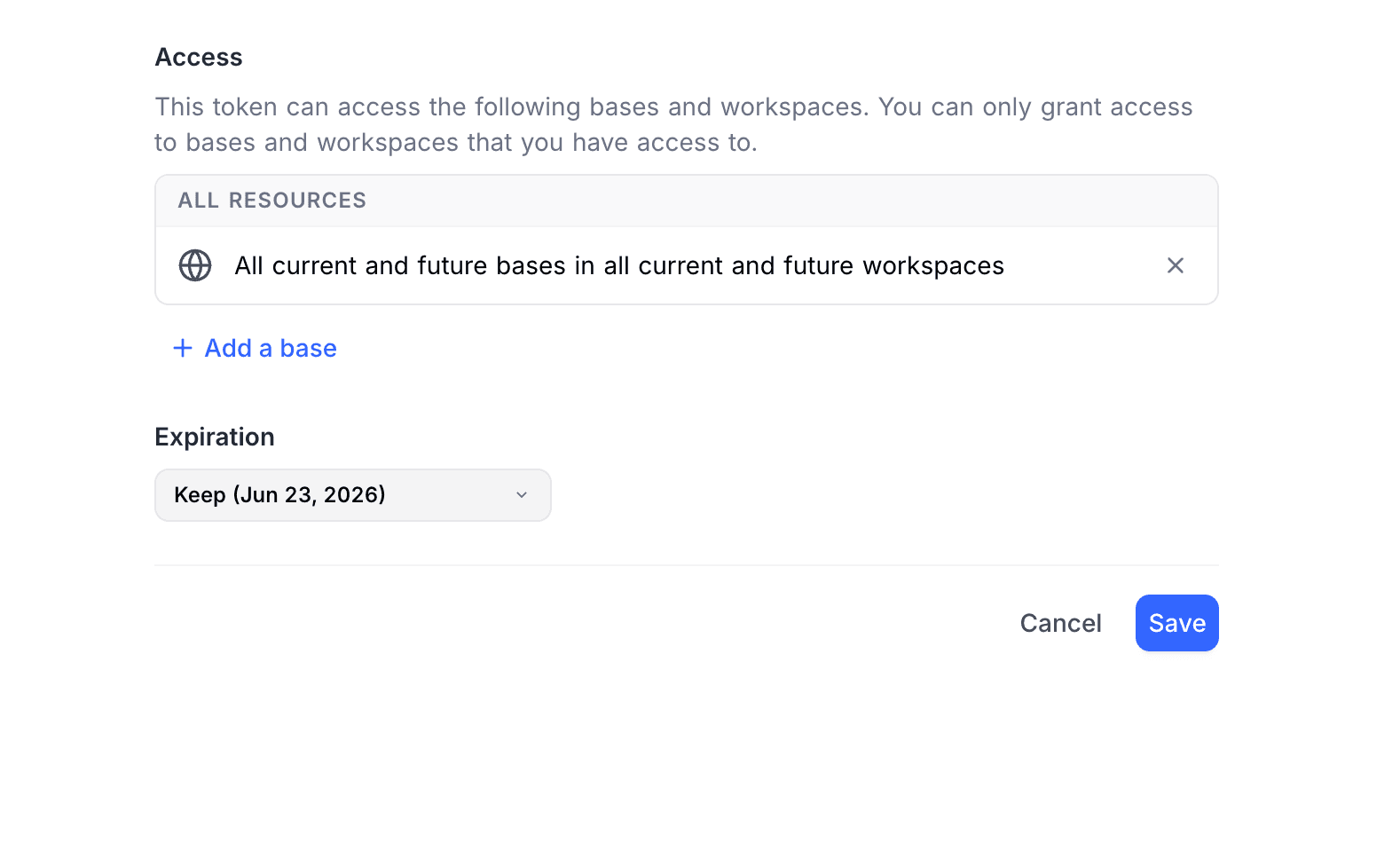
Expiration
Choose an expiration period from the dropdown:
- 7 days, 30 days, 60 days, 90 days (default), 1 year — preset options
- Custom — pick a specific date
- No expiration — the token never expires
Here is an example of a completed form with permissions and base scope configured:
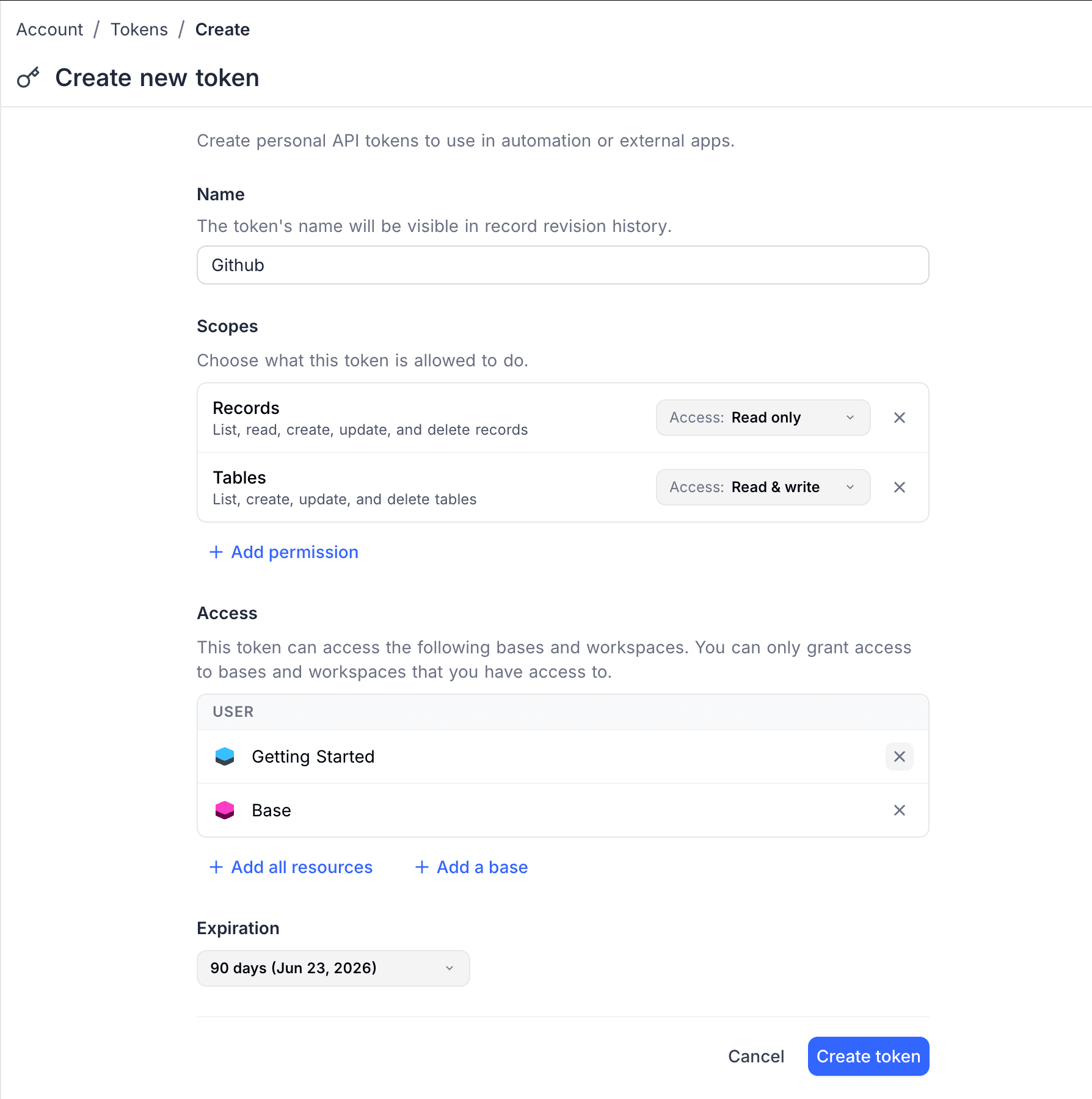
Click Create Token to generate the token.
Copy Your Token
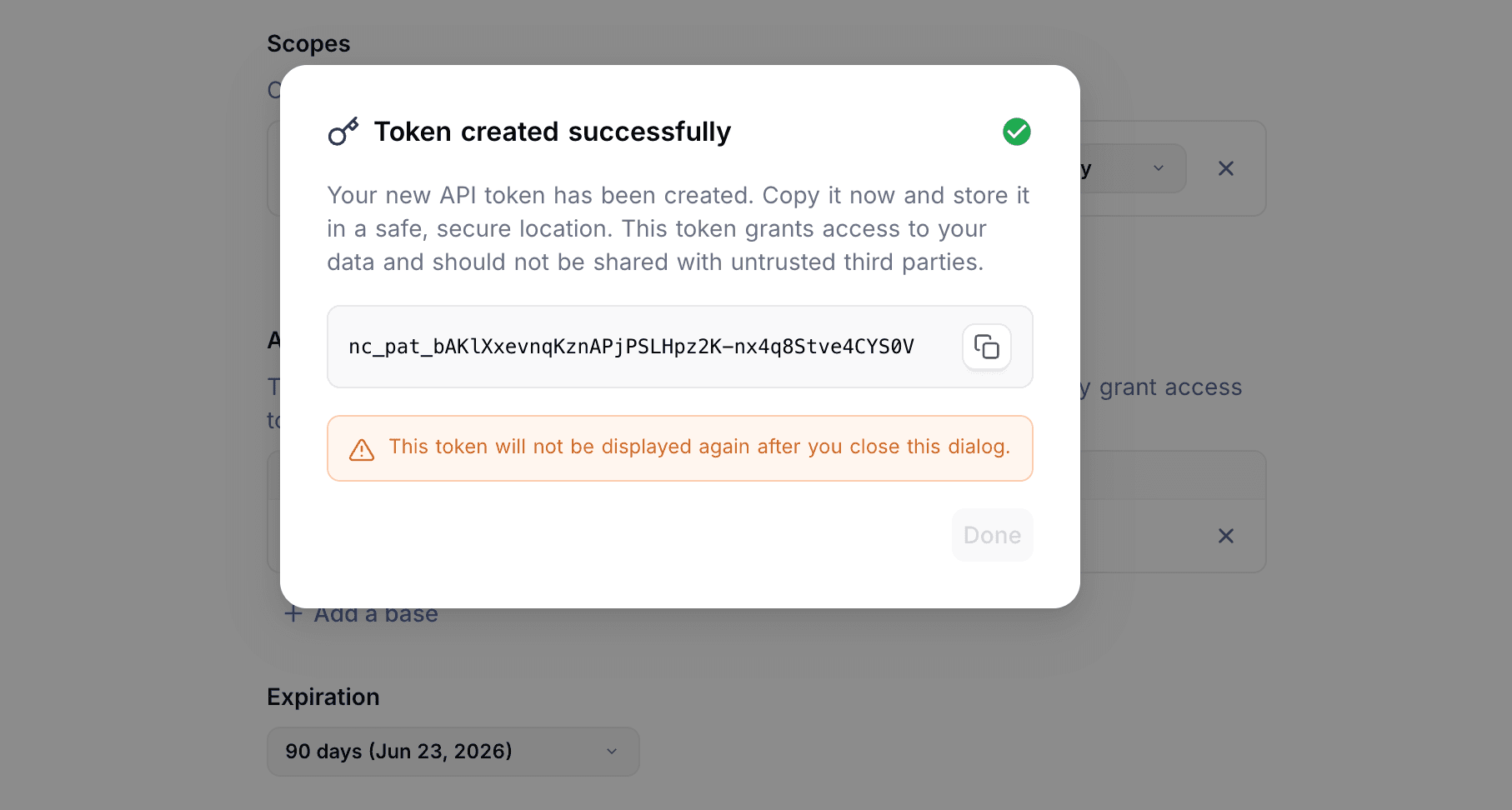
After creation, a modal displays the token string once. Copy it immediately and store it securely.
The token format is nc_pat_ followed by 40 random characters:
nc_pat_V1StGXR8_Z5jdHi2B-xoMwDqE3G4n5p6q7r8sThe Done button is only enabled after you copy the token.
Manage Tokens
The token list shows all your API tokens with columns: Active (toggle), Token Name, Creator (with avatar and email), Expires On, and Actions.
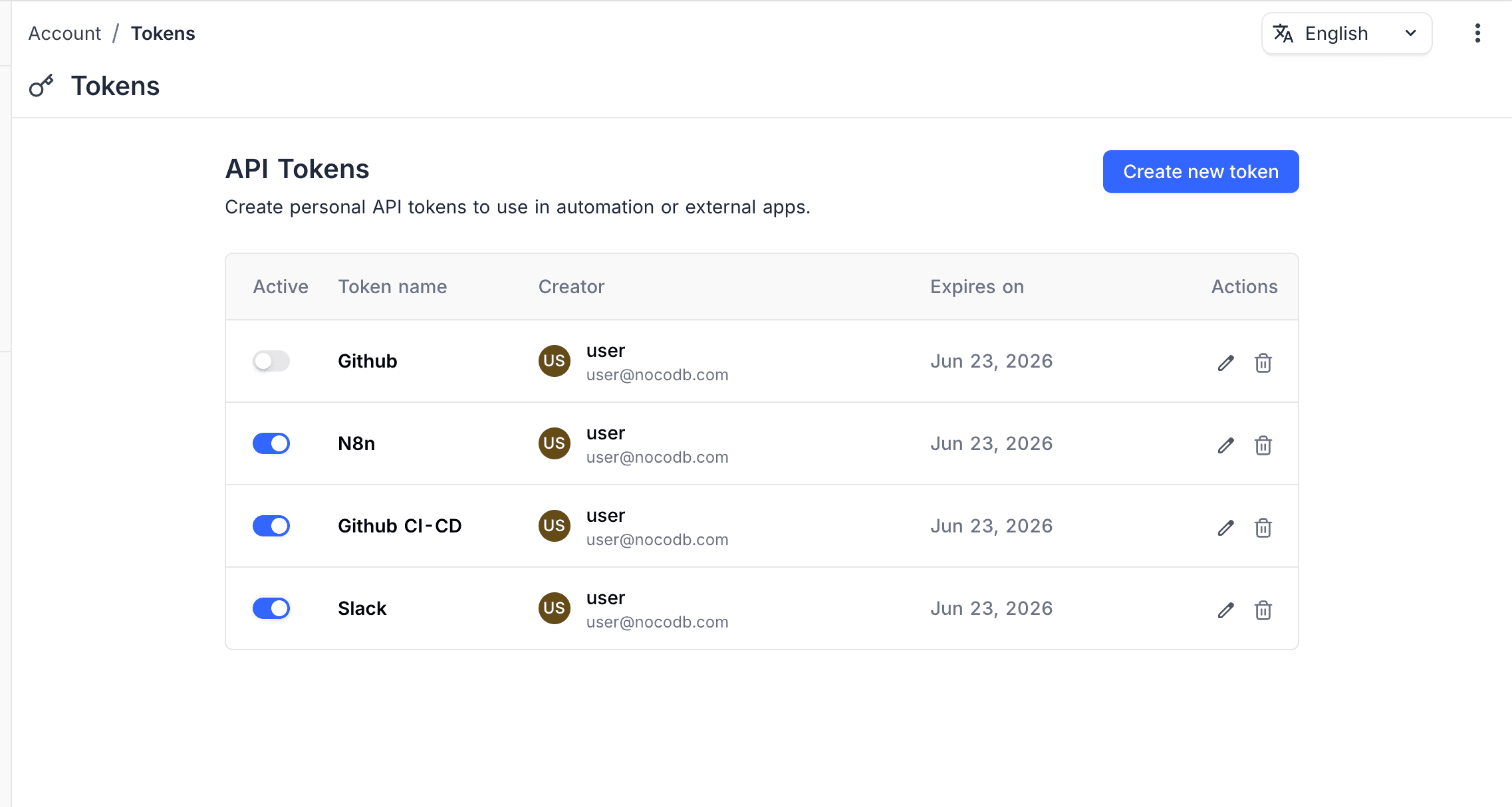
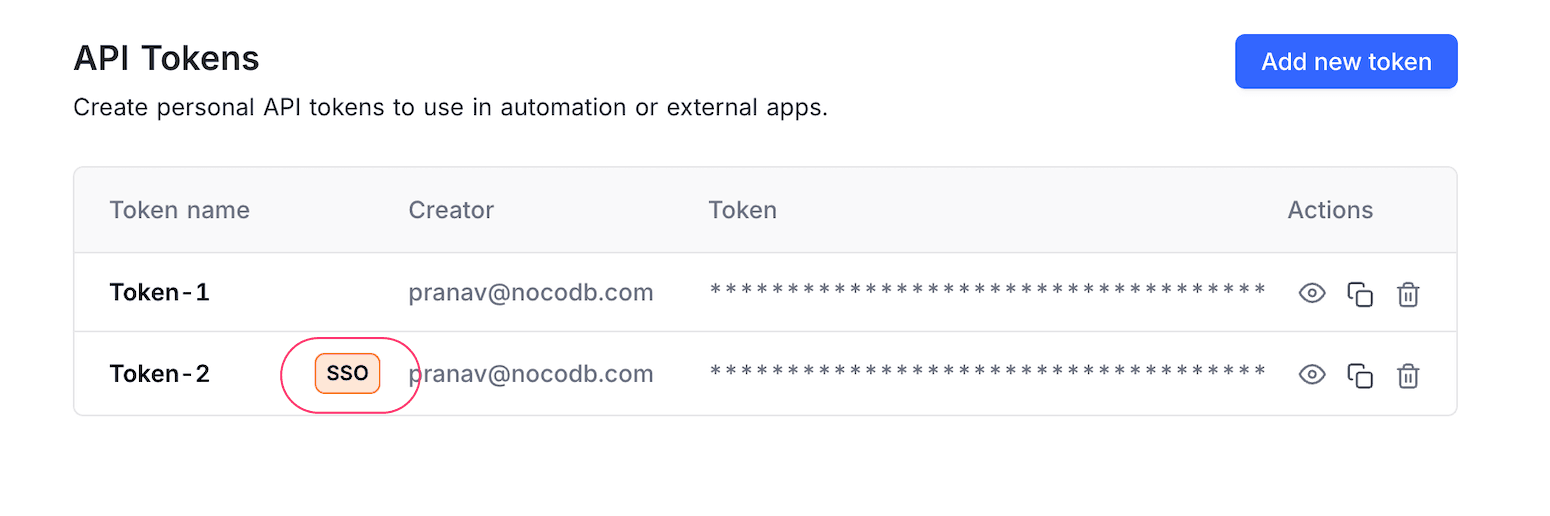
Fine-grained tokens display an Expired badge (red) when past their expiry date, and an SSO badge (orange) if created through SSO authentication.
Token Actions
Each token row provides action icons:
- Edit (pencil icon) — Opens the edit form inline, replacing the list view.
- Delete (trash icon) — Opens a confirmation dialog to permanently delete the token.
Edit a Token
Clicking edit opens the same form used for creation, pre-filled with the token's current values. You can update:
- Token name — Change the descriptive name
- Scopes (Permissions) — Add, remove, or change permission categories and their access levels
- Access (Resource Scope) — Add or remove bases, or switch to all resources
- Expiration — Extend or set a new expiry date. A Keep option preserves the current expiry.
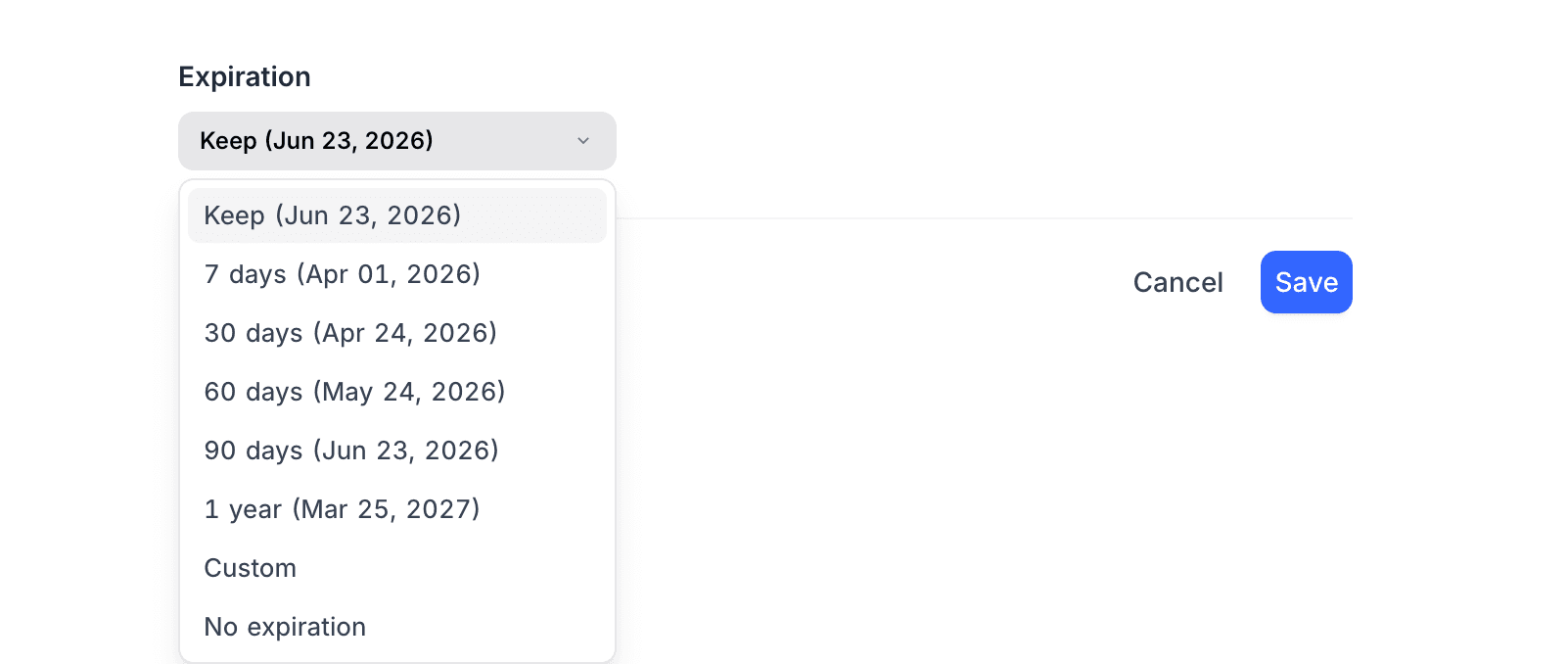
Click Save to apply changes, or Cancel to return to the token list.
Enable / Disable a Token
Use the Active toggle on any token row to enable or disable it. A disabled token receives 401 Unauthorized on all requests. Re-enable it at any time to restore access. This is useful for:
- Investigating suspicious activity without permanently revoking access
- Temporarily pausing an integration during maintenance
Permission Enforcement
For each API request, the system checks:
- Is the token valid? — exists, not expired, enabled
- Does the scope match? — if base-scoped, the requested base must be in the token's scope
- Does the user's role allow this operation? — standard role-based ACL check
- Does the token's permission level allow this operation? — operation mapped to a category and checked against the token's level
All four checks must pass. The effective permission is the intersection of the user's role and the token's granted permissions.
| Scenario | HTTP Status |
|---|---|
| Token is valid and has sufficient permissions | 200 |
| Token is expired | 401 |
| Token is disabled | 401 |
| Token does not exist or is malformed | 401 |
| Token scope does not match the requested base | 401 |
| Token permission level is insufficient | 403 |
Legacy API Tokens
Legacy tokens are org-scoped and inherit the creator's full role permissions. They remain functional for backward compatibility but we recommend migrating to fine-grained tokens for better security and control.
Create a Legacy Token (Deprecated)
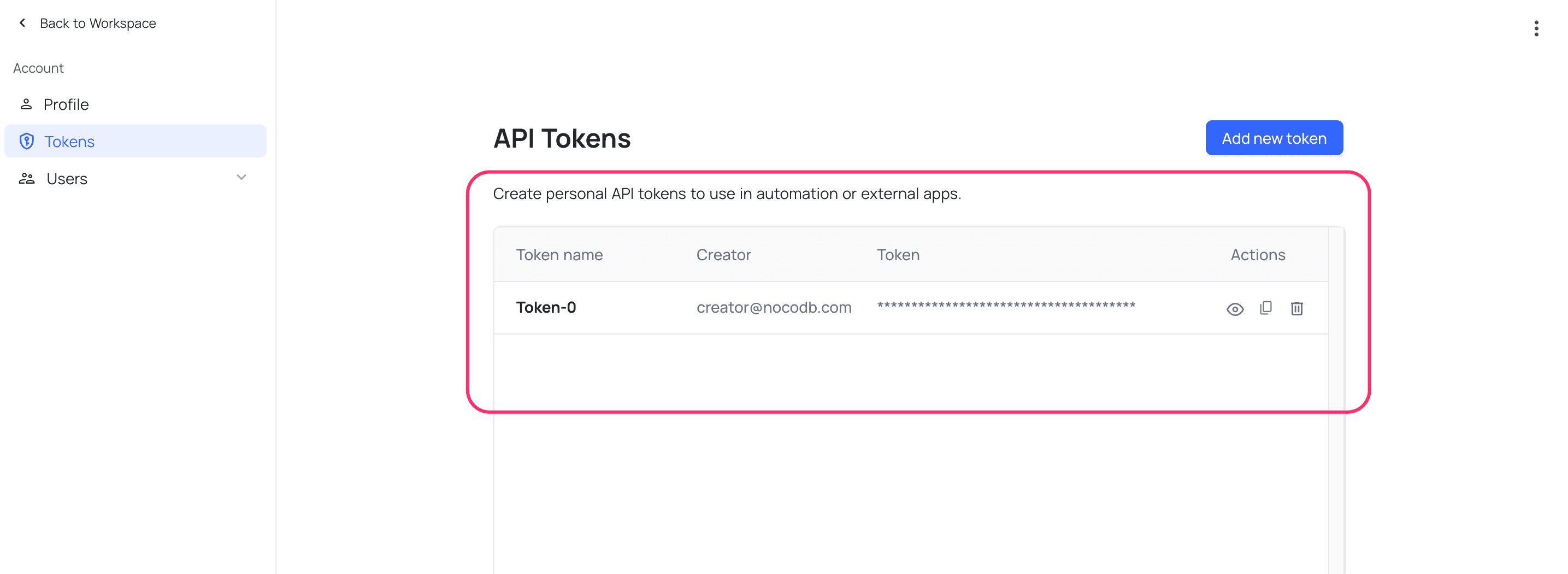
- Click on
User menuin the bottom left corner of the sidebar - Select
Account Settingsfrom the dropdown
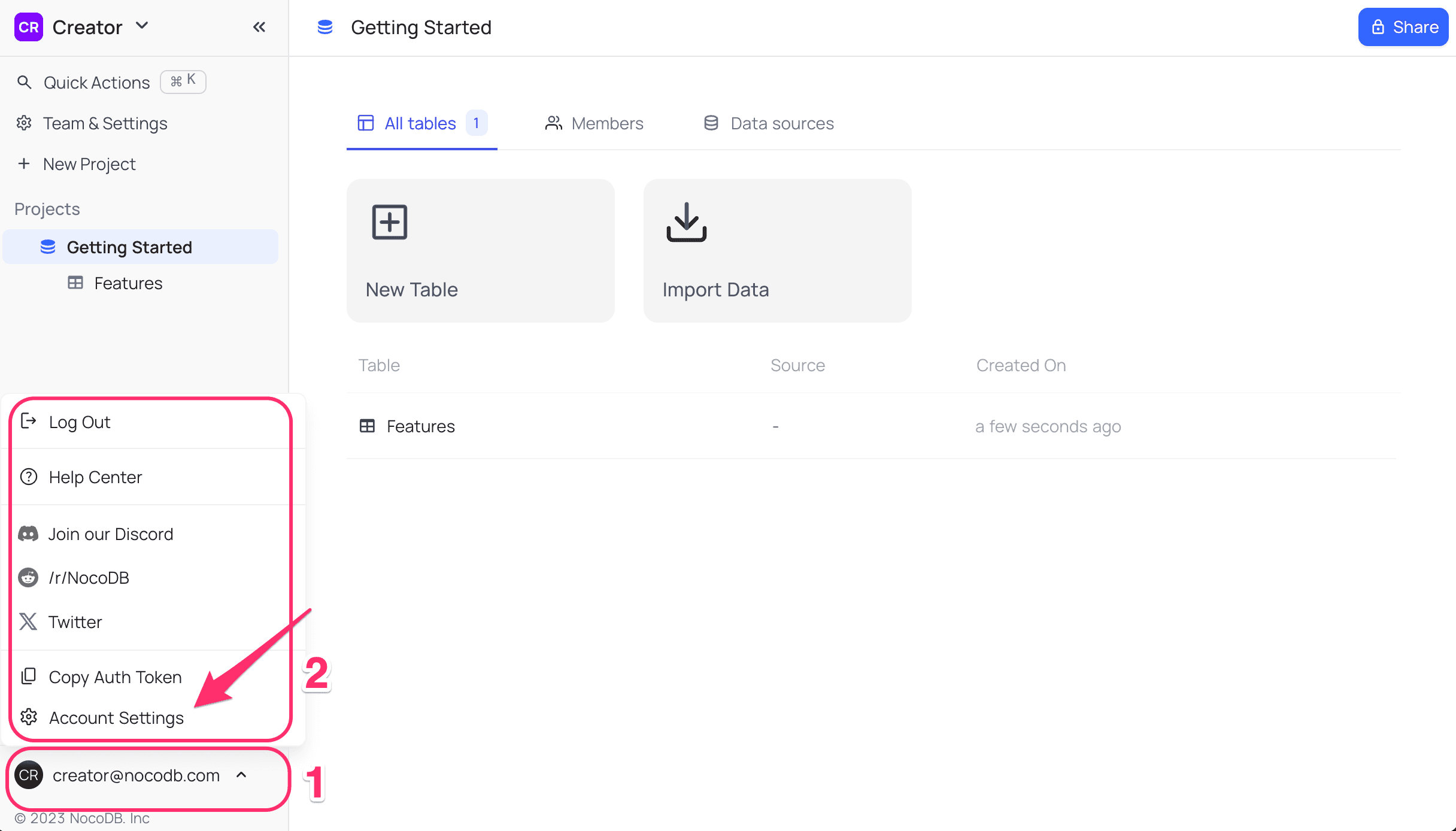
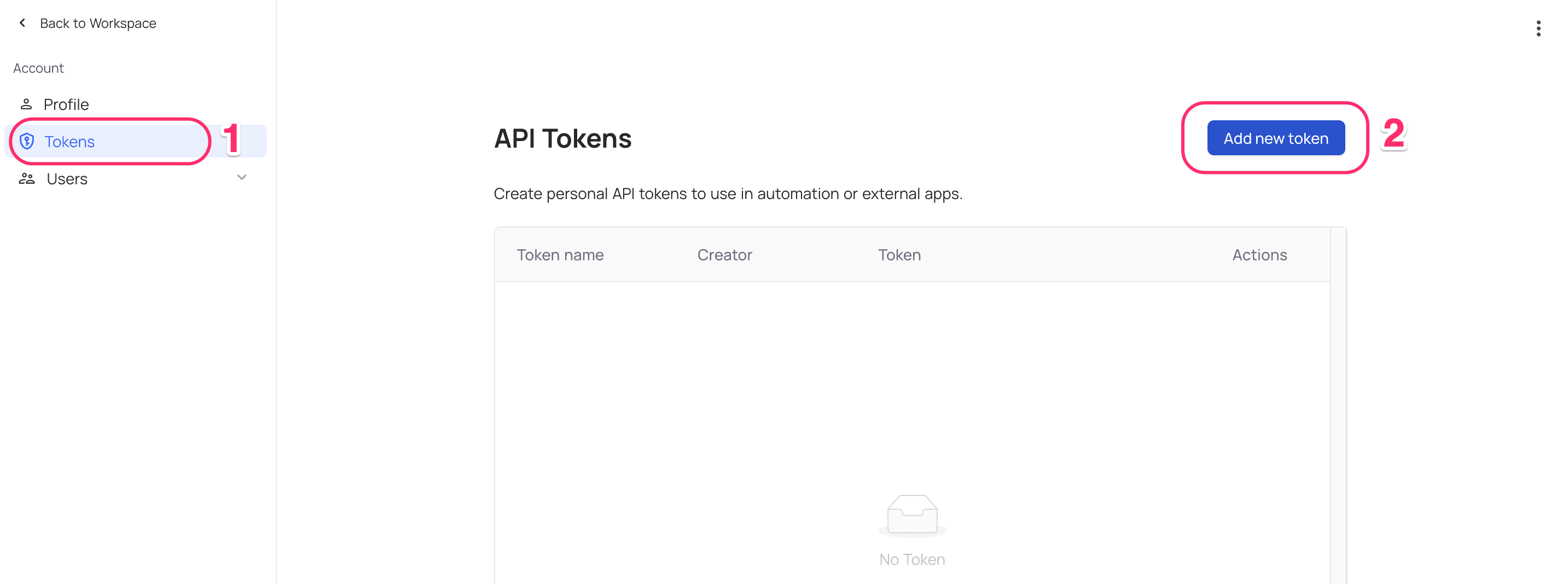
- Click on
Tokenstab in theAccount Settingspage - Click on
Add New API Token - Enter the name for the API Token
- Click on
Savebutton to save the changes - Copy the API Token by clicking on
Copybutton displayed underActionsmenu
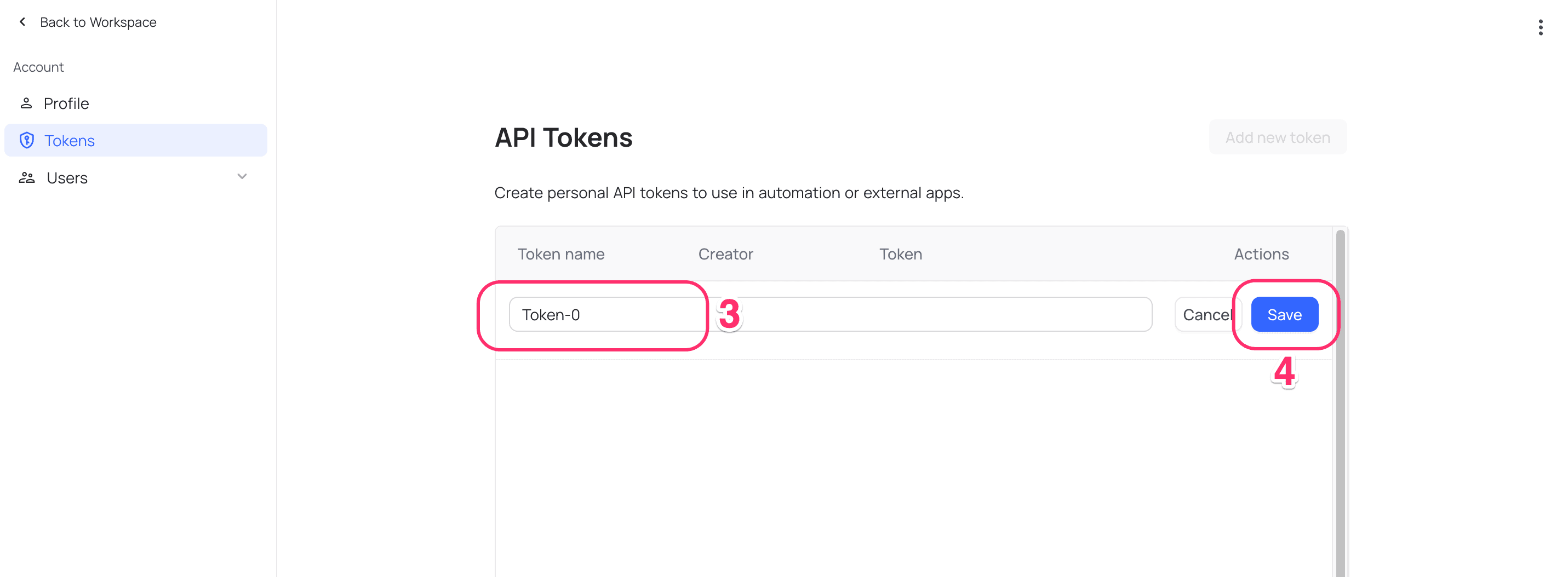
API Token created will get added to the list. Copy API token by clicking on Copy button displayed under Actions menu.
Delete a Token
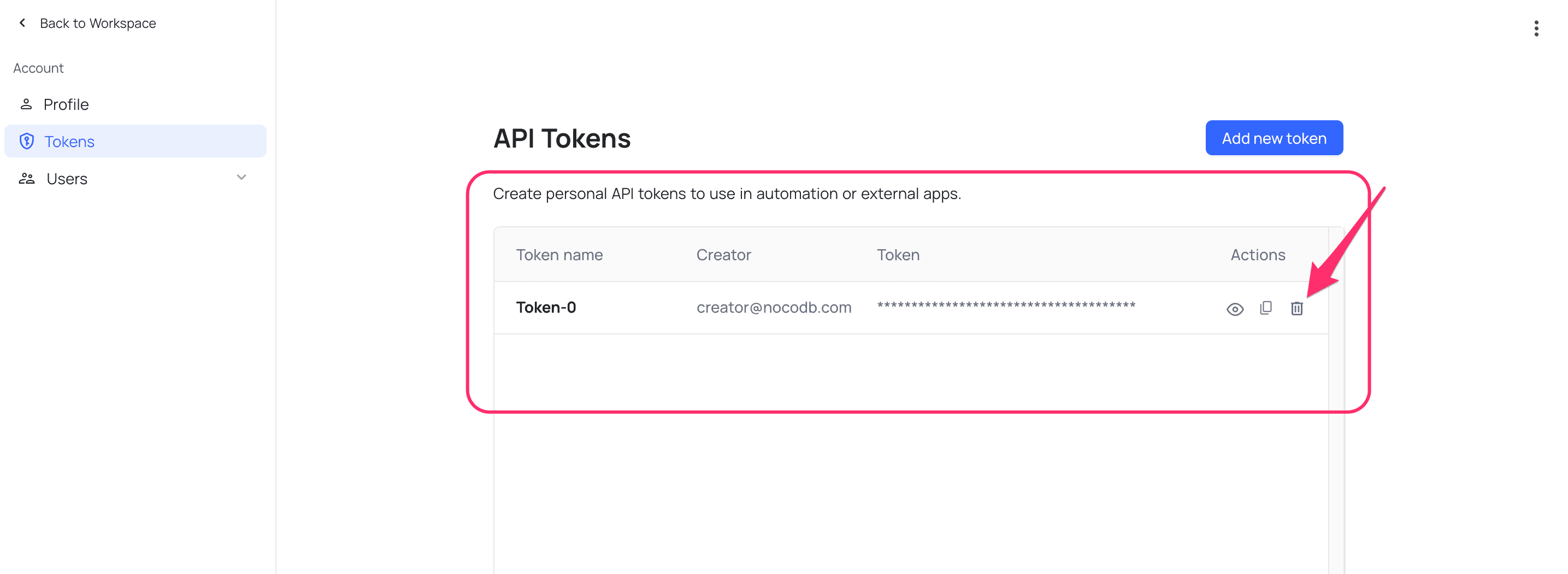
- Click on
User menuin the bottom left corner of the sidebar - Select
Account Settingsfrom the dropdown - Click on
Tokenstab in theAccount Settingspage - From the
Actionsmenu, click onDeletebutton associated with the API token to be deleted
Authentication
Both fine-grained and legacy tokens support two authentication methods:
Method 1: xc-token Header
curl -H "xc-token: nc_pat_..." https://your-nocodb.com/api/v3/...Method 2: Authorization Header
curl -H "Authorization: Bearer nc_pat_..." https://your-nocodb.com/api/v3/...Both methods are equivalent. Choose the one that best fits your application's authentication patterns.
Security Best Practices
- Set an expiration — Use the shortest expiry that meets your needs. 90 days is a good default.
- Use the least permissions necessary — A read-only dashboard only needs
Records: Read. - Scope to specific bases — Avoid "All resources" when the integration only needs access to one base.
- Rotate tokens regularly — Create a new token, update your integration, then delete the old one.
- Disable before deleting — If you suspect a token is compromised, disable it immediately via the Active toggle to investigate before deleting.
- Store tokens securely — Use environment variables or a secrets manager. Never hardcode tokens in source code.
- Audit your tokens — Periodically review your token list. Delete tokens that are no longer needed.
API Token Access with SSO-Enabled Workspaces
If a workspace is configured to enforce Single Sign-On (SSO), API access to that workspace is restricted to tokens that are created after authenticating via SSO.
To access an SSO-enforced workspace via API, users must:
- Sign in using SSO.
- Generate a new API token from their authenticated session.
For ease of identification, tokens created after SSO is enabled will have a badge indicating they were generated through SSO authentication.
What Happens When SSO is Disabled?
If SSO is later disabled for a workspace:
- API tokens that were created via SSO authentication will continue to work as long as the user is still active and has the required permissions.
- Tokens created prior to enabling SSO will continue to function & can now access the workspace without SSO authentication.
- No tokens are automatically revoked when SSO is disabled.