AI Writing Tools
Improve, summarize, translate, and refine document content with AI.
NocoDocs AI writing tools help you draft, refine, and transform text directly in the editor. Each tool can be triggered via the bubble menu or slash commands where applicable.
AI Assistant requires a Business plan or above on Cloud, or an Enterprise license for self-hosted deployments. An AI integration must be configured on the base.
Continue Writing
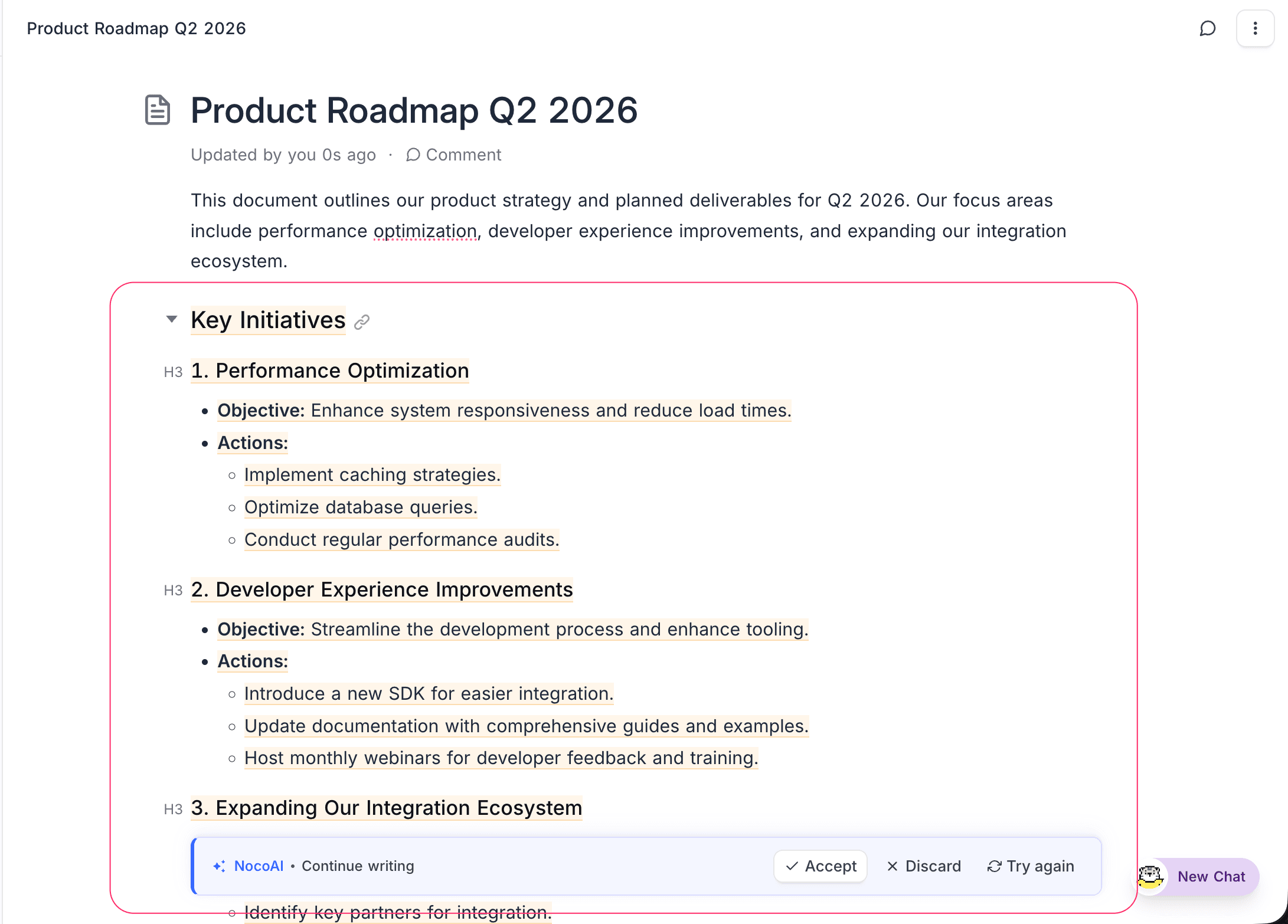
AI continues writing from the current cursor position, using the preceding content (up to ~2,000 characters) as context.
How to use:
- Slash command: Type
/Continue Writingin the editor. - Bubble menu: Select text, open the NocoAI menu, and choose Continue Writing.
The generated text appears inline in the document. Review it and choose Accept, Discard, or Try Again.
Improve Writing
Refine selected text using one of four improvement modes.
How to use:
- Select the text you want to improve.
- Open the NocoAI menu from the bubble menu.
- Choose one of the following:
| Option | What it does |
|---|---|
| Improve Writing | General improvement to clarity, flow, and readability |
| Fix Grammar | Corrects grammar, spelling, and punctuation |
| Make Shorter | Condenses the text while preserving meaning |
| Make Longer | Expands the text with additional detail |
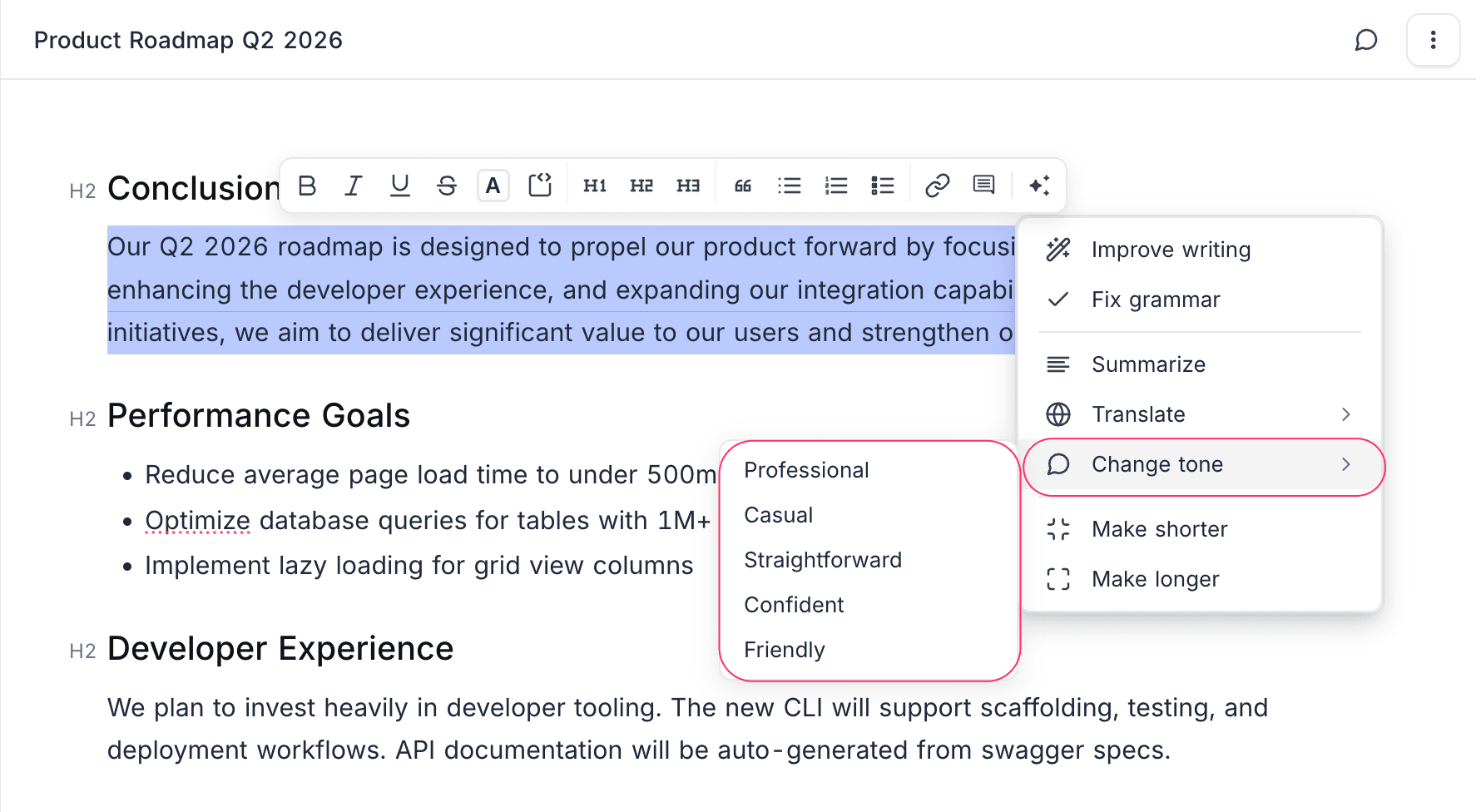
The improved text is shown in a popup. Review and choose Accept, Discard, Try Again, or Insert Below. Choosing Insert Below keeps the original text and inserts the AI-generated version below it.
Change Tone
Rewrite selected text in a different tone while preserving the original meaning.
How to use:
- Select the text you want to restyle.
- Open the NocoAI menu from the bubble menu.
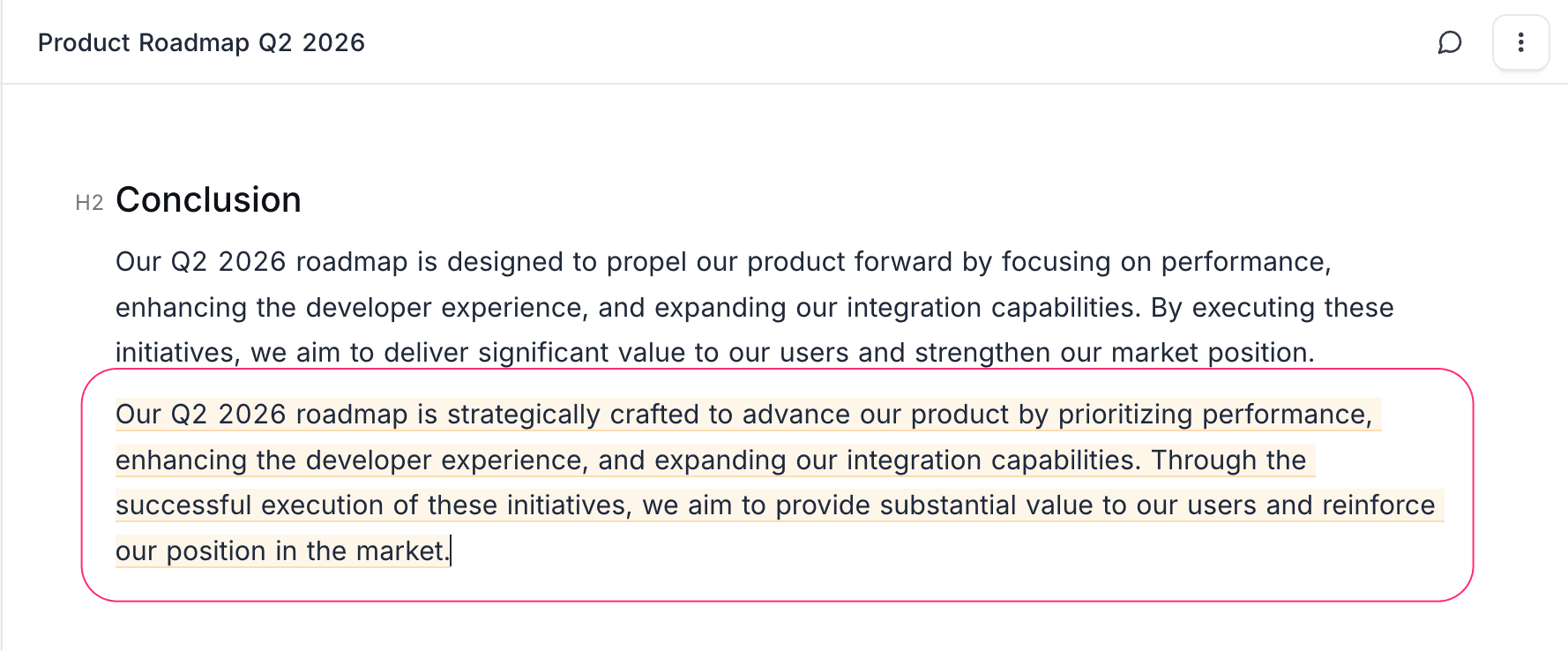
- Hover over Change Tone to reveal the submenu.
- Choose a tone:
| Tone | Description |
|---|---|
| Professional | Formal and polished |
| Casual | Relaxed and conversational |
| Straightforward | Direct and to the point |
| Confident | Assertive and assured |
| Friendly | Warm and approachable |
Summarize
Generate a concise summary of text content.
Two modes:
- Summarize Document — Summarizes the full document content (up to 10,000 characters). Available as a slash command (
/Summarize Document) and via the bubble menu. - Summarize Selection — Summarizes only the selected text. Available via the bubble menu.
The summary appears in a popup. Choose Accept, Discard, Try Again, or Insert Below.
Translate
Translate selected text into one of 17 supported languages.
How to use:
- Select the text you want to translate.
- Open the NocoAI menu from the bubble menu.
- Hover over Translate to reveal the language submenu.
- Choose the target language.
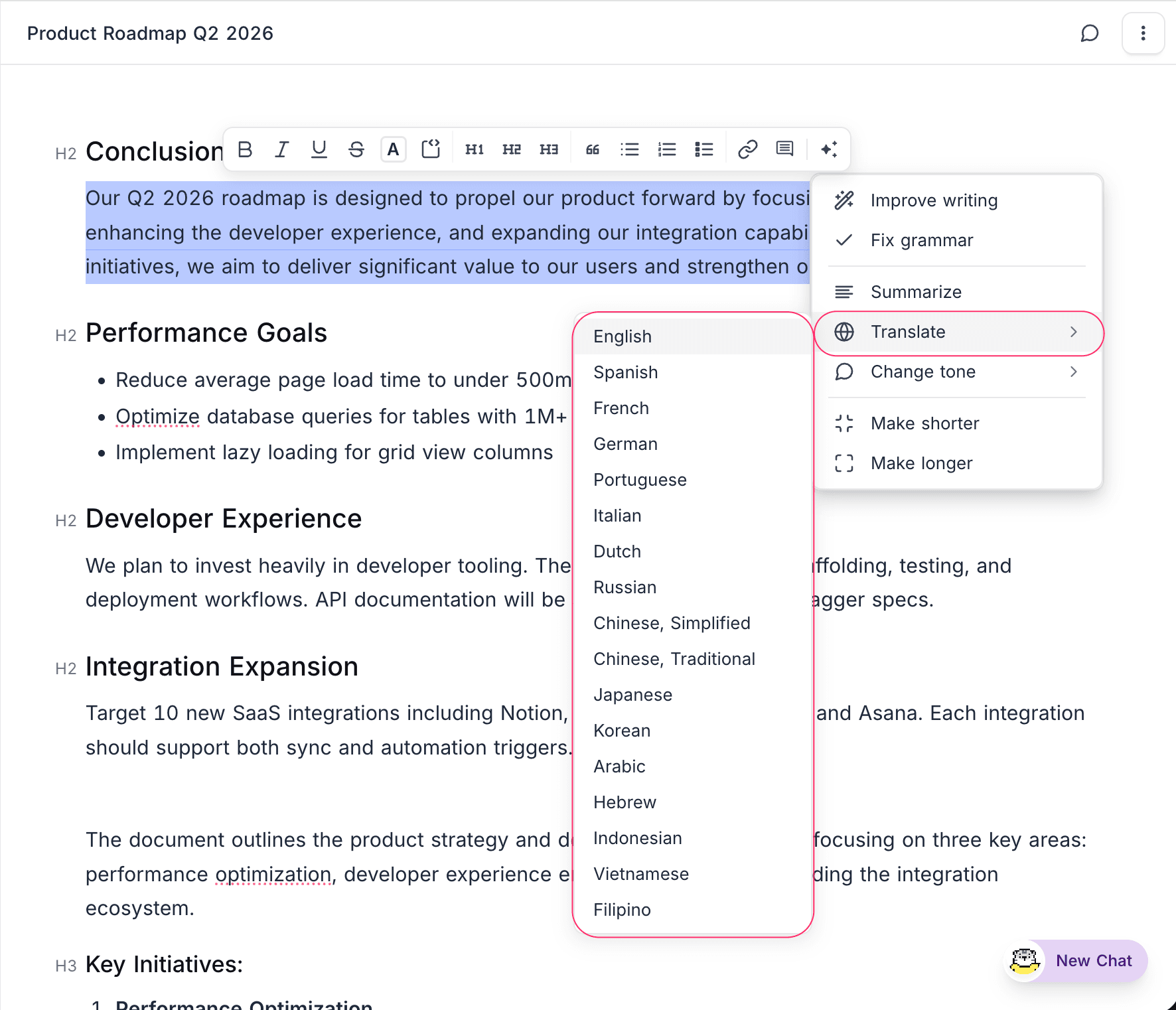
Supported languages:
| English | Spanish | French | German |
| Portuguese | Italian | Dutch | Russian |
| Chinese (Simplified) | Chinese (Traditional) | Japanese | Korean |
| Arabic | Hebrew | Indonesian | Vietnamese |
| Filipino |
The translated text replaces your selection inline. Review and choose Accept, Discard, or Try Again.