Tabs ☁
Organize document content into switchable tabbed panels in NocoDocs.
Tabs let you organize content into multiple switchable panels within a single block. Each tab can hold any type of content (text, lists, code blocks, images, tables, and more), making tabs ideal for grouping related information without cluttering your document.

Insert Tabs
- Type
/tabsin the editor. - Select Tabs from the slash command menu.
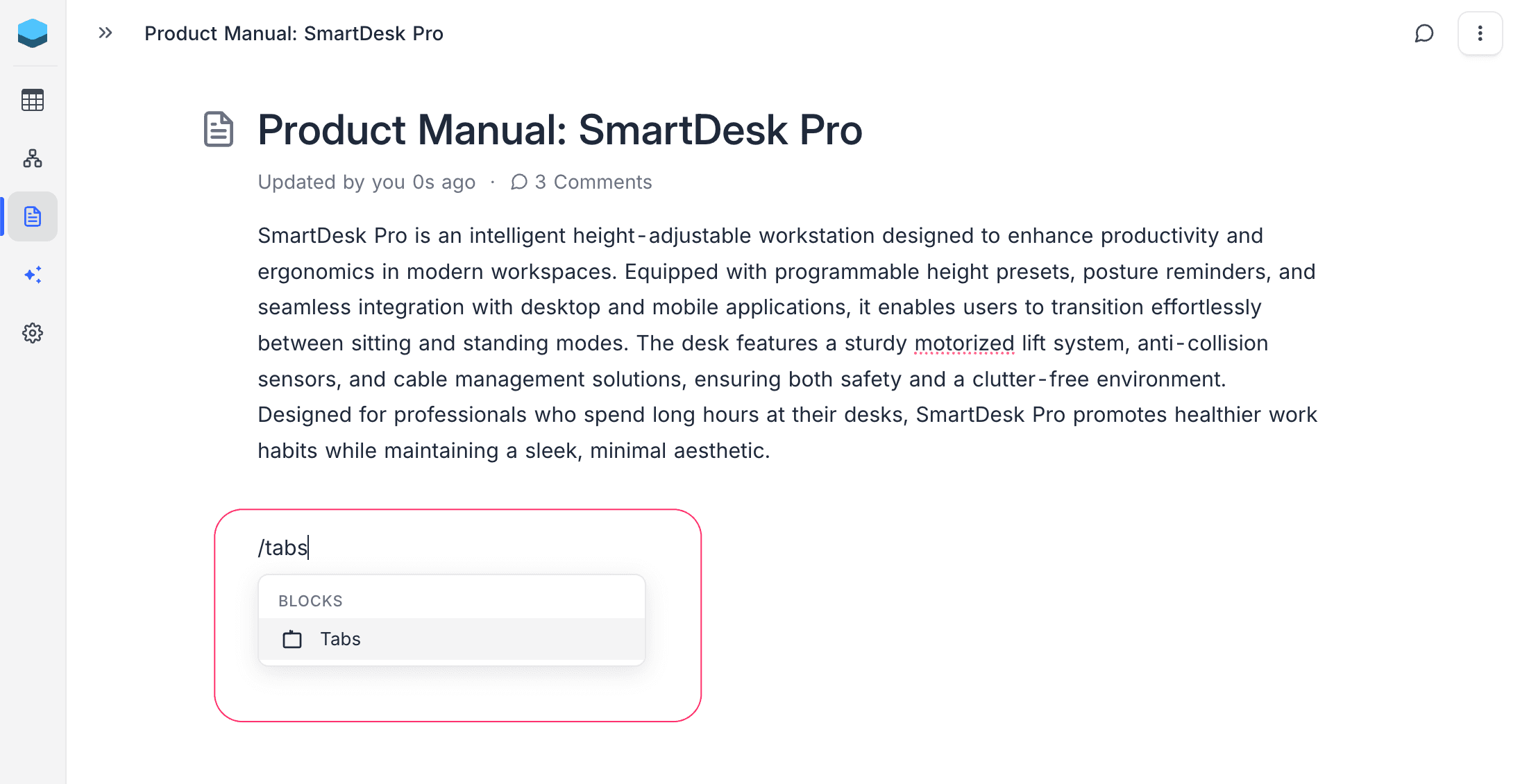
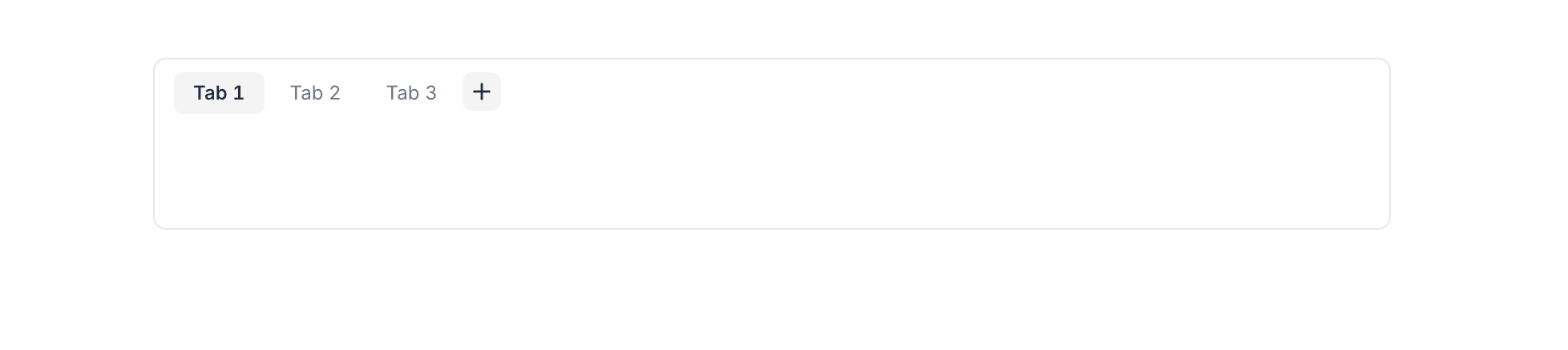
- A tabs block is inserted with three default tabs: Tab 1, Tab 2, and Tab 3.
Switch Between Tabs
Click on any tab button in the header bar to switch to that tab. Only the active tab's content is visible at a time.
Add a Tab
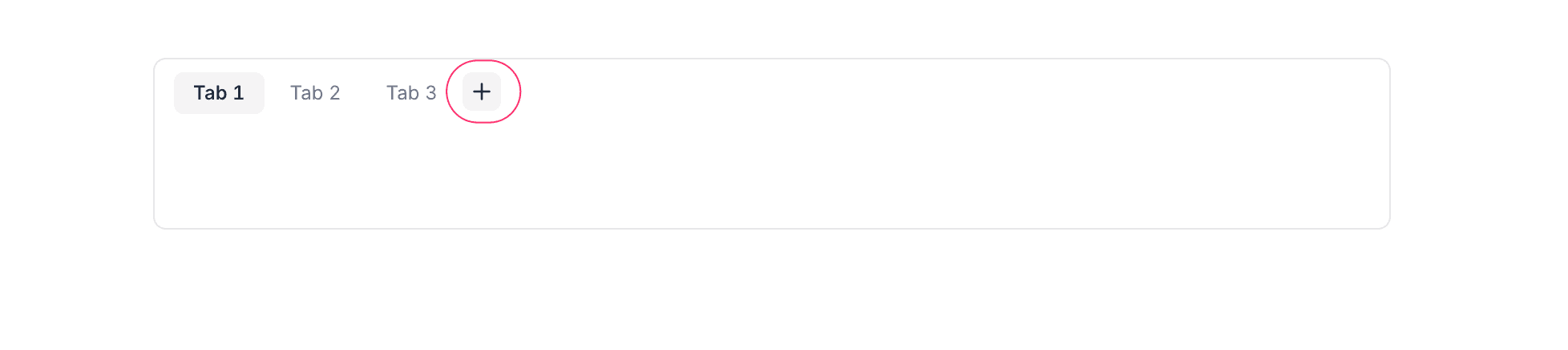
Hover over the tab header area to reveal the + button at the end of the tab bar. Click it to add a new tab.
Rename a Tab
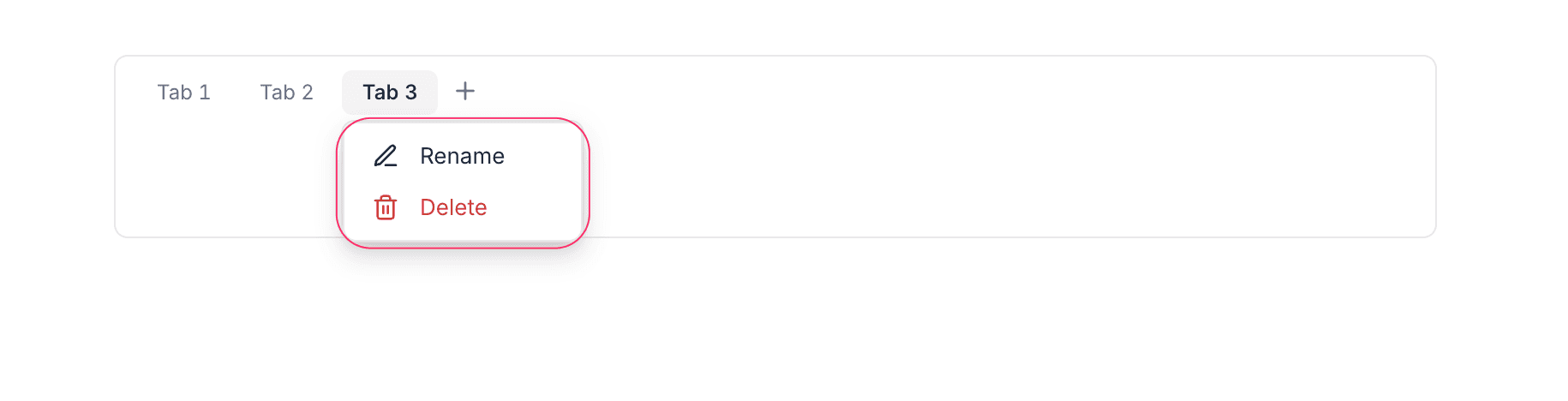
- Click on the active tab to open the dropdown menu.
- Select Rename.
- Type the new name (up to 50 characters).
- Press
Enterto confirm orEscapeto cancel.
Delete a Tab
- Click on the active tab to open the dropdown menu.
- Select Delete.
If the tab being deleted is the only tab in the block, the entire tabs block is removed.
Reorder Tabs
Drag and drop tab buttons to rearrange them. Click and hold a tab, then drag it to the desired position. A visual indicator shows where the tab will be placed.
Delete the Entire Tabs Block
Click on the empty area of the tab header (outside any tab button) to select the entire tabs block, then press Backspace or Delete to remove it.
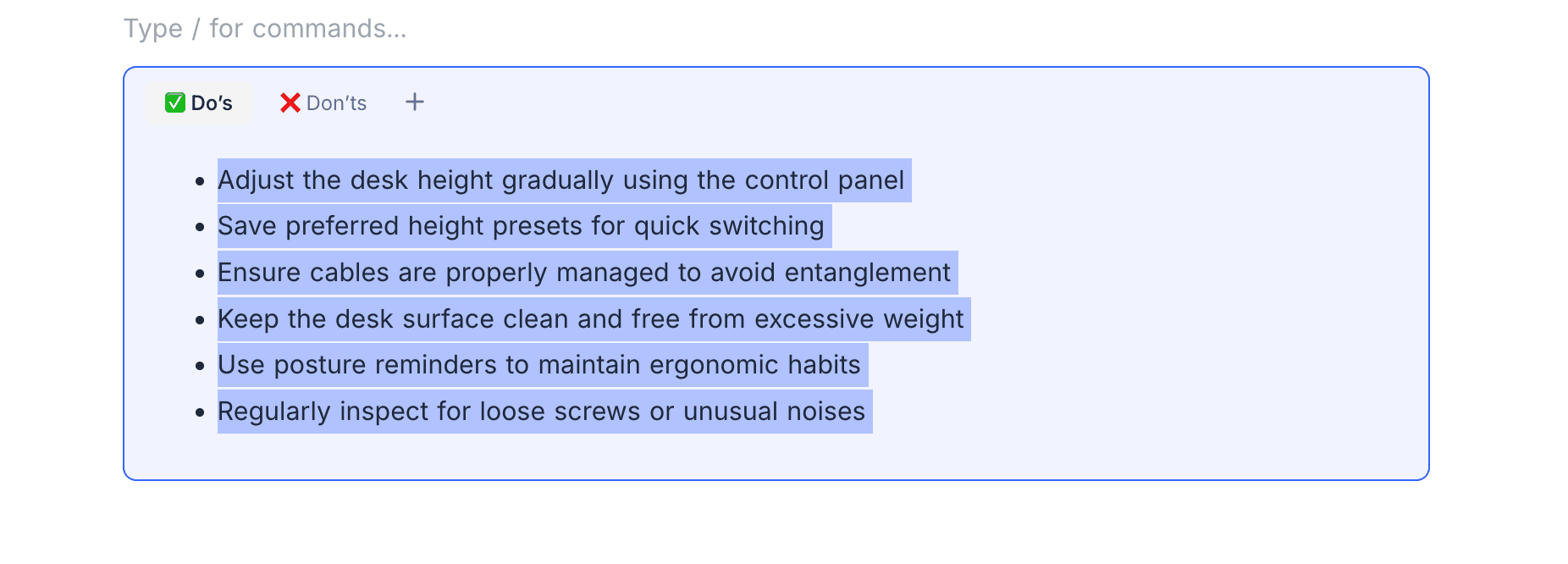
Adding Content to Tabs
Each tab acts as an independent editor area. You can add any block type inside a tab — headings, lists, images, code blocks, tables, embeds, and more. Use / slash commands within a tab just like anywhere else in the document.