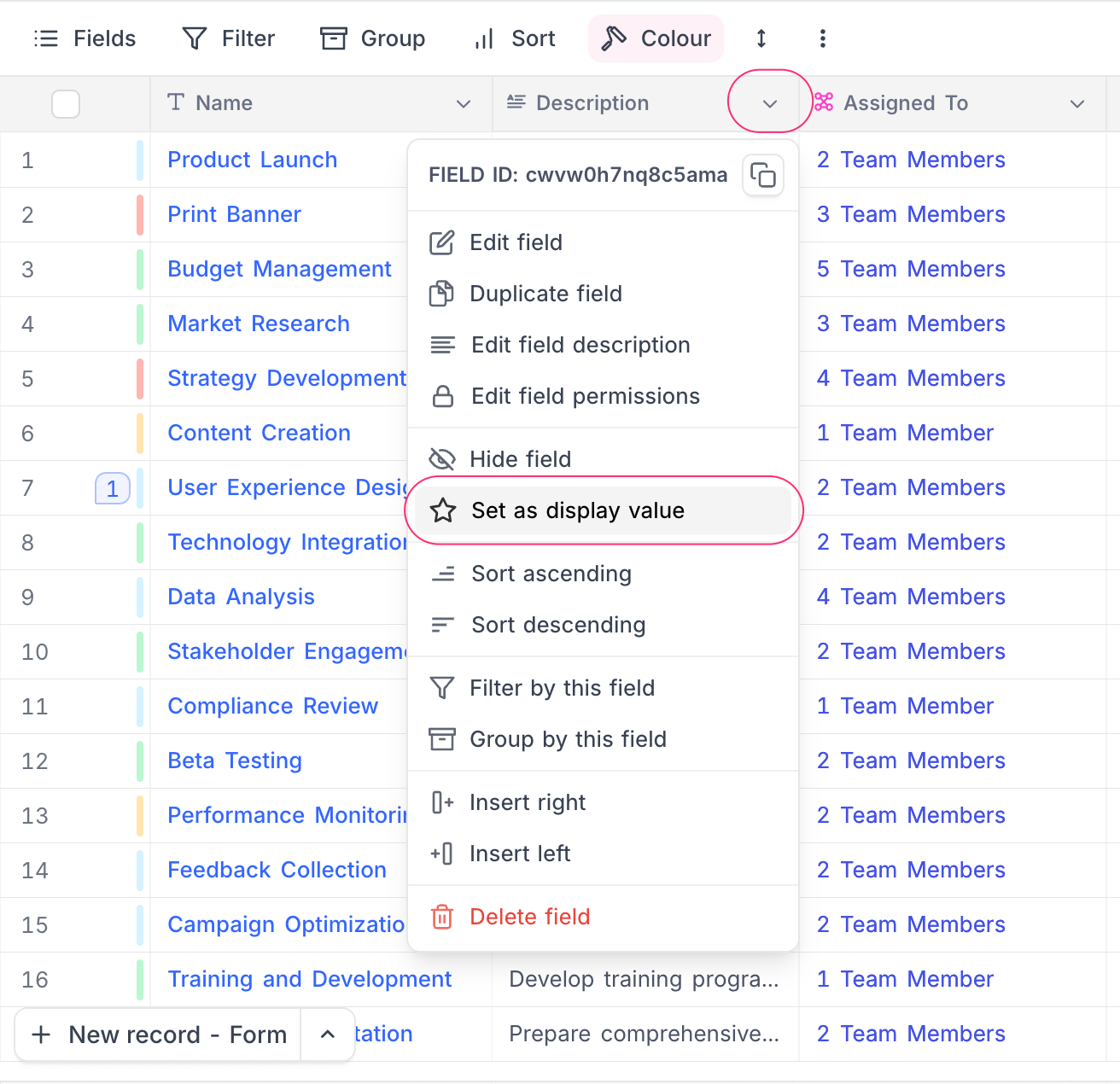
# Display Value
> Part of the NocoDB documentation (Product docs > Tables > Fields). Index of all pages: https://nocodb.com/llms.txt. Any docs page is available as Markdown by adding `.md` to its URL.
URL: https://nocodb.com/docs/product/tables/fields/display-value
Last updated: 2026-10-03
The display value is the field that identifies each record in a NocoDB table; learn what it does and how to set it.
The **Display Value** is the main visual identifier of a record in a table. It helps users to recognize records quickly in views and in linked tables. We recommend a field with unique values (like a primary key) as the display value. But the database does not enforce uniqueness.
***
Use [Name] as the display value of this table
Which field is the display value of this table, and should it be a different one?
Add a formula field that combines [First Name] and [Last Name] and make it the display value
## Use of Display Value
* In the spreadsheet view, the display value is highlighted. This helps you to identify the record that you work on.
* When you create **Links** between tables, the **Linked Records** modal shows the display value. This makes links between tables easier to read.
**Example: Display Value highlighted in the Actor table**
**Example: Display Value shown in a Links field.**
The value in the **Link Records** modal comes from the display value of the related table.
## Set Display Value
To set a field as the display value:
1. Click the dropdown icon (🔽) next to the field.
2. In the menu, select **Set as display value**.
## Supported field types
Only field types that show as a single, compact value can be the display value. Content with many lines and computed collections are not supported.
**Supported**
* Single Line Text
* Number, Decimal, Currency, Percent, Duration, Auto Number
* Date, DateTime, Time, Year
* Phone Number, Email, URL
* Formula
**Not supported**
* Long Text (including Rich Text and AI-generated text)
* Single Select, Multi Select, Checkbox, Rating
* Attachment, User, Barcode, QR Code, JSON, Geometry, Button
* Links, Lookup, Rollup
Long Text is blocked only as a *new* display value selection — a field already set as the display value continues to work. If you need long or computed content (such as a Lookup or Rollup value) as the label, wrap it in a **Formula** field and set that as the display value.
## FAQ
**How is the Display Value determined for existing database tables?**
For tables from connected external databases, NocoDB selects the display value automatically from the table structure. By default, it selects the first non-numeric field after the primary key. If there is no non-numeric field, it selects the next field after the primary key.
**Can I change the Display Value later?**
Yes. You can change the display value at any time. Use the context menu of the new field. [Learn more →](/docs/product/tables/fields/display-value#set-display-value)
---
## Related pages
- [Primary Key](https://nocodb.com/docs/product/tables/fields/primary-key.md): Learn what a primary key is and how NocoDB sets and uses the primary key of a table.
- [Multi-Field Editor](https://nocodb.com/docs/product/tables/fields/multi-fields-editor.md): Use the multi-field editor in NocoDB to add, edit, delete, reorder, and hide many fields of a table at one time.
- [Field Summary](https://nocodb.com/docs/product/tables/fields/field-summary-footer.md): The NocoDB field summary shows calculations such as sum, average, minimum and maximum for a field in the footer of a grid view.
- [Actions on Field](https://nocodb.com/docs/product/tables/fields/actions-on-field.md): Actions on a NocoDB field: rename it, change its type, default value and width, hide it, sort by it, duplicate, insert, delete and describe it.