# Extensions
> Part of the NocoDB documentation (Product docs). Index of all pages: https://nocodb.com/llms.txt. Any docs page is available as Markdown by adding `.md` to its URL.
URL: https://nocodb.com/docs/product/extensions
Last updated: 2026-10-03
An overview of the extensions available in NocoDB and how to add and manage them.
Extensions are modular components that add to and customize NocoDB. They work like plugins. Extensions add features that are not in the core platform. Use them to adapt NocoDB to your requirements and workflows.
This section gives an overview of the Extensions framework. It shows how to install, manage and use extensions in your NocoDB base.
* [Extension Marketplace](#extensions-marketplace)
* [Adding Extensions](#adding-extensions)
* [Managing Extensions](#managing-extensions)
Extensions are developed with JavaScript and Vue.js. This gives a flexible way to add new features to your NocoDB instance. Development of custom extensions will be available soon. You will then be able to change NocoDB for your specific needs and workflows.
To show or hide the Extensions side panel, click the `Extensions` button in the top-right corner of the NocoDB interface.
 ## Extensions Marketplace
The Extensions Marketplace is a central place where you can find and install extensions for NocoDB.
These extensions are available in the marketplace now:
* [Data Exporter](/docs/product/extensions/data-exporter)
* [Upload Data from CSV](/docs/product/extensions/upload-data-from-csv)
* [URL Preview](/docs/product/extensions/url-preview)
* [World Clock](/docs/product/extensions/world-clock)
* [Page Designer](/docs/product/extensions/page-designer)
* [Bulk Update](/docs/product/extensions/bulk-update)
You cannot develop custom extensions at this time.
## Adding Extensions
To add an extension to your NocoDB instance, open the Extensions side panel. Then do these steps:
1. In the Extensions side panel, click the `Add Extension` button.
2. Click the `Add` button. NocoDB adds the extension to your NocoDB instance.
To see more details about an extension, click its extension card.
* Installed extensions are specific to the base. Other bases in the workspace do not share them.
* You can add more than one instance of the same extension to a base.
## Extensions Marketplace
The Extensions Marketplace is a central place where you can find and install extensions for NocoDB.
These extensions are available in the marketplace now:
* [Data Exporter](/docs/product/extensions/data-exporter)
* [Upload Data from CSV](/docs/product/extensions/upload-data-from-csv)
* [URL Preview](/docs/product/extensions/url-preview)
* [World Clock](/docs/product/extensions/world-clock)
* [Page Designer](/docs/product/extensions/page-designer)
* [Bulk Update](/docs/product/extensions/bulk-update)
You cannot develop custom extensions at this time.
## Adding Extensions
To add an extension to your NocoDB instance, open the Extensions side panel. Then do these steps:
1. In the Extensions side panel, click the `Add Extension` button.
2. Click the `Add` button. NocoDB adds the extension to your NocoDB instance.
To see more details about an extension, click its extension card.
* Installed extensions are specific to the base. Other bases in the workspace do not share them.
* You can add more than one instance of the same extension to a base.

 ## Managing Extensions
After you install an extension, you can manage it with these options:
### 1. Adjust Visibility
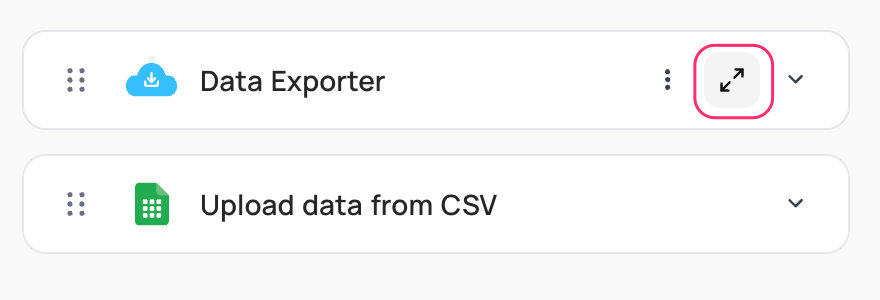
To see the extension in full screen mode, use the `expand` icon.
## Managing Extensions
After you install an extension, you can manage it with these options:
### 1. Adjust Visibility
To see the extension in full screen mode, use the `expand` icon.
 ### 2. Reorder Extensions
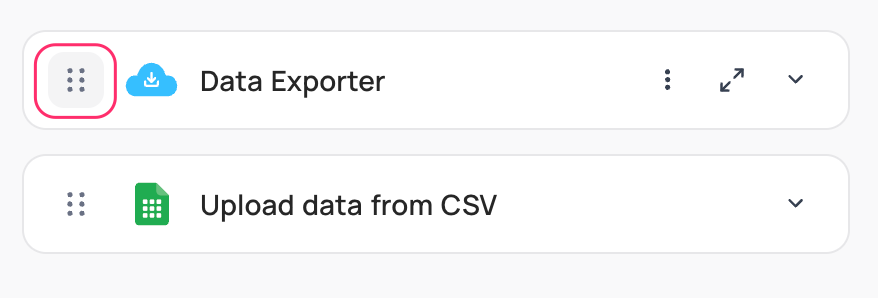
To change the order of the extensions in the side panel, use the `drag-drop` icon.
### 2. Reorder Extensions
To change the order of the extensions in the side panel, use the `drag-drop` icon.
 ### 3. Additional Actions
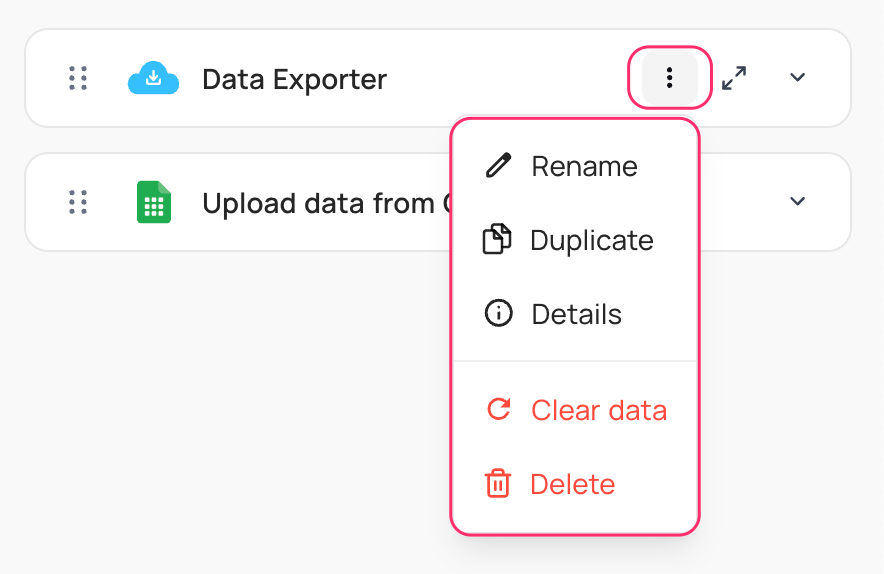
Use the `More` button to do these actions:
* Rename extension
* Duplicate extension
* Clear data
* Delete extension
### 3. Additional Actions
Use the `More` button to do these actions:
* Rename extension
* Duplicate extension
* Clear data
* Delete extension
 ## Availability
* Extensions are available on all **NocoDB Cloud** plans and on licensed self-hosted deployments (Business plan and above). The Free plan includes 1 extension. Paid plans have higher limits. Extensions are not available on the self-hosted Community Edition.
---
## Related pages
- [Data Exporter](https://nocodb.com/docs/product/extensions/data-exporter.md): The NocoDB Data Exporter extension exports data from your tables in different formats.
- [Upload Data from CSV](https://nocodb.com/docs/product/extensions/upload-data-from-csv.md): The NocoDB Upload Data from CSV extension imports data from CSV files into existing tables.
- [URL Preview](https://nocodb.com/docs/product/extensions/url-preview.md): The NocoDB URL Preview extension shows a preview of URL content in NocoDB.
- [World Clock](https://nocodb.com/docs/product/extensions/world-clock.md): The NocoDB World Clock extension shows clocks for different time zones in NocoDB.
- [Bulk Update](https://nocodb.com/docs/product/extensions/bulk-update.md): The NocoDB Bulk Update extension updates many records in a table at one time.
- [Page Designer](https://nocodb.com/docs/product/extensions/page-designer.md): The NocoDB Page Designer extension makes printable and shareable layouts from your database records.
- [Dedupe](https://nocodb.com/docs/product/extensions/dedupe.md): The NocoDB Dedupe extension finds and merges duplicate records in a table.
## Availability
* Extensions are available on all **NocoDB Cloud** plans and on licensed self-hosted deployments (Business plan and above). The Free plan includes 1 extension. Paid plans have higher limits. Extensions are not available on the self-hosted Community Edition.
---
## Related pages
- [Data Exporter](https://nocodb.com/docs/product/extensions/data-exporter.md): The NocoDB Data Exporter extension exports data from your tables in different formats.
- [Upload Data from CSV](https://nocodb.com/docs/product/extensions/upload-data-from-csv.md): The NocoDB Upload Data from CSV extension imports data from CSV files into existing tables.
- [URL Preview](https://nocodb.com/docs/product/extensions/url-preview.md): The NocoDB URL Preview extension shows a preview of URL content in NocoDB.
- [World Clock](https://nocodb.com/docs/product/extensions/world-clock.md): The NocoDB World Clock extension shows clocks for different time zones in NocoDB.
- [Bulk Update](https://nocodb.com/docs/product/extensions/bulk-update.md): The NocoDB Bulk Update extension updates many records in a table at one time.
- [Page Designer](https://nocodb.com/docs/product/extensions/page-designer.md): The NocoDB Page Designer extension makes printable and shareable layouts from your database records.
- [Dedupe](https://nocodb.com/docs/product/extensions/dedupe.md): The NocoDB Dedupe extension finds and merges duplicate records in a table.