# Number
> Part of the NocoDB documentation (Product docs > Dashboard > Widgets). Index of all pages: https://nocodb.com/llms.txt. Any docs page is available as Markdown by adding `.md` to its URL.
URL: https://nocodb.com/docs/product/dashboards/widgets/number
Last updated: 2026-10-03
Configure a number widget to show key metrics in a NocoDB dashboard.
This page gives the configuration options of the **Number** widget in NocoDB dashboards. This widget shows key performance indicators (KPIs) and metric summaries in a clear, short format.
Add a metric widget showing the total [Amount] this [quarter]
Add a metric widget showing the number of [open] [tickets]
Add metric widgets for [total, open and closed] [tasks] in one row
## Title & description
* **Title**: Enter a title for the number widget. The title shows at the top of the widget.
* **Description**: Optional. Add a description that gives context or details about the metric. The description shows below the title.
 ## Data source
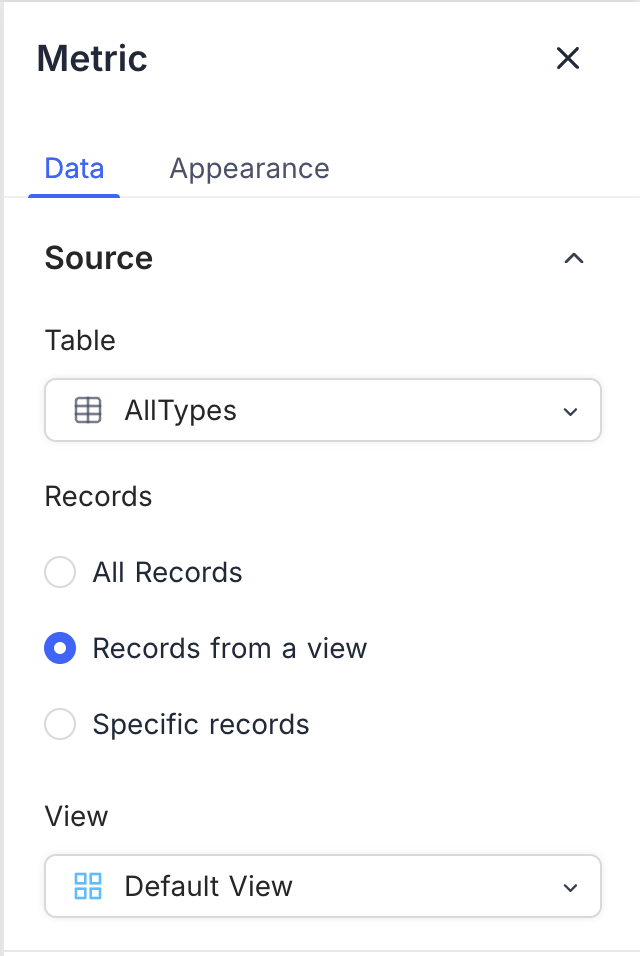
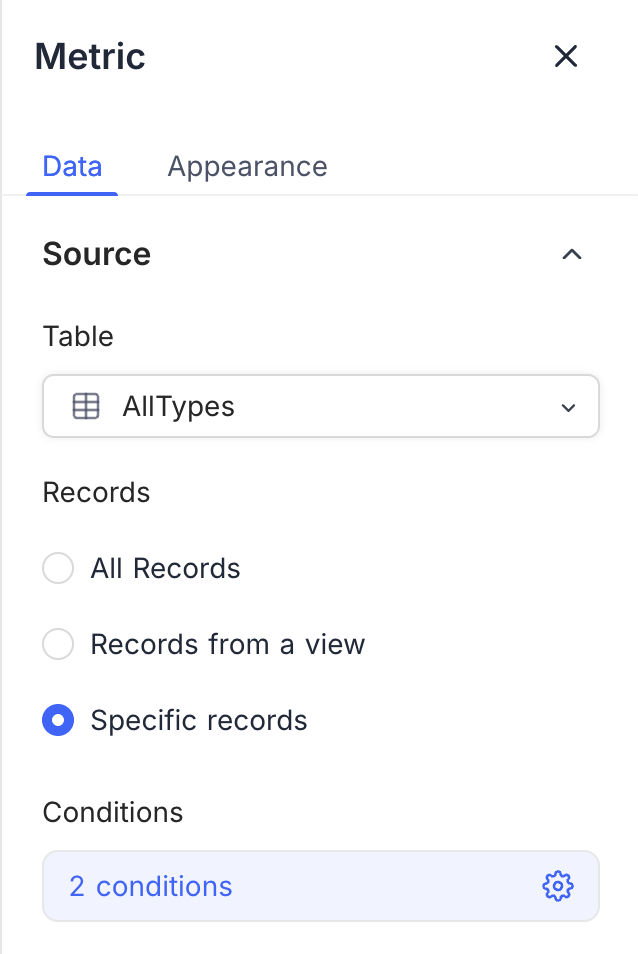
* **Table**: Select the table that supplies the data for the number widget. This table is the main source of records for the metric.
* **Record**: Select the records from the table to include in the metric calculation. The options are:
* **All Records**: Shows the total number of records in the selected table.
* **Records from a view**: Filters the records with a specific view, for a more focused metric. Select a view from the list.
* **Specific Records**: Uses filters to select specific records for the metric. Use it to show metrics for some criteria. You can add more than one filter to narrow the selection.
## Display
* **Record Count**: Shows the total number of records in the selected source.
* **Field Summary**: Shows the sum, average, minimum, maximum, or count of a specific field across the selected records. The options change with the field type.
## Data source
* **Table**: Select the table that supplies the data for the number widget. This table is the main source of records for the metric.
* **Record**: Select the records from the table to include in the metric calculation. The options are:
* **All Records**: Shows the total number of records in the selected table.
* **Records from a view**: Filters the records with a specific view, for a more focused metric. Select a view from the list.
* **Specific Records**: Uses filters to select specific records for the metric. Use it to show metrics for some criteria. You can add more than one filter to narrow the selection.
## Display
* **Record Count**: Shows the total number of records in the selected source.
* **Field Summary**: Shows the sum, average, minimum, maximum, or count of a specific field across the selected records. The options change with the field type.
 ## Appearance
**Number Format**: Select how the number shows:
* **Default**: Standard numeric format.
* **Filled**: Shows the number on a filled background.
* **Coloured Text**: Shows the number in color, so that it stands out.
## Appearance
**Number Format**: Select how the number shows:
* **Default**: Standard numeric format.
* **Filled**: Shows the number on a filled background.
* **Coloured Text**: Shows the number in color, so that it stands out.


 ---
## Related pages
- [Text](https://nocodb.com/docs/product/dashboards/widgets/text.md): Configure a text widget to add static text to a NocoDB dashboard.
- [Bar Chart](https://nocodb.com/docs/product/dashboards/widgets/bar-chart.md): Configure a bar chart widget in a NocoDB dashboard to compare values across categories.
- [Line Chart](https://nocodb.com/docs/product/dashboards/widgets/line-chart.md): Configure a line chart widget in a NocoDB dashboard to show trends and comparisons over time or across categories.
- [Pie Chart](https://nocodb.com/docs/product/dashboards/widgets/pie-chart.md): Configure a pie chart widget in a NocoDB dashboard to show how data is distributed.
- [Donut Chart](https://nocodb.com/docs/product/dashboards/widgets/donut-chart.md): Configure a donut chart widget in a NocoDB dashboard to show how data is distributed.
- [iFrame](https://nocodb.com/docs/product/dashboards/widgets/iframe.md): Use the iFrame widget to embed external web content securely in a NocoDB dashboard.
---
## Related pages
- [Text](https://nocodb.com/docs/product/dashboards/widgets/text.md): Configure a text widget to add static text to a NocoDB dashboard.
- [Bar Chart](https://nocodb.com/docs/product/dashboards/widgets/bar-chart.md): Configure a bar chart widget in a NocoDB dashboard to compare values across categories.
- [Line Chart](https://nocodb.com/docs/product/dashboards/widgets/line-chart.md): Configure a line chart widget in a NocoDB dashboard to show trends and comparisons over time or across categories.
- [Pie Chart](https://nocodb.com/docs/product/dashboards/widgets/pie-chart.md): Configure a pie chart widget in a NocoDB dashboard to show how data is distributed.
- [Donut Chart](https://nocodb.com/docs/product/dashboards/widgets/donut-chart.md): Configure a donut chart widget in a NocoDB dashboard to show how data is distributed.
- [iFrame](https://nocodb.com/docs/product/dashboards/widgets/iframe.md): Use the iFrame widget to embed external web content securely in a NocoDB dashboard.