# Widgets
> Part of the NocoDB documentation (Product docs > Dashboard). Index of all pages: https://nocodb.com/llms.txt. Any docs page is available as Markdown by adding `.md` to its URL.
URL: https://nocodb.com/docs/product/dashboards/widgets
Last updated: 2026-10-03
Add and configure widgets to visualize data in a NocoDB dashboard.
The dashboard editor has a flexible canvas for widgets. Drag and drop widgets to put them where you want.
NocoDB dashboards have these widget types:
| Widget Type | Description |
| --------------------------------------------------------------- | -------------------------------------- |
| **[Number](/docs/product/dashboards/widgets/number)** | Displays KPIs and metric summaries |
| **[Bar Chart](/docs/product/dashboards/widgets/bar-chart)** | Compares values across categories |
| **[Line Chart](/docs/product/dashboards/widgets/line-chart)** | Shows trends over time |
| **[Pie Chart](/docs/product/dashboards/widgets/pie-chart)** | Visualizes parts of a whole |
| **[Donut Chart](/docs/product/dashboards/widgets/donut-chart)** | Pie chart variant with a hollow center |
| **[Text](/docs/product/dashboards/widgets/text)** | Displays static information |
| **[iFrame](/docs/product/dashboards/widgets/iframe)** | Embeds external web content |
Add a metric widget showing the number of records in [table]
Add a chart of [records by Status] to this dashboard
Rearrange this dashboard so the metrics are at the top
Remove the [widget name] widget
### Adding Widgets
1. Click Edit Dashboard. The dashboard editor opens.
2. Use the widget toolbar at the top to add a widget. Click the widget type in the toolbar, or drag it onto the dashboard canvas.
 ### Configuring Widgets
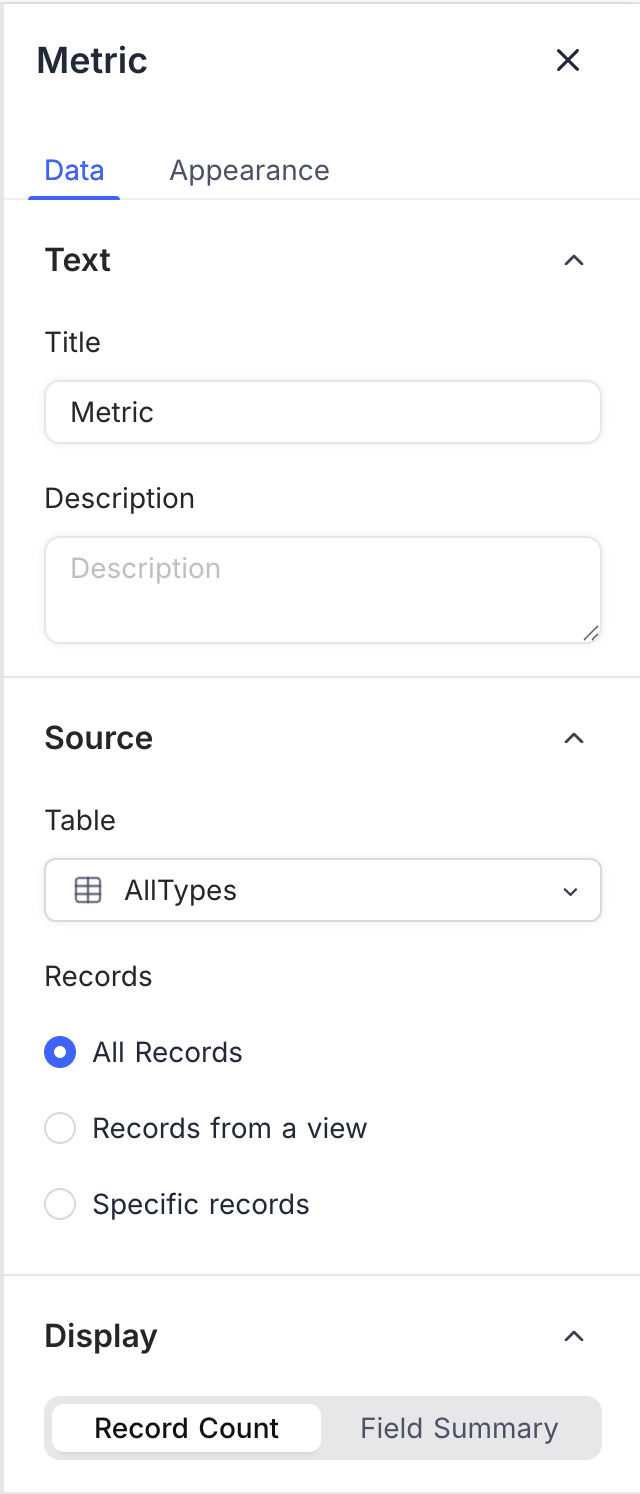
After you add a widget, configure its properties in the right panel. Each widget type has its own options, for example:
* **Data Source**: Select the table and records to visualize.
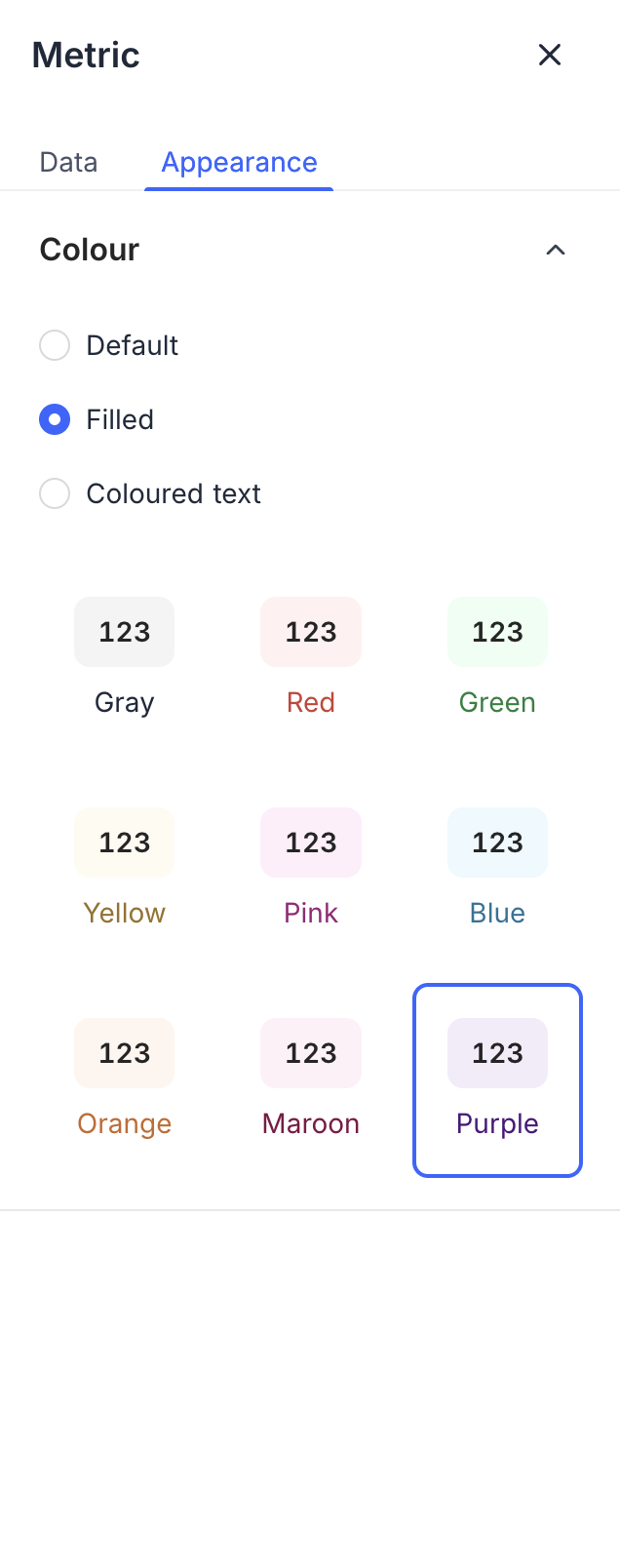
* **Display Options**: Customize labels, colors, and formatting.
For all options of a widget, refer to the page for that widget type.
### Arranging Widgets
Drag and drop widgets to change their position on the dashboard canvas. NocoDB uses a flexible grid layout, so you can put widgets where you want.
### Configuring Widgets
After you add a widget, configure its properties in the right panel. Each widget type has its own options, for example:
* **Data Source**: Select the table and records to visualize.
* **Display Options**: Customize labels, colors, and formatting.
For all options of a widget, refer to the page for that widget type.
### Arranging Widgets
Drag and drop widgets to change their position on the dashboard canvas. NocoDB uses a flexible grid layout, so you can put widgets where you want.
 ### Resizing Widgets
1. Hover over the right corner of the widget. The resize cursor shows.
2. Click and drag to change the widget size.
Some widget types have size limits. You can resize some widgets only horizontally.
### Deleting Widgets
1. In the widget header, click the 3-dot menu.
2. Select **Delete widget**.
### Resizing Widgets
1. Hover over the right corner of the widget. The resize cursor shows.
2. Click and drag to change the widget size.
Some widget types have size limits. You can resize some widgets only horizontally.
### Deleting Widgets
1. In the widget header, click the 3-dot menu.
2. Select **Delete widget**.
 ### Duplicating Widgets
1. In the widget header, click the 3-dot menu.
2. Select **Duplicate widget**. NocoDB creates a copy of the widget.
Use a copy to make similar widgets with small differences.
### Duplicating Widgets
1. In the widget header, click the 3-dot menu.
2. Select **Duplicate widget**. NocoDB creates a copy of the widget.
Use a copy to make similar widgets with small differences.
 ---
## Related pages
- [Number](https://nocodb.com/docs/product/dashboards/widgets/number.md): Configure a number widget to show key metrics in a NocoDB dashboard.
- [Text](https://nocodb.com/docs/product/dashboards/widgets/text.md): Configure a text widget to add static text to a NocoDB dashboard.
- [Bar Chart](https://nocodb.com/docs/product/dashboards/widgets/bar-chart.md): Configure a bar chart widget in a NocoDB dashboard to compare values across categories.
- [Line Chart](https://nocodb.com/docs/product/dashboards/widgets/line-chart.md): Configure a line chart widget in a NocoDB dashboard to show trends and comparisons over time or across categories.
- [Pie Chart](https://nocodb.com/docs/product/dashboards/widgets/pie-chart.md): Configure a pie chart widget in a NocoDB dashboard to show how data is distributed.
- [Donut Chart](https://nocodb.com/docs/product/dashboards/widgets/donut-chart.md): Configure a donut chart widget in a NocoDB dashboard to show how data is distributed.
- [iFrame](https://nocodb.com/docs/product/dashboards/widgets/iframe.md): Use the iFrame widget to embed external web content securely in a NocoDB dashboard.
---
## Related pages
- [Number](https://nocodb.com/docs/product/dashboards/widgets/number.md): Configure a number widget to show key metrics in a NocoDB dashboard.
- [Text](https://nocodb.com/docs/product/dashboards/widgets/text.md): Configure a text widget to add static text to a NocoDB dashboard.
- [Bar Chart](https://nocodb.com/docs/product/dashboards/widgets/bar-chart.md): Configure a bar chart widget in a NocoDB dashboard to compare values across categories.
- [Line Chart](https://nocodb.com/docs/product/dashboards/widgets/line-chart.md): Configure a line chart widget in a NocoDB dashboard to show trends and comparisons over time or across categories.
- [Pie Chart](https://nocodb.com/docs/product/dashboards/widgets/pie-chart.md): Configure a pie chart widget in a NocoDB dashboard to show how data is distributed.
- [Donut Chart](https://nocodb.com/docs/product/dashboards/widgets/donut-chart.md): Configure a donut chart widget in a NocoDB dashboard to show how data is distributed.
- [iFrame](https://nocodb.com/docs/product/dashboards/widgets/iframe.md): Use the iFrame widget to embed external web content securely in a NocoDB dashboard.